 Manatan
Getting Started With Manatan: Your First Session
Start your first Manatan session: install the app, set up a dictionary, choose something you enjoy, and try word lookup and an optional SRS review.
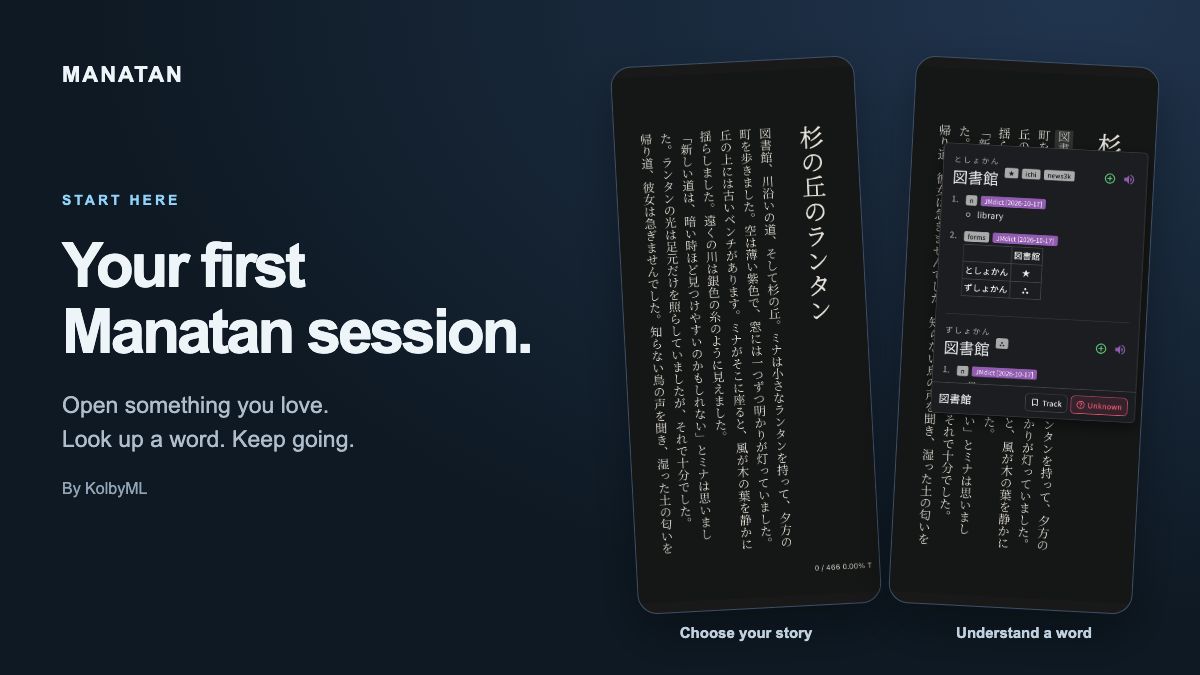
Your first session does not need a perfect library or a large flashcard deck. Start with one thing you want to watch, read, or listen to.
The goal is simple: open it, understand something new, and keep going. Use this overview as your starting point, then follow the detailed guide for the part you need.
1. Install Manatan for your device
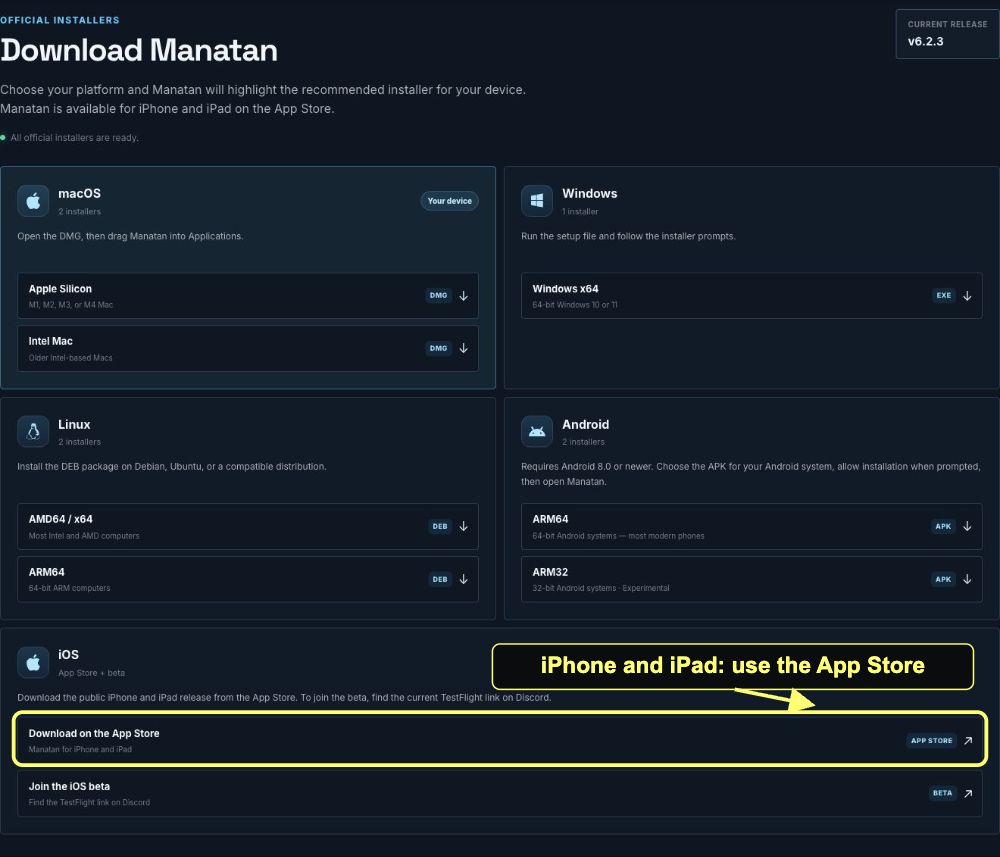
Open the official download page and choose your platform. Follow the installation notes beside its download button.
On iPhone or iPad, choose Download on the App Store for the public release. The beta is optional. The remaining app screenshots below use an iPhone; your layout may differ on another platform.
2. Set up dictionary lookup
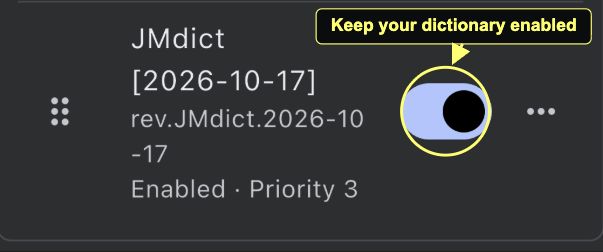
For word lookup, import a compatible dictionary and leave it enabled. These examples use JMdict for Japanese definitions in English.
Follow How to Import a Dictionary into Manatan for the download, ZIP import, and popup settings. You only need to do this setup once, not every time you open a book.
If you just want to listen to a podcast, you can skip dictionary setup for now and use the podcast guide below.
3. Open something and look up one word
Choose one path for this session. You do not need to set up every reader at once.
- Manga: Read manga without typing unknown kanji. Open a page and use OCR to look up text in the artwork.
- Video: Follow the anime subtitle workflow. Load matching subtitles, replay a line, and look up a word.
- EPUB: Read a Japanese EPUB with a popup dictionary. Import your book and look up words directly on the page.
- Podcasts: Start listening to Japanese podcasts. Find a show, add it to your library, and play an episode.
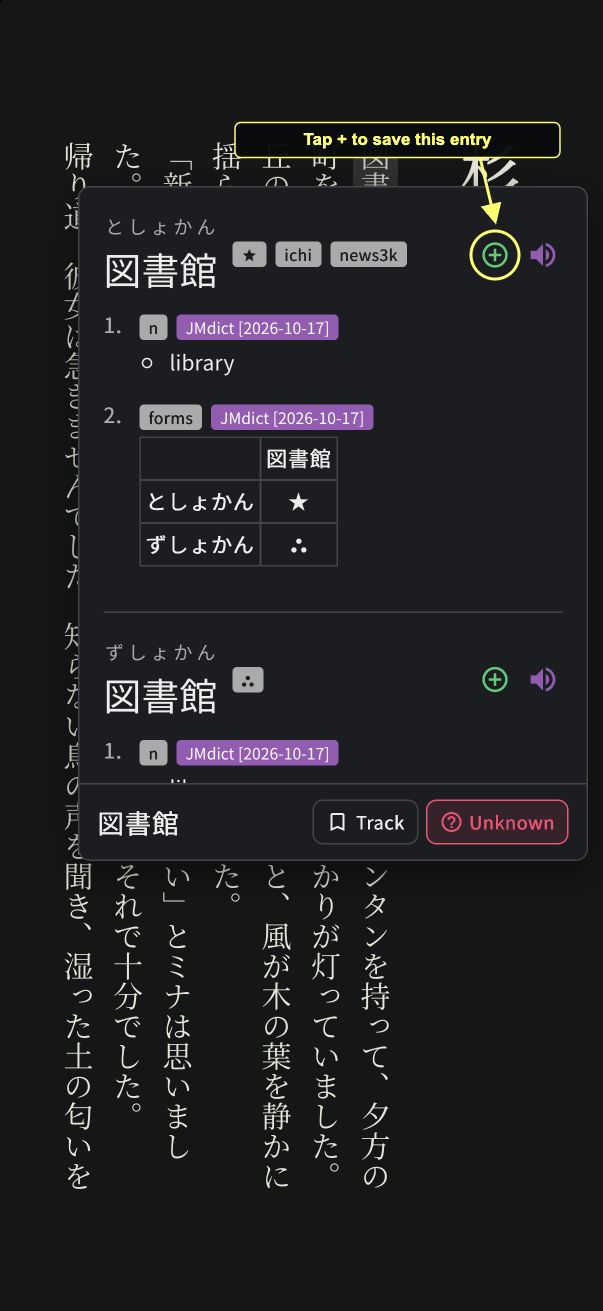
For this example, we opened 杉の丘のランタン, an original Manatan story, as an EPUB. Tap 図, the first character of 図書館, at the marked location. The popup is not open yet in this screenshot.
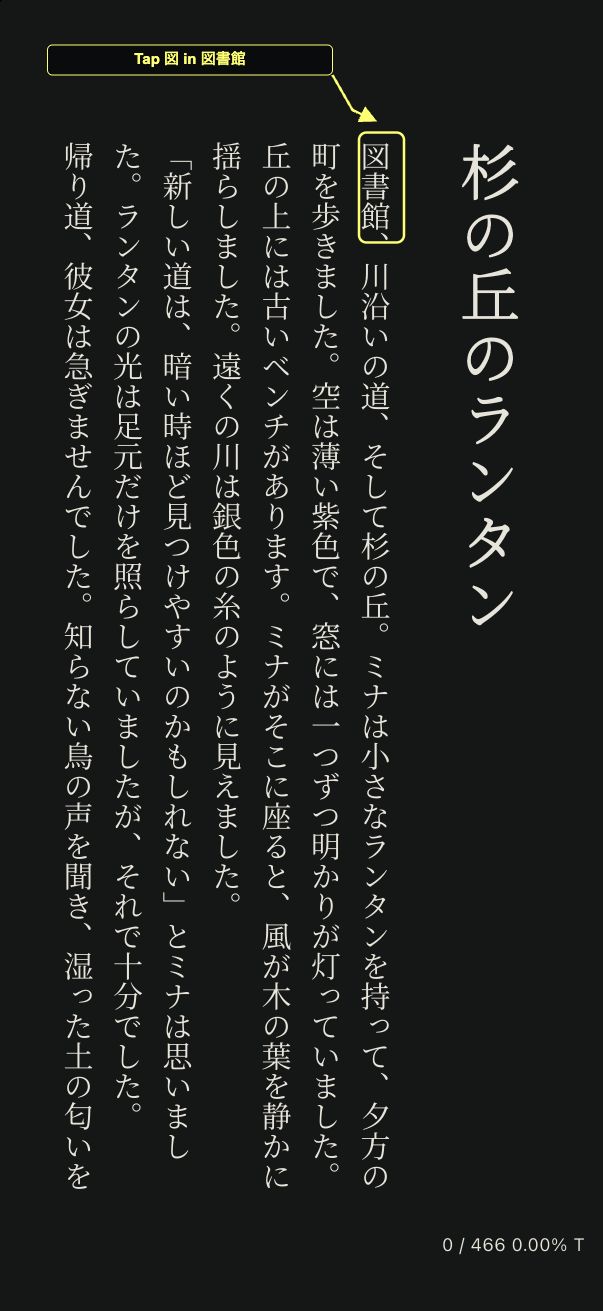
JMdict shows the reading としょかん and the meaning library. Read the meaning against the sentence, then tap outside the popup to get back to the book.
You do not have to look up every unfamiliar word. Start with one that helps you follow what is happening.
4. Save one useful word and try a review
This part is optional. If you want to review the word later, follow How to Save Words and Review Them With Manatan SRS to enable flashcards, select Manatan SRS, and choose your target deck. Keep Manatan-NoteType as the card type.
Then tap the green plus beside the dictionary entry, circled in the screenshot above. It changes to a gold book when the card is saved. The Track button is a separate action.
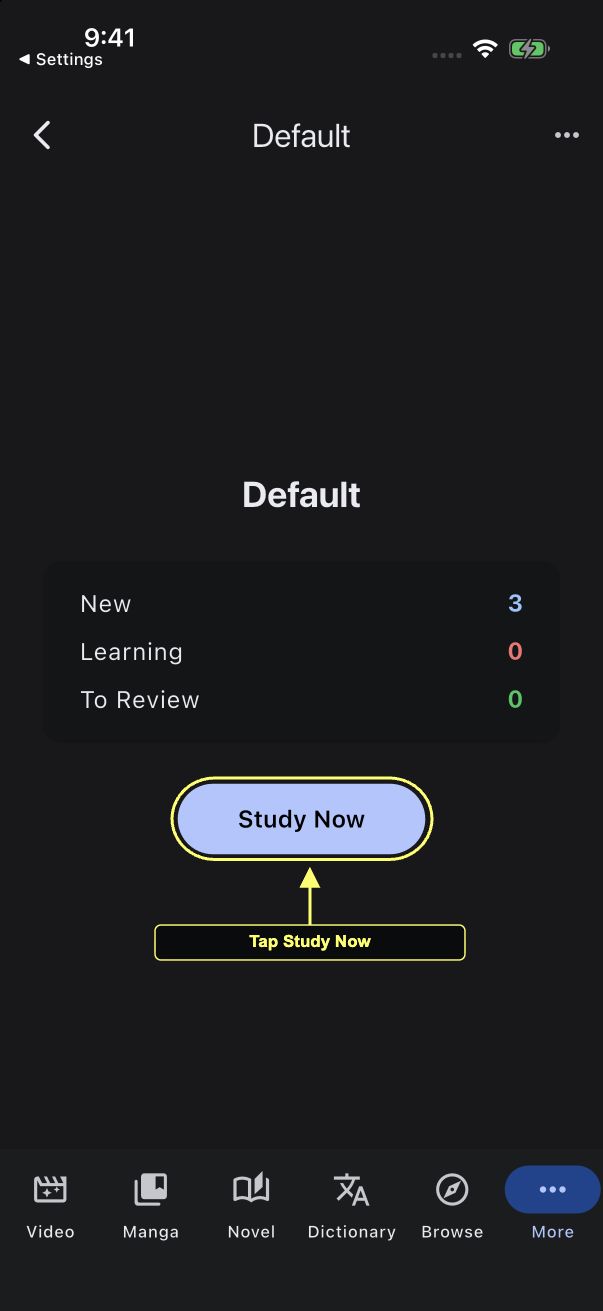
Open More > Manatan SRS > Decks, select your target deck, and tap Study Now. The SRS guide walks through revealing and grading your first card.
That is enough for your first session
Return to your book, video, or podcast. A few minutes with something you enjoy and one useful word is a better starting point than spending the whole session configuring tools.
Next time, continue the same story and review any cards that are due. Add more features when you have a reason to use them.