 Manatan
How to Import a Dictionary into Manatan
Import a compatible dictionary ZIP, enable lookup for your readers, and test your first word. Follow the real JMdict setup with screenshots at every step.
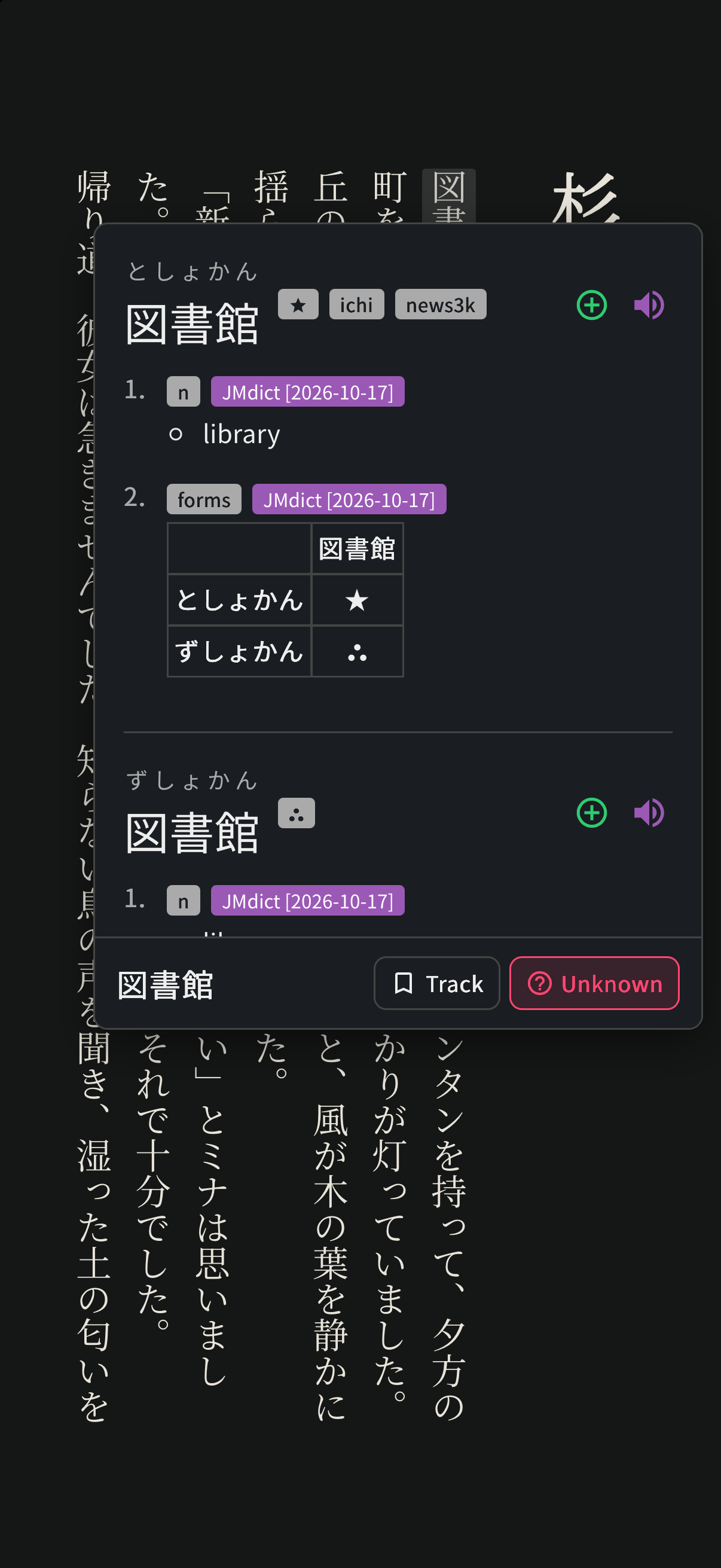
A dictionary import has two parts: installing the dictionary and enabling lookup where you want to use it. If you can open a book but tapping a word does nothing, check both.
This guide takes you from a dictionary ZIP file to your first working lookup. The screenshots follow the iOS app, using a real JMdict import and a Japanese book. Menus and file pickers can look different on other platforms.
1. Get a compatible dictionary ZIP
Start with a definition dictionary for the language you are learning. For the Japanese-to-English example here, we use JMdict in Yomitan format.
Open the JMdict for Yomitan download page and select JMdict_english.zip. The project also offers a version with example sentences and versions with definitions in other languages. Its maintainers recommend Jitendex as another option; this walkthrough uses JMdict so you can follow the same file and labels shown below.
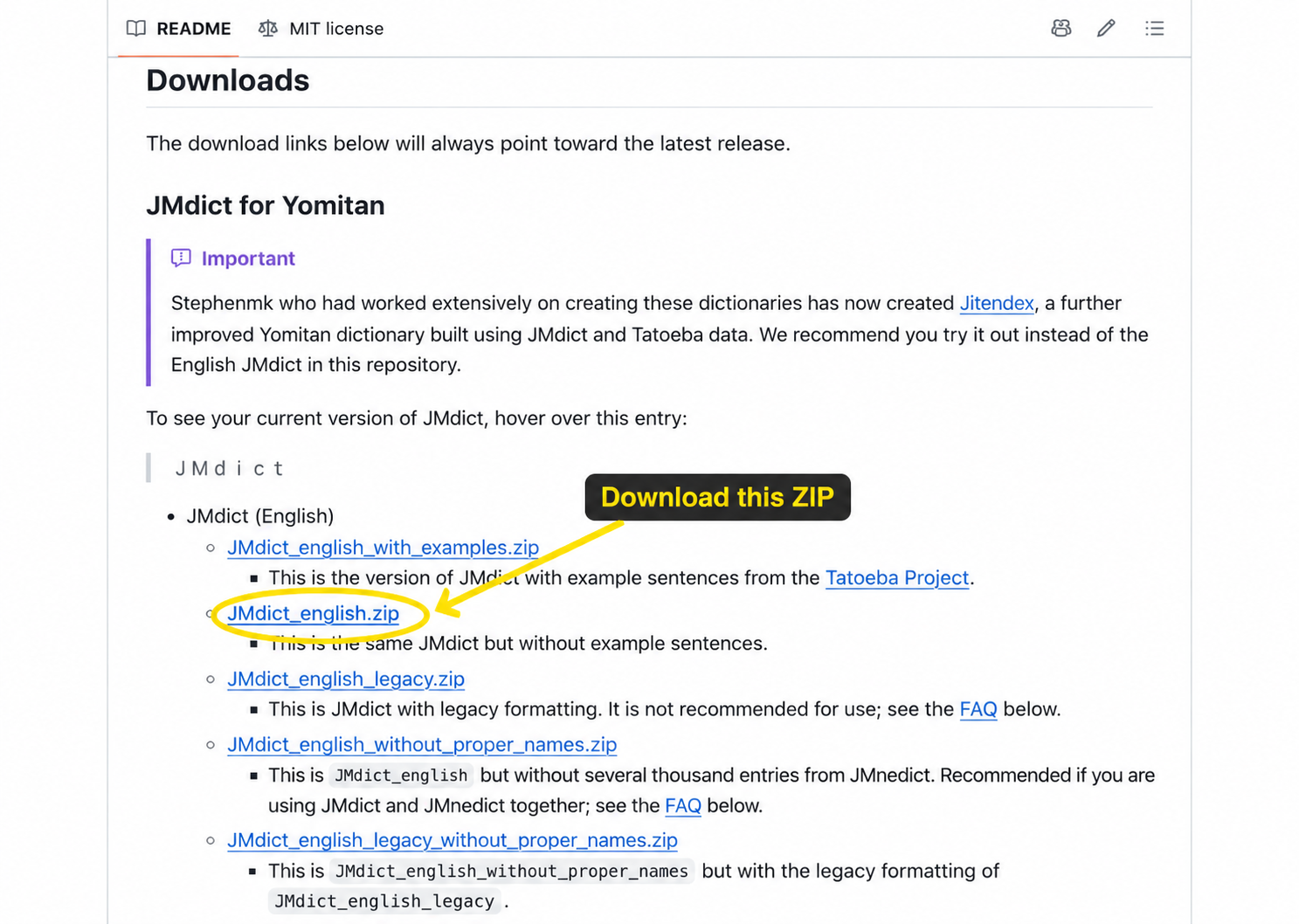
Choose the dictionary ZIP link, not GitHub's Code or Download ZIP option for the repository itself.
Keep the file compressed. If your browser extracts it automatically, keep or download the original ZIP rather than selecting the extracted folder. On iPhone or iPad, save it somewhere you can find in Files, such as Downloads.
You do not need to install the Yomitan browser extension to follow these steps inside Manatan. For other languages, the Yomitan dictionary directory is a useful starting point for finding a compatible dictionary. Check each publisher's language coverage and licence.
2. Open Dictionary settings
In Manatan, open More, then tap the Settings gear. Under Language learning, choose Dictionary.
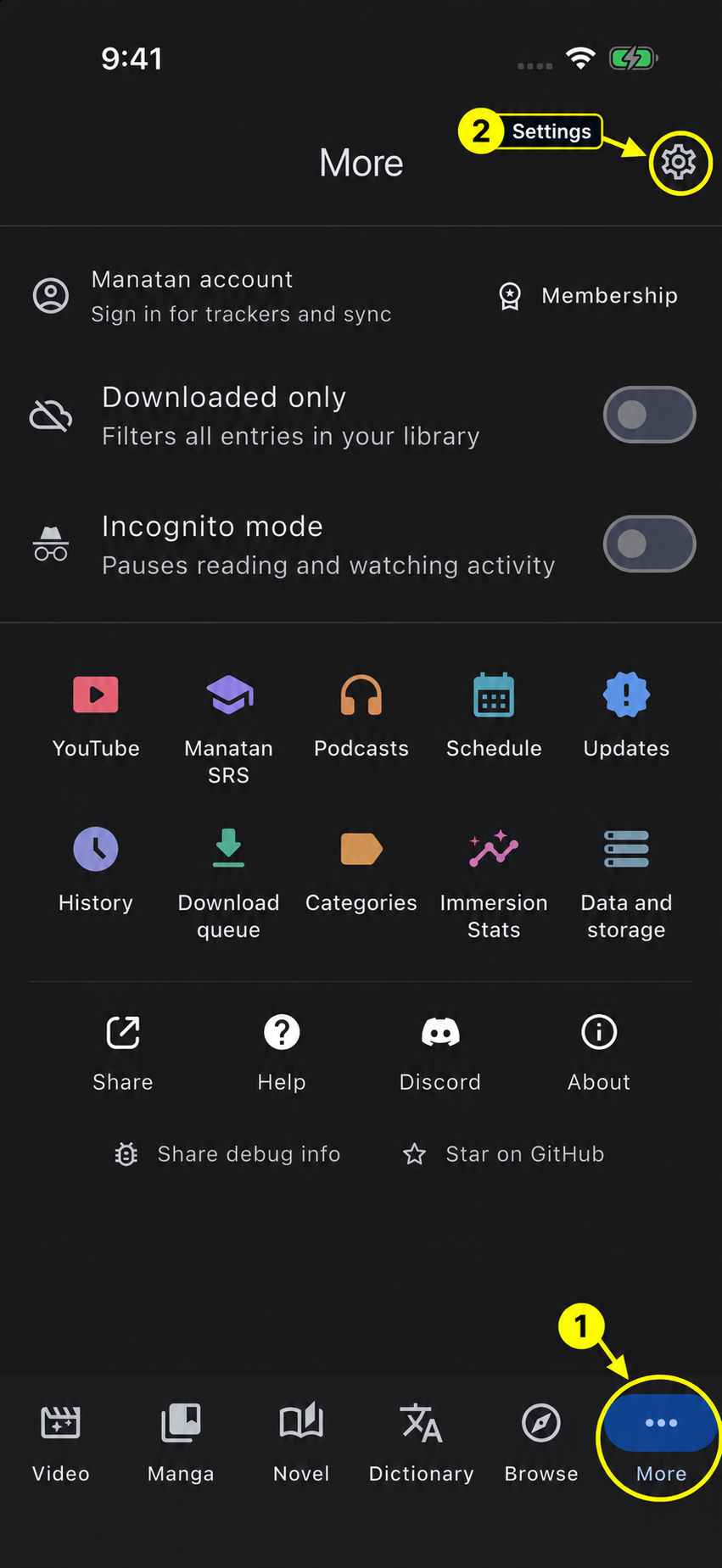
Open More, then the gear at the top right.
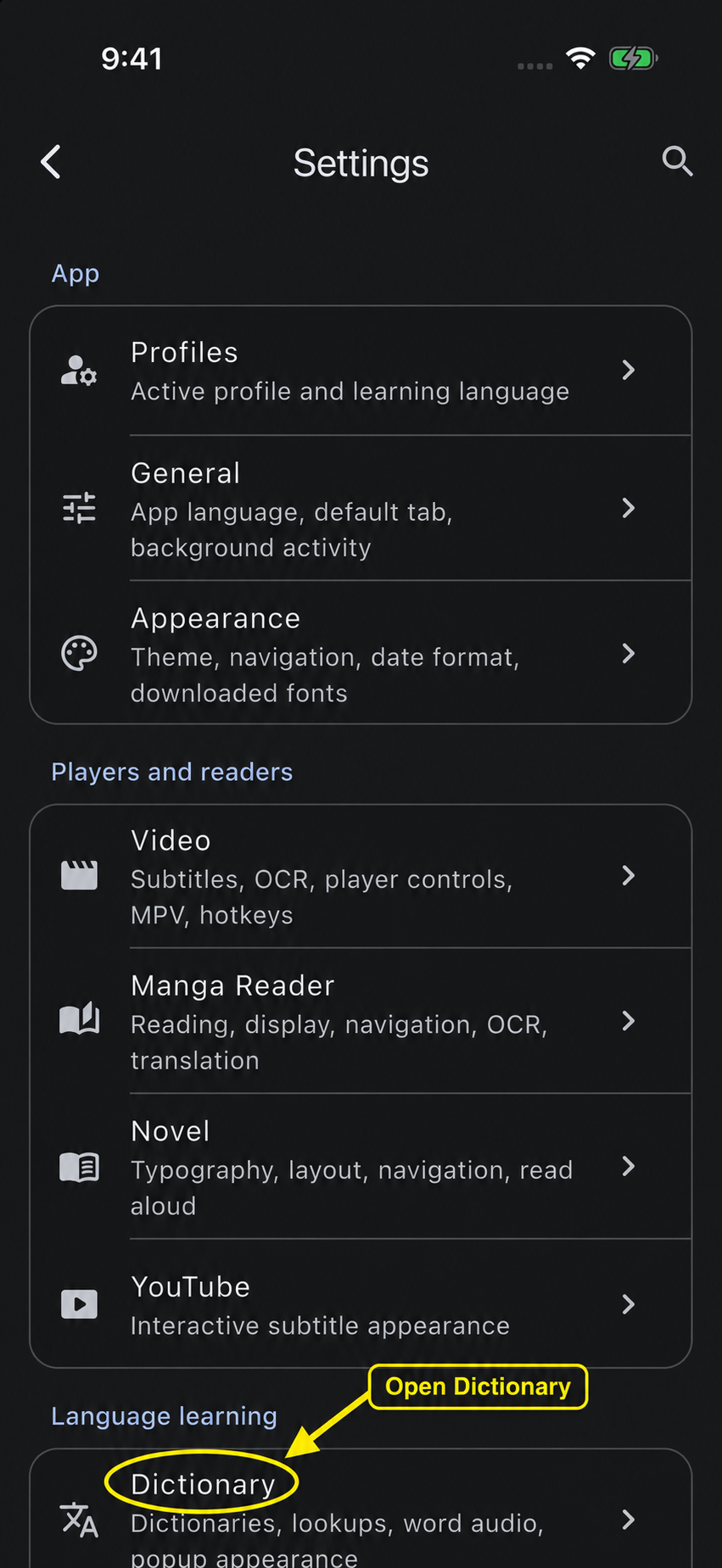
Choose Dictionary under Language learning.
These are the app's settings. They are separate from the Dictionary tab used for word searches.
3. Import the file
Scroll down to Installed Dictionaries and tap Import New.
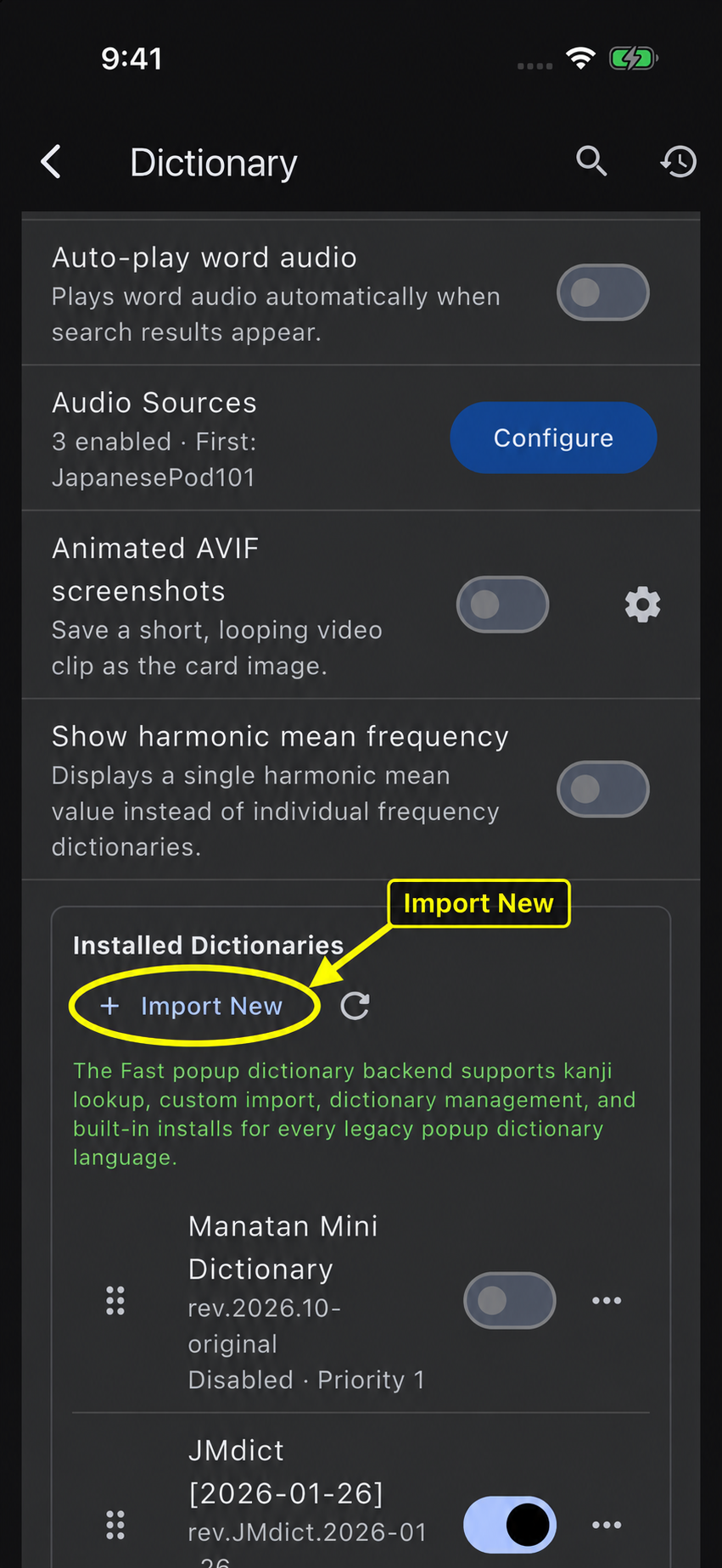
Scroll within Dictionary settings until you find Installed Dictionaries.
Find the ZIP you downloaded, select it, and confirm with Open in the iOS file picker. Your file may be in Downloads, iCloud Drive, or another folder you chose. In our capture, it is in the Manatan folder.
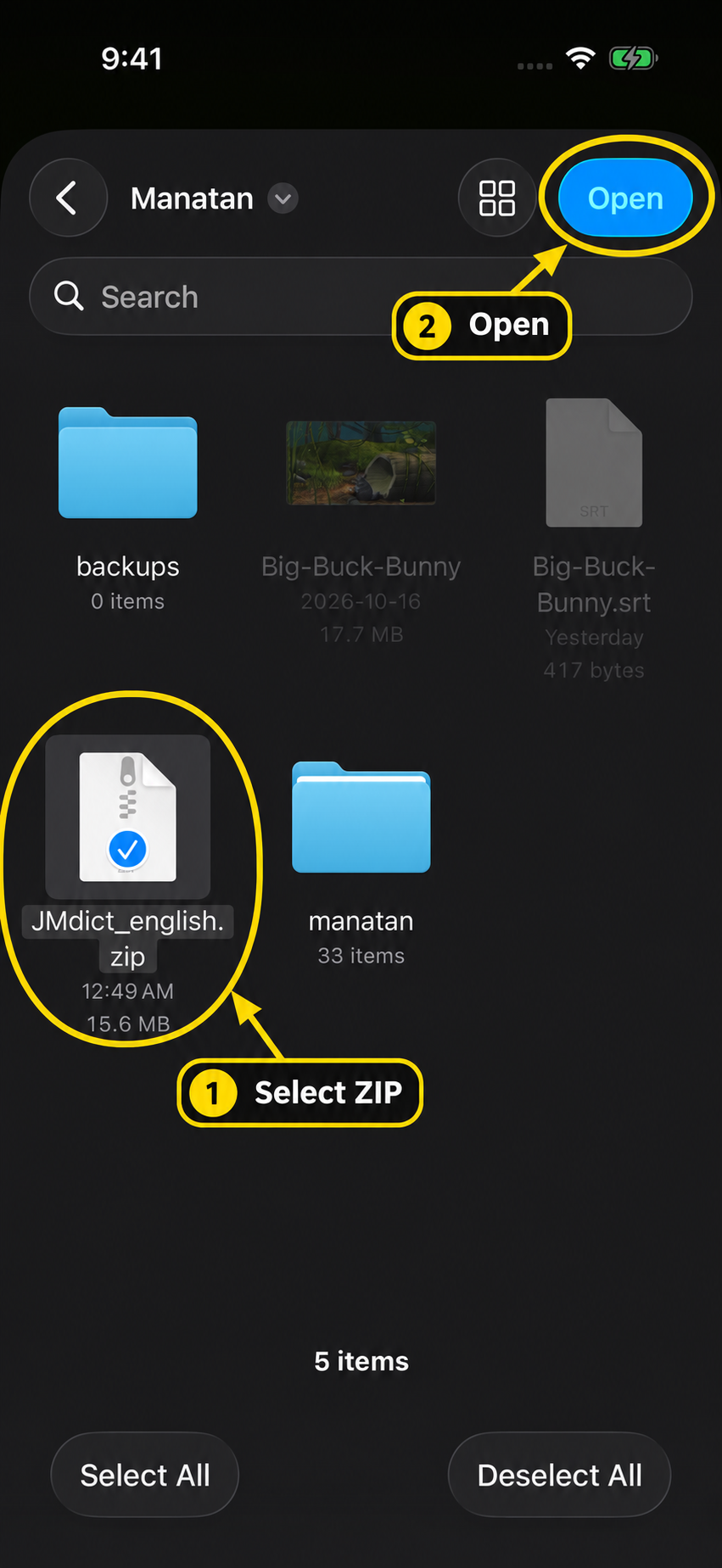
Select JMdict_english.zip, then tap Open. Do not select a subtitle file, an EPUB, or an extracted dictionary folder.
4. Wait for completion and check the switch
Let Manatan finish processing the file. Import time depends on the dictionary and device, so use the result screen rather than a fixed waiting time. Check that the file succeeded, then tap Done.
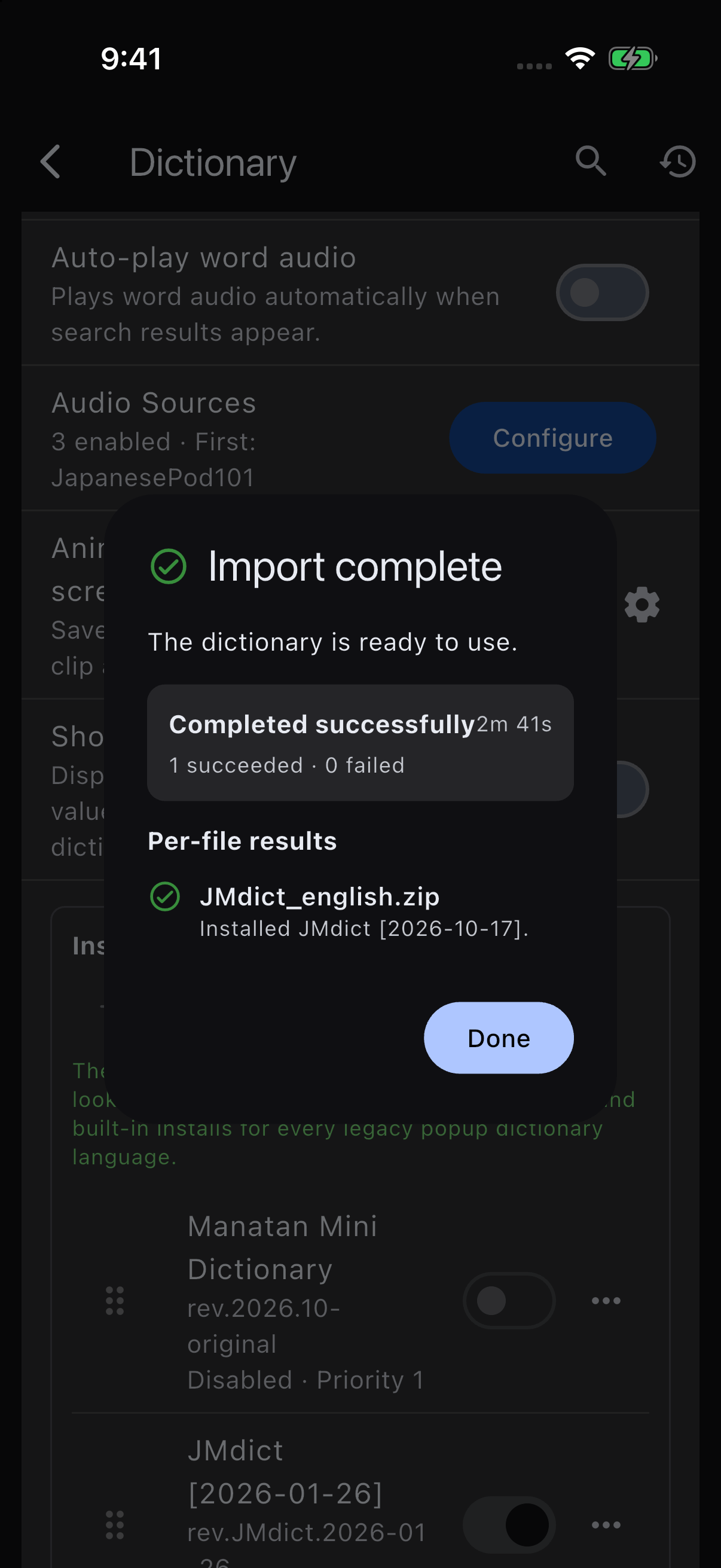
This is the actual completed import, not just the file-selection screen.
Back in Installed Dictionaries, find the imported dictionary and make sure its switch is on. In this example, JMdict [2026-10-17] is enabled. Your downloaded revision may be newer.
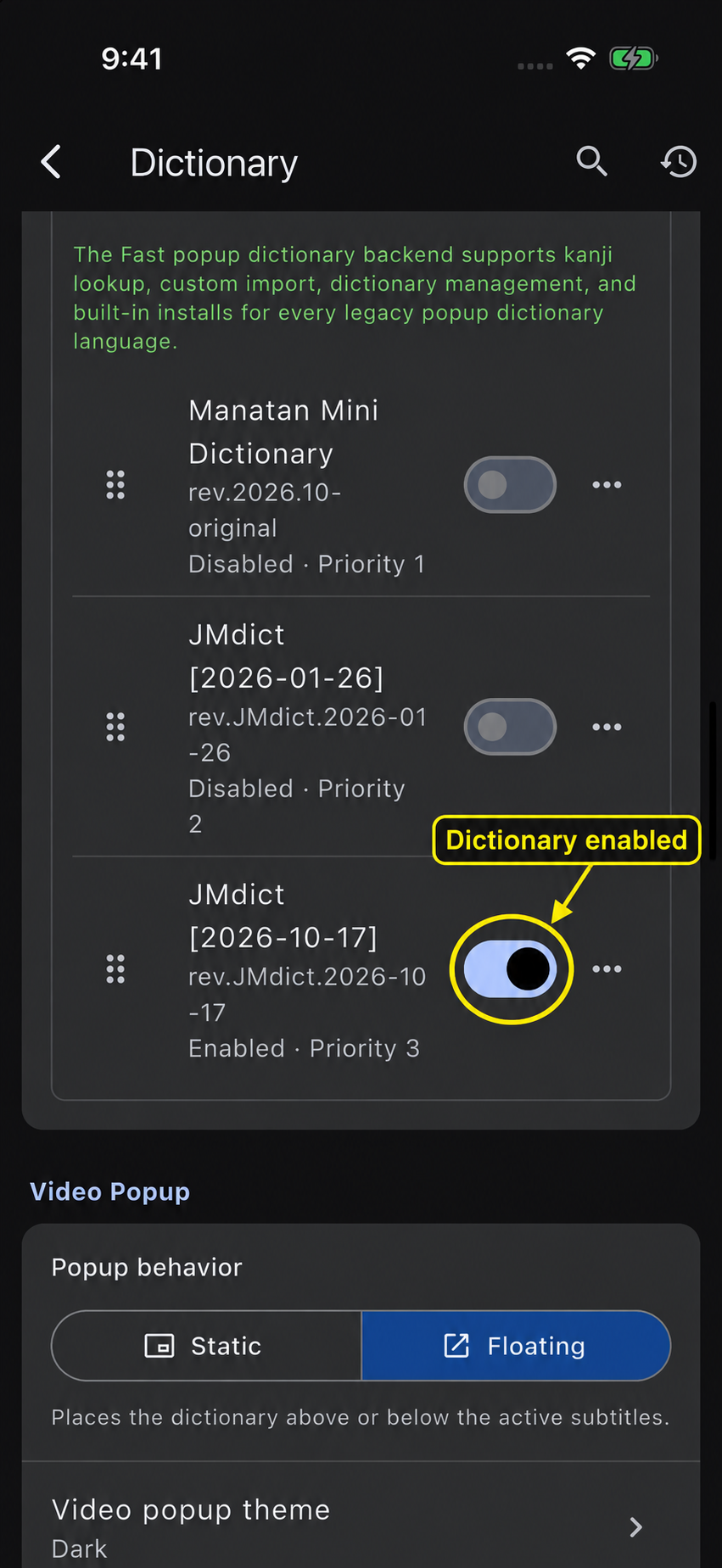
The enabled dictionary is available for lookup. Older demonstration dictionaries are switched off here.
If you have two revisions of the same dictionary, you can disable the older one while checking the new one. You do not need to delete your dictionaries to test whether an import worked.
5. Enable lookup for your readers
Return to the top of Dictionary settings. Under Popup dictionary, enable the places where you want word lookups: Video, Manga, and Novel.
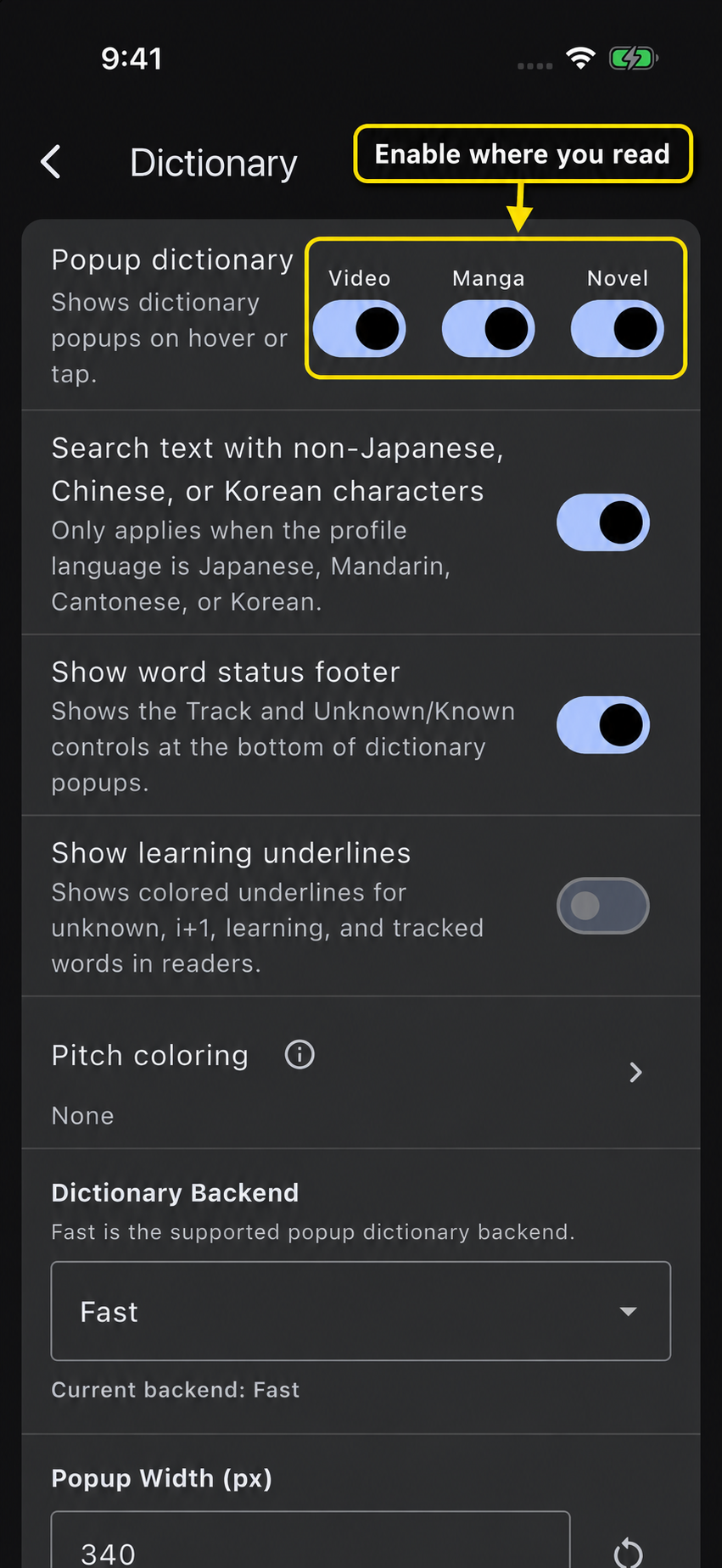
The installed-dictionary switch and these reader switches do different jobs. Check both.
You can leave a reader switch off if you do not want dictionary popups there. For manga, words in the artwork also need text recognition before you can look them up. For video, start with a usable text subtitle track. Installing a dictionary does not turn an image or spoken dialogue into selectable text.
6. Try one word before changing anything else
Open a book with selectable Japanese text and use your configured lookup gesture. In the captured iOS example, we tap 図書館 directly. The first image shows the word before the popup opens.
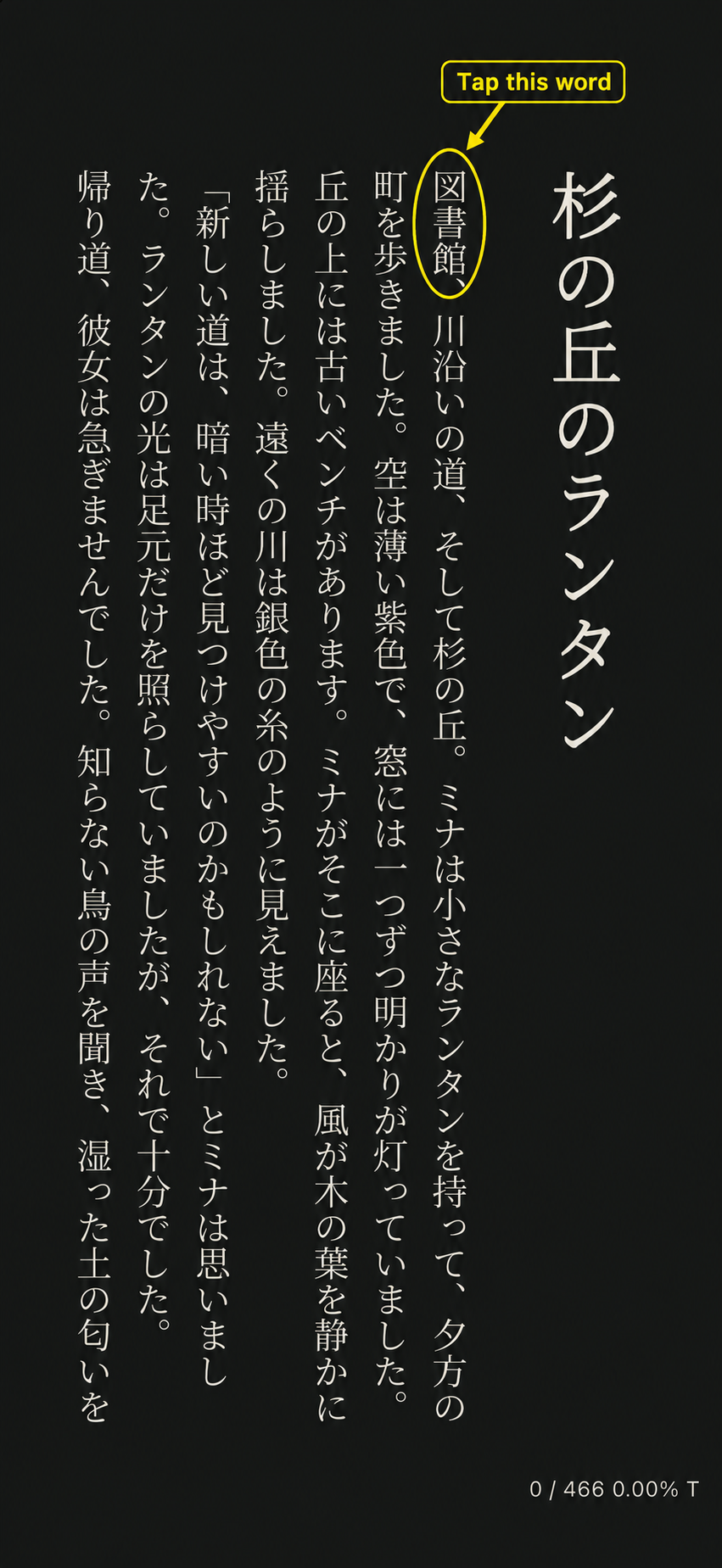
Tap the word itself. No dictionary popup is open yet.
The result shows 図書館, the reading としょかん, and the definition library. The JMdict label matches the dictionary we just imported.
Read the entry in context, then close it and continue. You have a working setup when a word in your content returns an entry from your enabled definition dictionary.
If something does not work
| What happens | Check first |
|---|---|
| The ZIP does not appear in the picker | Confirm where it was saved and that you still have the original ZIP, not only an extracted folder. |
| Import fails | Check the per-file error. Confirm it is a supported dictionary archive, not a repository source-code ZIP or a raw JMdict data file. Try downloading the archive again if it is incomplete. |
| Import succeeds, but no popup opens | Check the dictionary's enabled switch, the relevant Video, Manga or Novel switch, and your lookup gesture. |
| A popup opens, but no useful definition appears | Check the language and selected word boundary. Make sure you installed a definition dictionary, not only frequency or pitch data. |
| Text in manga or an image cannot be selected | Set up a supported OCR option first. Dictionary lookup and text recognition are separate steps. |
| There is no pitch accent information | JMdict supplies definitions, not pitch data. A compatible enabled pitch dictionary is optional and separate. |
If you still need help, include the app version, platform, dictionary filename, and the exact import error or word you tested when contacting the help center. Do not send account passwords or other private credentials.
Put the dictionary to use
Now try the manga OCR walkthrough or the anime subtitle workflow. Both show how to use a lookup without losing your place in the story.
Start with one definition dictionary and a few successful lookups. Add frequency, pitch, or specialist dictionaries later when you know what you want them to contribute.
Screenshot notes: app images are genuine Manatan iOS captures. Yellow arrows, circles, and labels highlight the controls; tap an image to view it full size. The book is an original Manatan demonstration story. Dictionary entries include JMdict material from the Electronic Dictionary Research and Development Group, used under its licence provisions. Download-page capture: yomidevs/jmdict-yomitan.