 Manatan
How to Learn Japanese With Anime: A Practical Subtitle Workflow
Turn a short anime scene into useful Japanese practice. Use matching subtitles, replay a line, and look up what matters without stopping at every word.
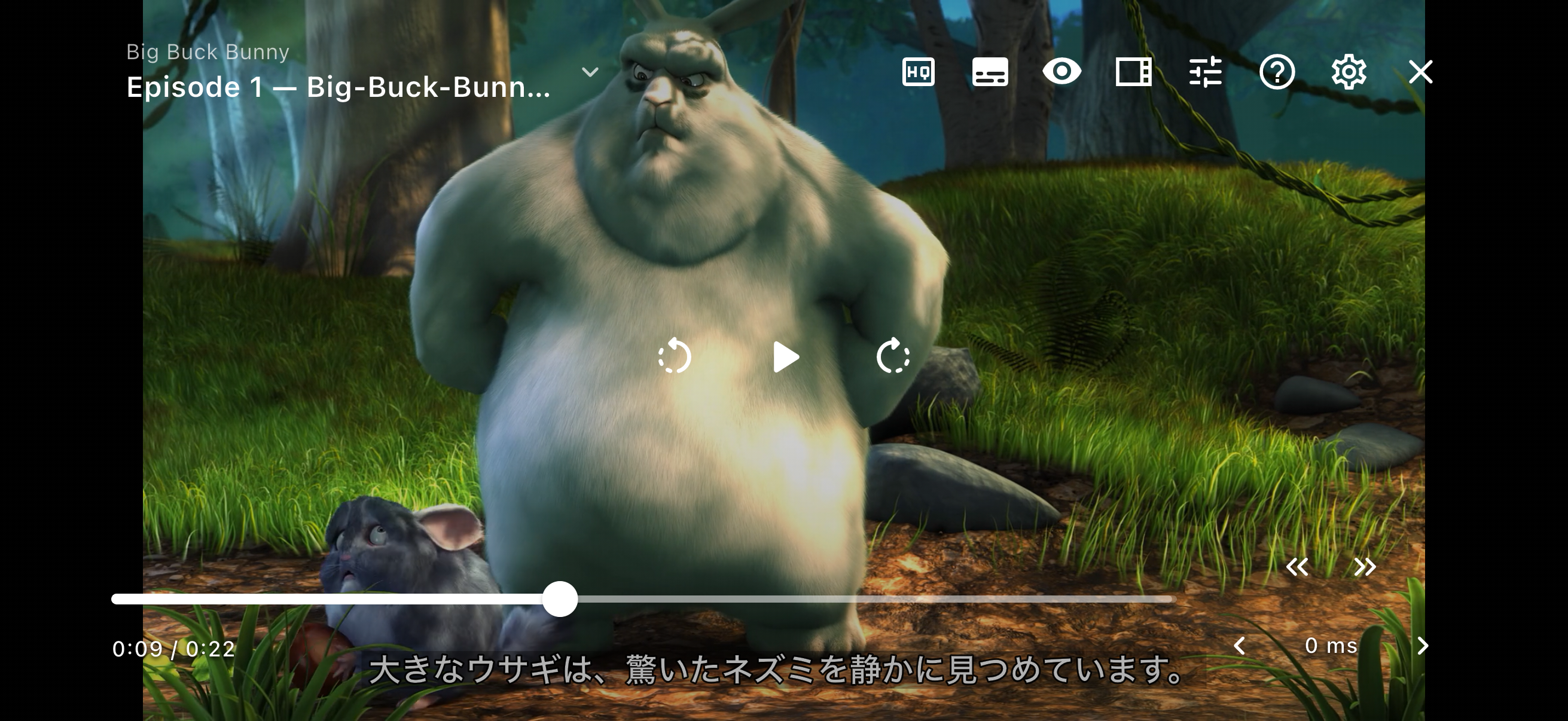
You catch a familiar word in an anime episode, pause, and rewind. The English subtitle explains the scene, but you still cannot tell which Japanese words you heard.
A useful study session connects the sound, the Japanese text, and what is happening on screen. Start with one short scene: watch it, replay a useful line, check a word, and continue. You do not need to study an entire episode sentence by sentence.
This walkthrough shows the process in Manatan, with a screenshot for each step.
Choose a scene and check the subtitles
Start with a conversation you can roughly follow. Familiar characters, clear speech, and limited background noise give you more to work with than overlapping voices or a long exchange full of unfamiliar terms.
Watch a short section first. Can you explain what happened, even if several lines were unclear? If every sentence is a mystery, try a shorter or more approachable scene. Knowing kana and some basic grammar will make the process less frustrating.
Use Japanese audio with Japanese subtitles that closely match the dialogue. Check the language, wording, and timing before studying. A subtitle file from a different cut may drift or include different lines; repeated rewinding will not fix that mismatch.
Set up Manatan
Open your video
Open a supported video from your library. If you need help organizing local episodes, see the local video guide.
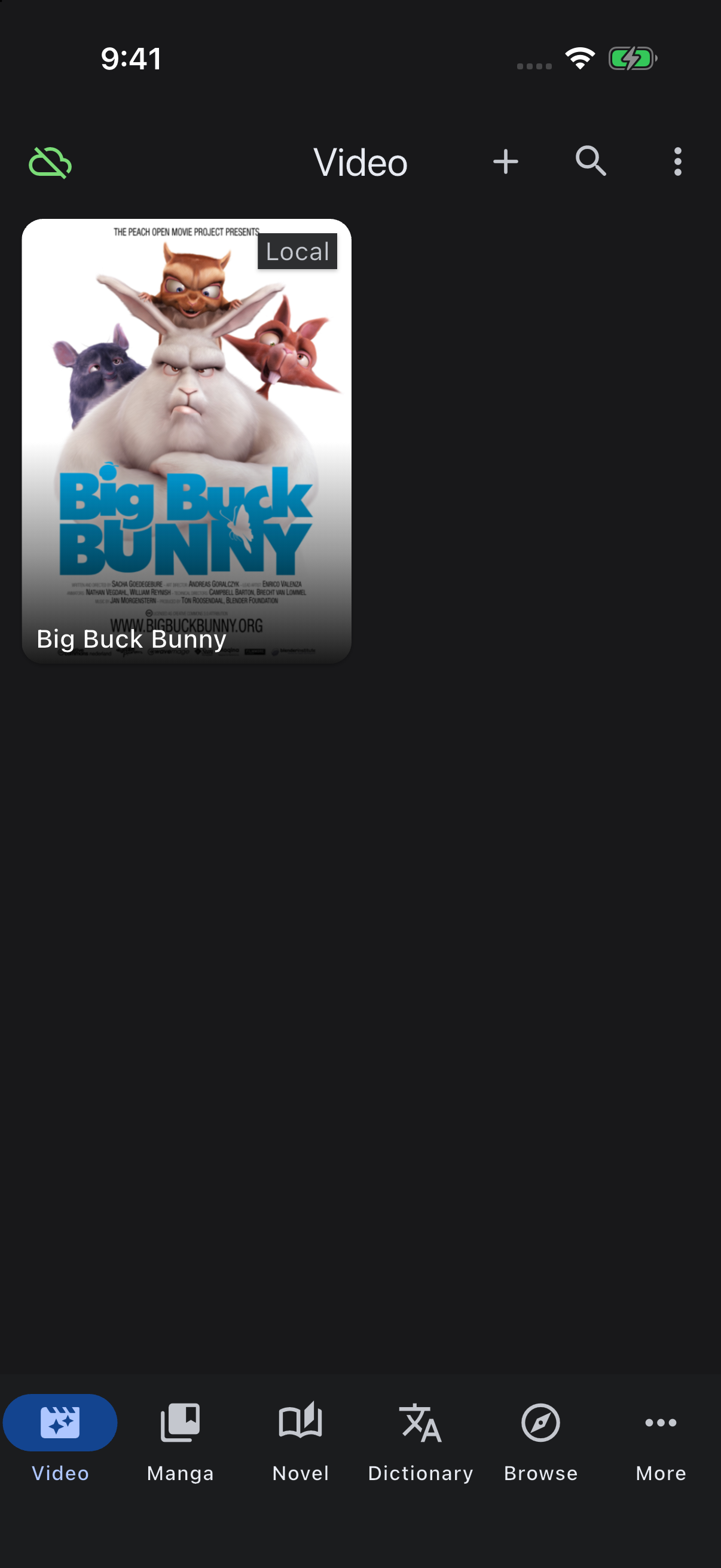
Open the video you want to study from your library.
Bring video and subtitles you are authorized to use. Manatan does not bundle commercial anime, and a streaming subscription does not automatically allow downloads or playback in another app. File compatibility depends on the video, device, and player.
Load matching subtitles
Tap the video once to show the player controls. At the top, tap Subtitle options, the subtitle-shaped icon circled below.
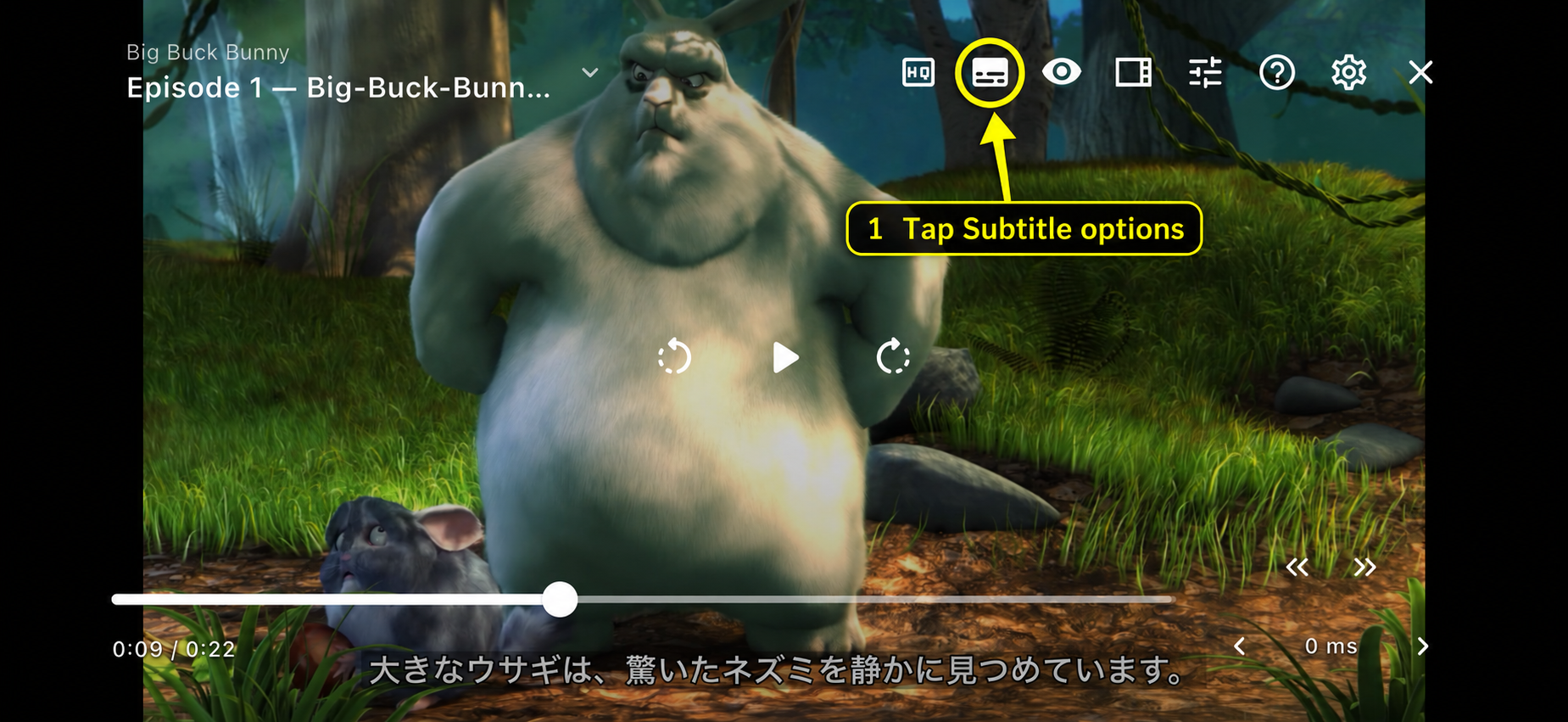
1. Tap the circled Subtitle options button to open the Subtitles dialog.
In the Subtitles dialog, select a matching Japanese text track. To load your own file, tap Import subtitle file, marked below. The player's import supports SRT, VTT, ASS, and SSA files.
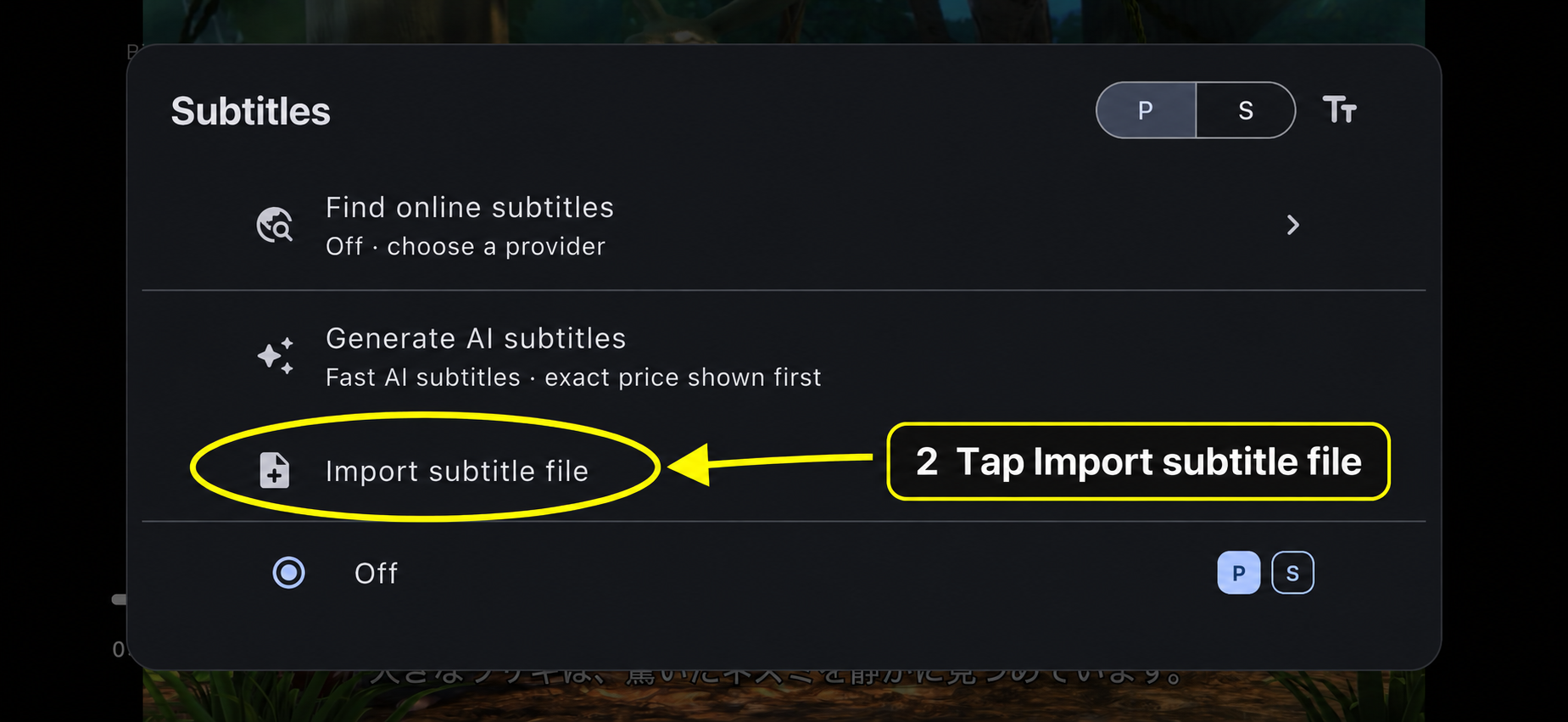
2. Tap Import subtitle file, then choose your matching Japanese subtitle file.
For YouTube, Manatan uses the official player, whose available controls and captions differ from local playback. Check for usable Japanese captions. YouTube warns that automatic captions can misrepresent speech, so check a surprising line before learning it.
Enable dictionary lookup
Import and enable a compatible Japanese definition dictionary, such as JMdict. Our dictionary import guide shows the full setup with screenshots. Importing a dictionary alone does not enable subtitle lookup.
In the captured iOS app, tap the video to show its controls, then tap the Video settings gear.
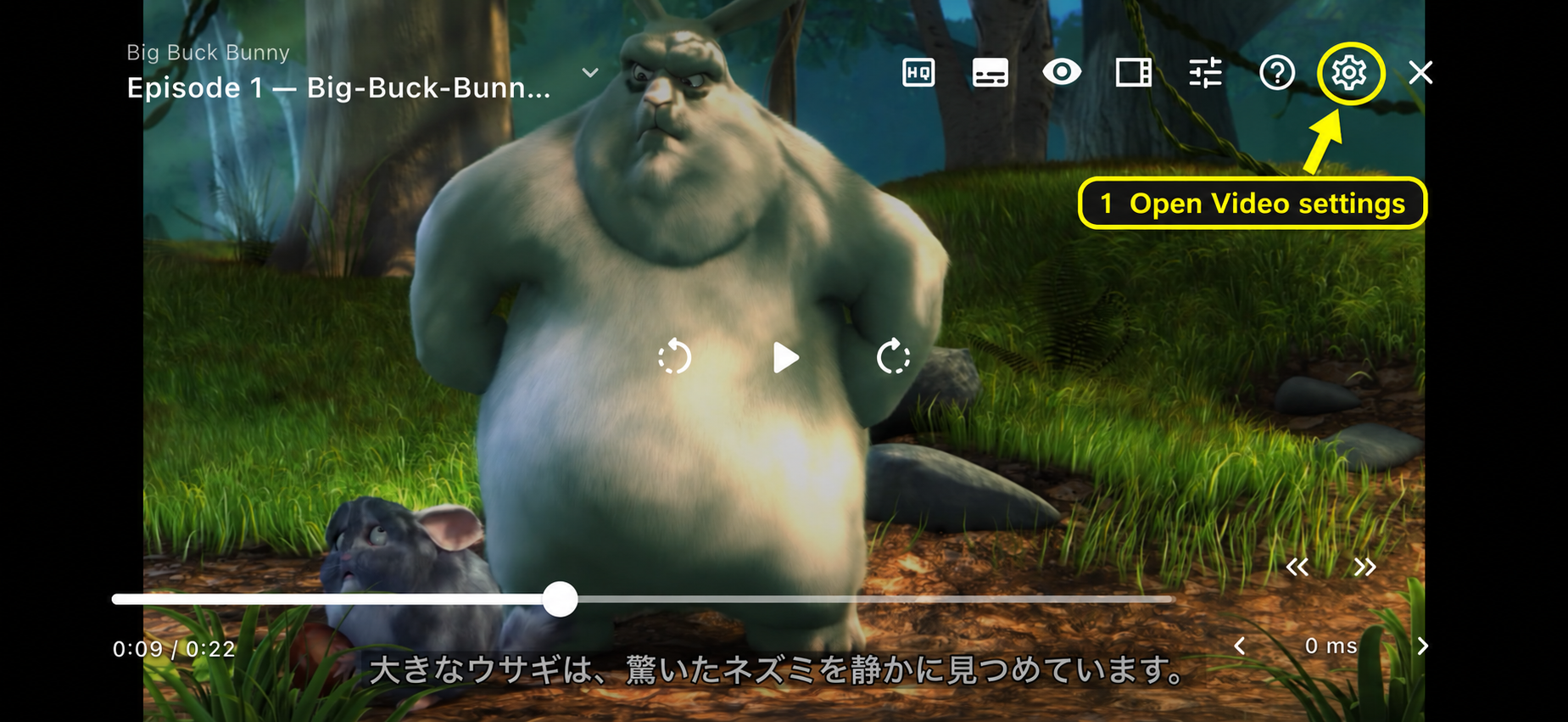
1. Tap the gear to open Video settings.
Choose Dictionary, then turn on Popup dictionary for Video.
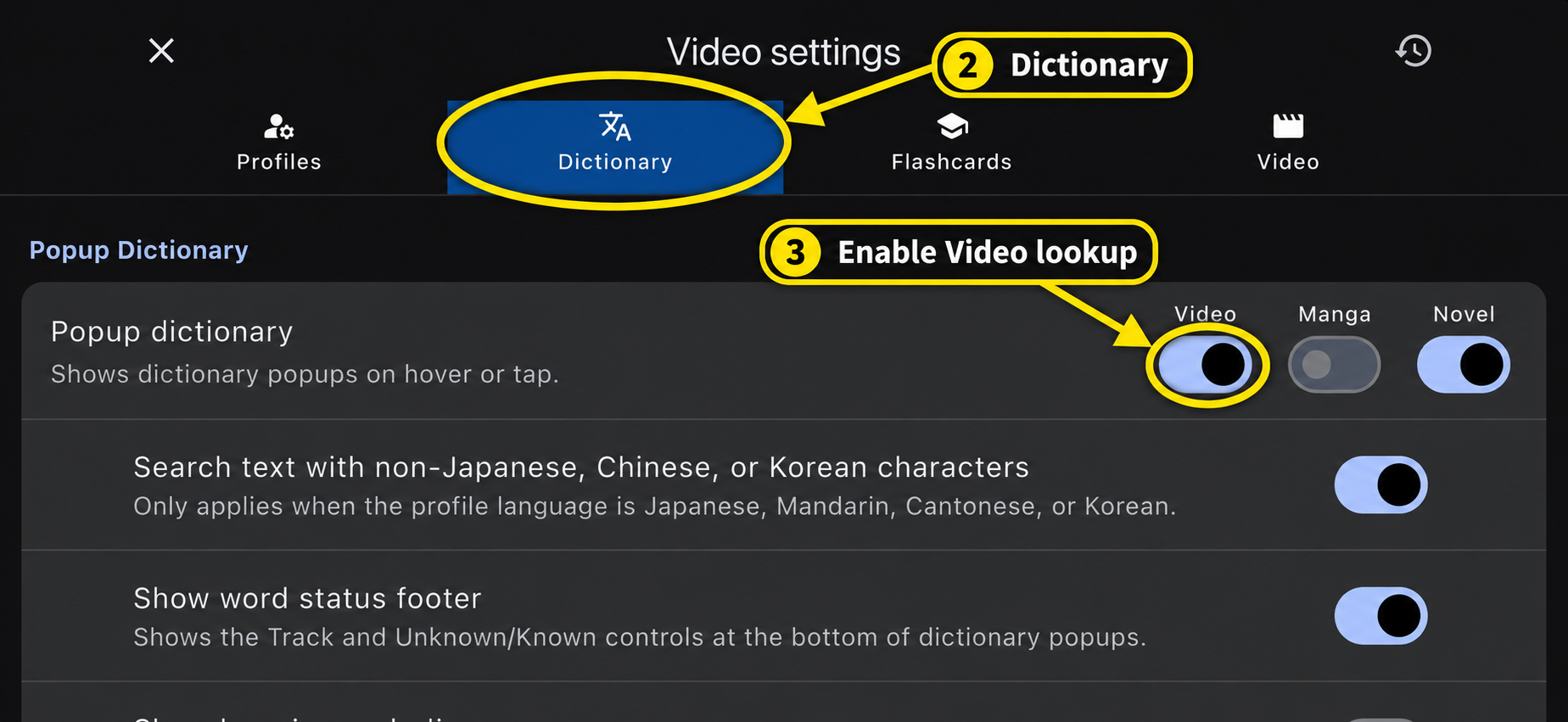
2. Open Dictionary. 3. Enable the Video switch under Popup dictionary.
Screenshot notes: these are genuine Manatan iOS captures using an imported, silent Big Buck Bunny excerpt by Blender Foundation, CC BY 3.0, from the official Blender download. Manatan wrote the Japanese descriptive captions for this demonstration. They are not recorded anime dialogue or Japanese listening audio. Dictionary captures include JMdict material from EDRDG under its licence provisions. Yellow circles, arrows, and labels have been added to the instructional images to highlight the controls. Tap an image to view it full size.
The five-step subtitle workflow
1. Watch the exchange once
Let the scene play without stopping at every unfamiliar word. Follow the speakers, expressions, and action so that you have context for the lines you will revisit.
If you need English subtitles to understand the exchange, use them for this first pass. Then return to the Japanese audio and text for focused practice. Choose one or two lines you want to understand rather than treating every subtitle as an assignment.
Watch the scene with matching Japanese subtitles before choosing a line to study.
2. Replay a line you almost understood
Open the subtitle sidebar, tap a line's timestamp to return to its start, and press Play. You can also use your configured repeat-subtitle control; gestures and shortcuts vary by platform.
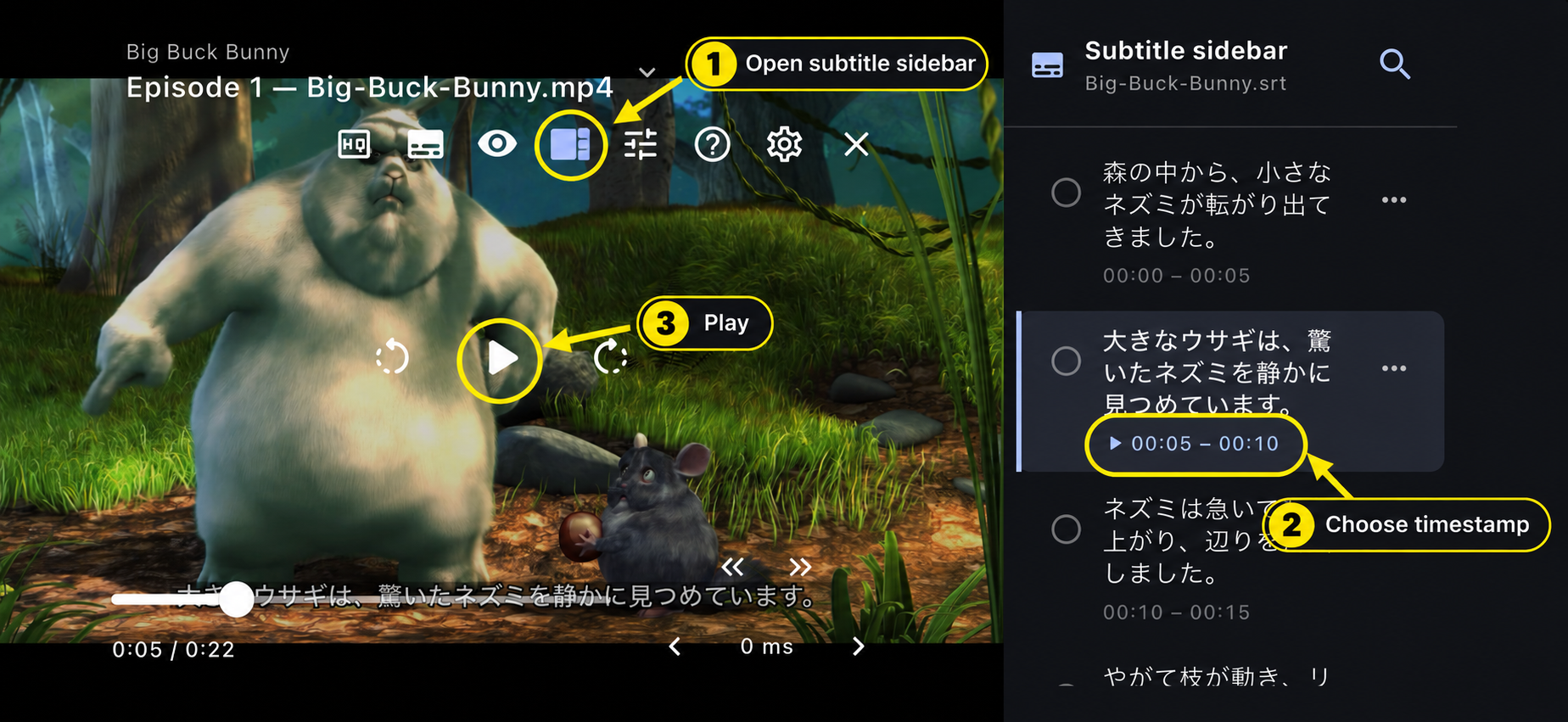
Open the subtitle sidebar and tap the line's timestamp to return to its start, then press Play.
Pick something within reach. Perhaps one word was unfamiliar, or you understood the written sentence but could not hear where its words joined together. Read the Japanese subtitle, then listen again and try to connect the phrase with its written form.
3. Look up the word that matters
Use your configured lookup gesture on the on-screen subtitle. In this iOS example, tap the word directly while the dictionary popup and player controls are closed.
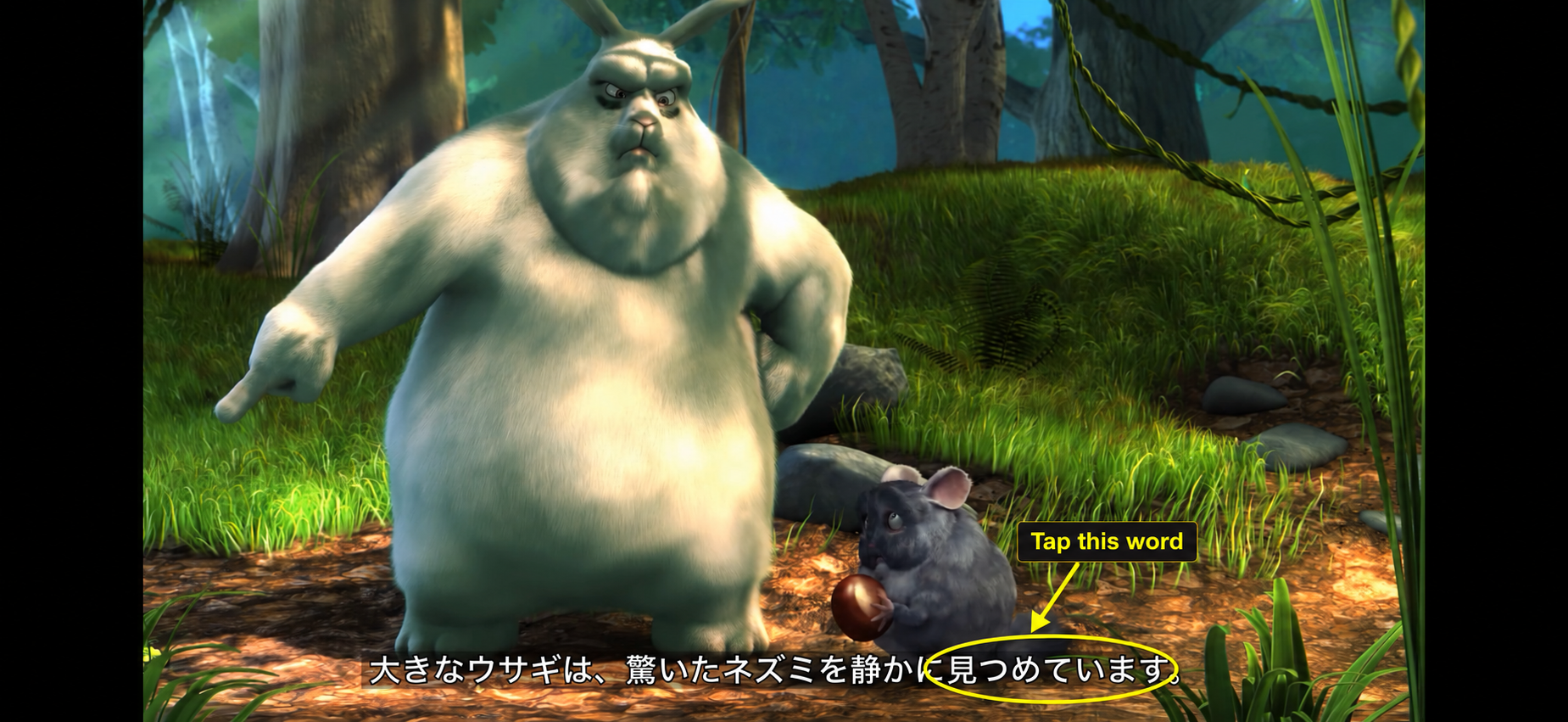
Tap 見つめています in the subtitle. The next image shows the entry that opens.
Read the entry's pronunciation and choose the meaning that fits the scene.
The practice caption in our screenshots is:
大きなウサギは、驚いたネズミを静かに見つめています。
It describes the large rabbit quietly gazing at the surprised mouse. Tap 見つめています to find 見つめる, read みつめる, in JMdict. Its meanings include gazing at something or watching it intently. The form in the caption describes an ongoing action.
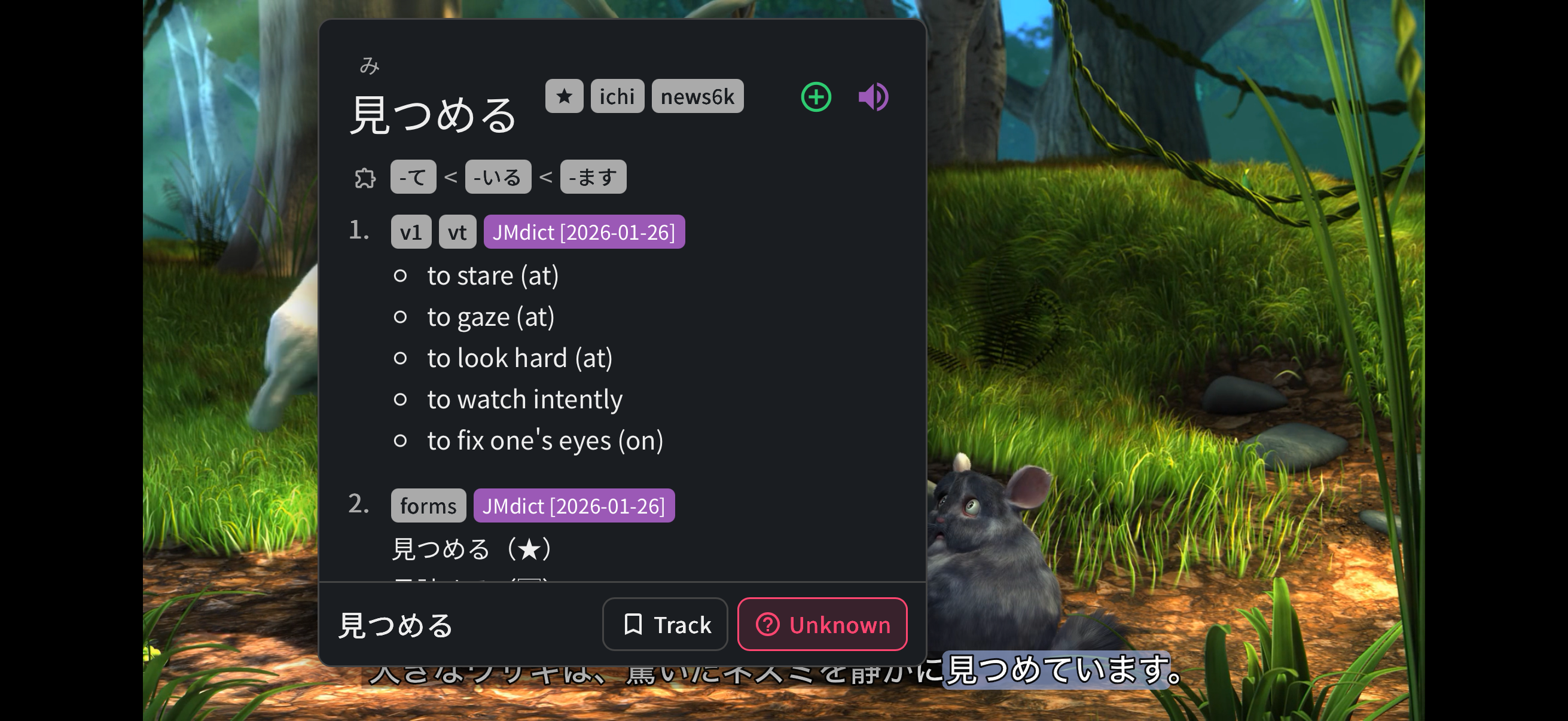
Tap 見つめています in the subtitle to find 見つめる in JMdict. Read the definition in the context of the whole sentence.
Looking up each kanji separately would miss the word you need. Compare the definition with the whole sentence and the action on screen, then read the line again.
A dictionary entry will not explain every contraction, omitted subject, or grammar pattern. If the word makes sense but the sentence does not, check the grammar instead of collecting more unrelated definitions.
4. Replay without reading
Use the eye control to hide the subtitles, or look away from them. In your chosen Japanese-audio video, replay the line and check which parts you can now hear.
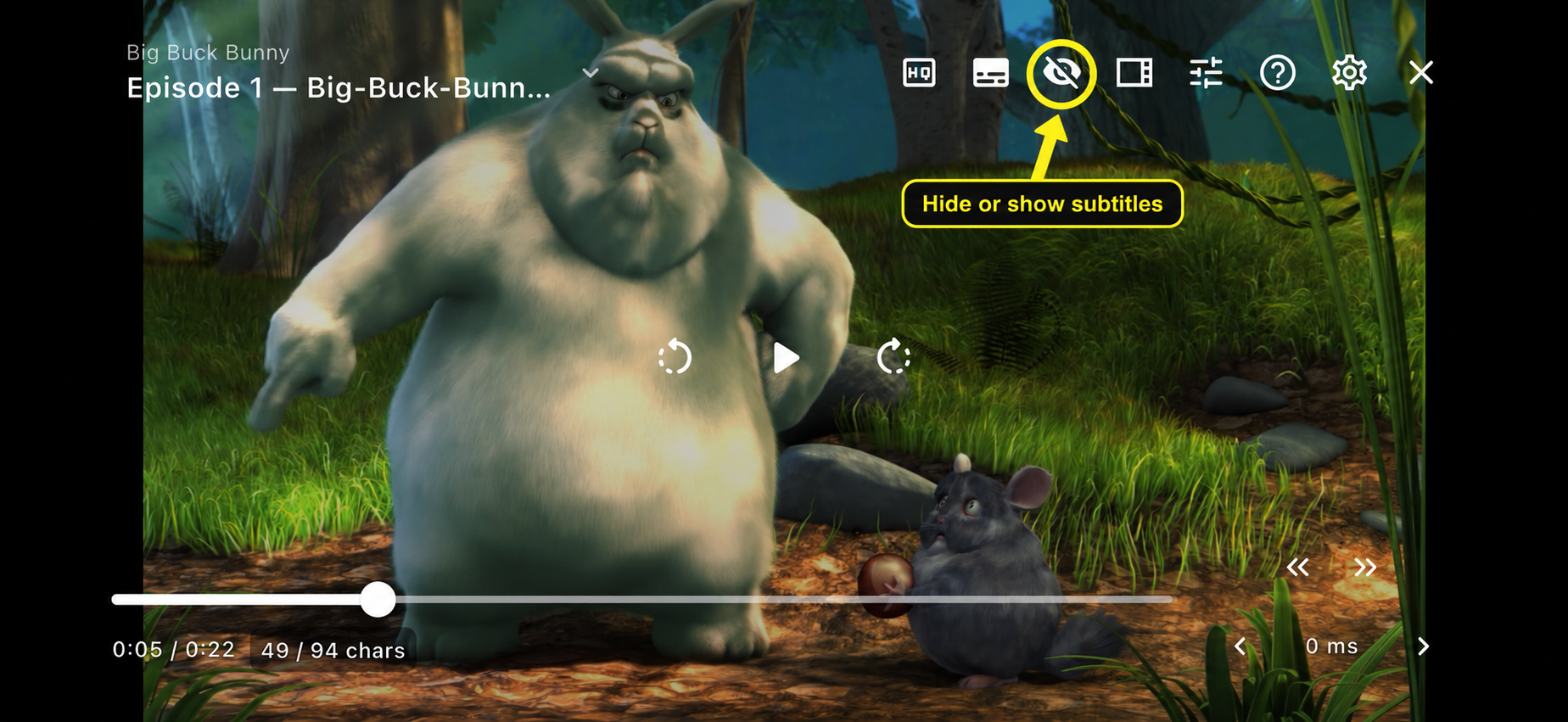
Use the eye control to hide the subtitles before replaying a line. This silent sample demonstrates the control only.
If the phrase still blurs together, briefly return to the text. You can repeat it quietly if that helps you notice the sounds, but there is no required number of replays. When another repetition stops helping, move on and revisit the line later.
5. Continue watching
Close the lookup, restore subtitles if you want them, and replay the surrounding exchange. Then continue into the next part of the scene with fewer pauses.
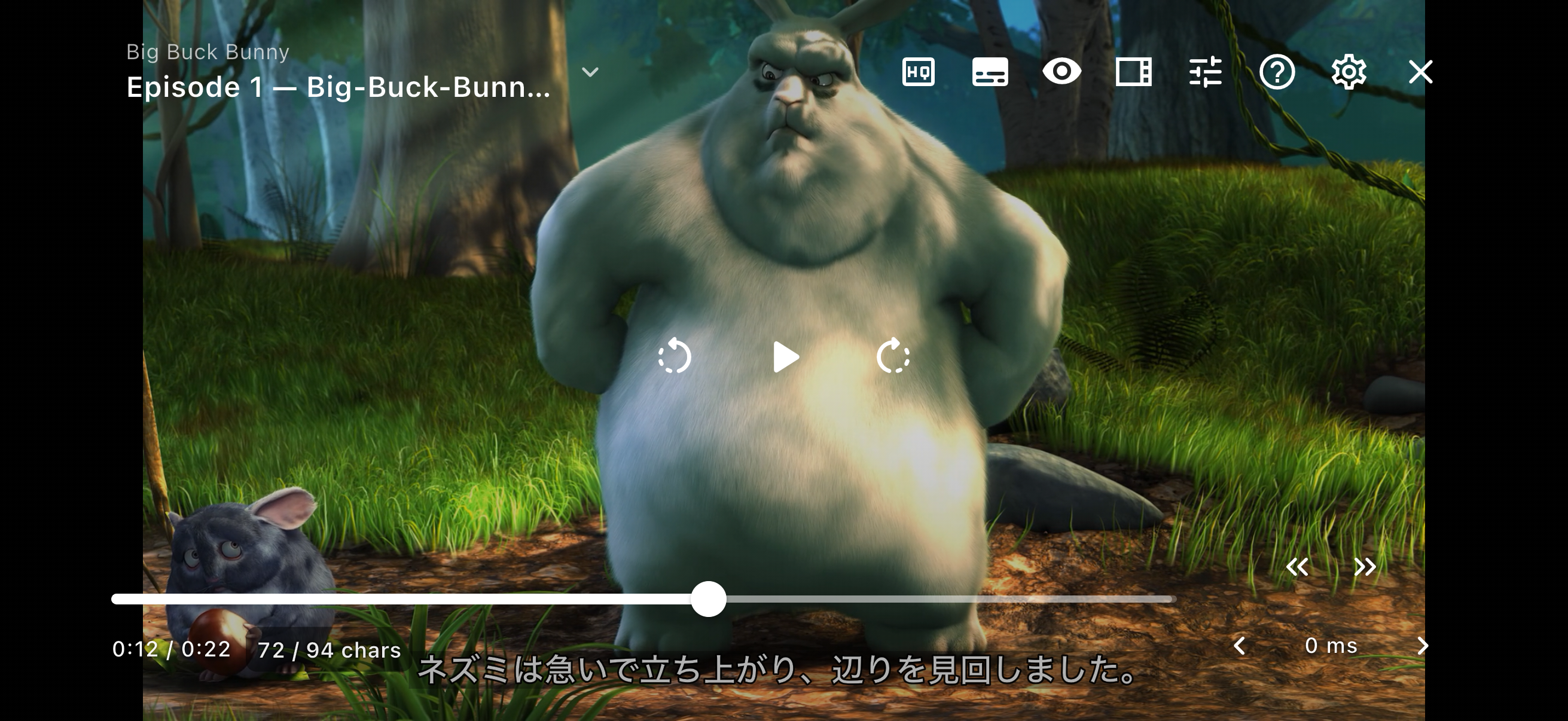
Close the lookup, restore subtitles if needed, and continue into the next line of the scene.
The checkpoint is practical: can you now follow what the character means at normal viewing speed? You do not need to reproduce a perfect translation. A useful lookup should help you return to the video rather than keep you in the dictionary.
Save selectively for review
Save a word or sentence when it is useful enough to revisit. A recurring expression or a word you keep forgetting is a better candidate than an incidental name or a sentence with several unresolved grammar problems.
For 見つめる, keep the original sentence and the meaning that fits its context. That gives you something specific to recall later. You can also finish a scene without making a card.
In Video settings, open Flashcards, turn on Enable flashcards, and choose Manatan SRS or a supported Anki integration. Configure the provider, deck, note type, and field mapping before adding a card.
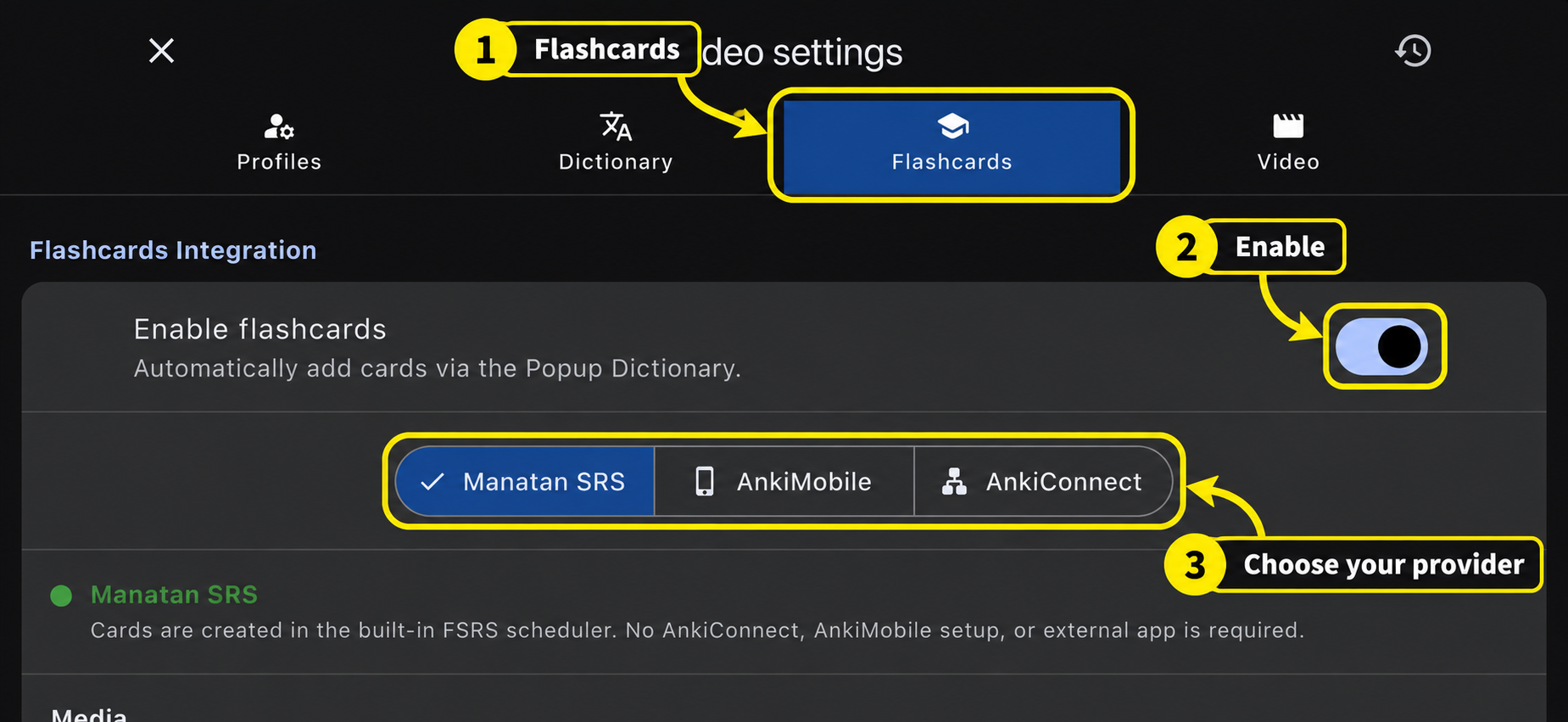
1. Open Flashcards. 2. Enable flashcards. 3. Choose your review provider. This example uses Manatan SRS.
Return to the subtitle lookup and tap the green plus beside the entry you want to save.
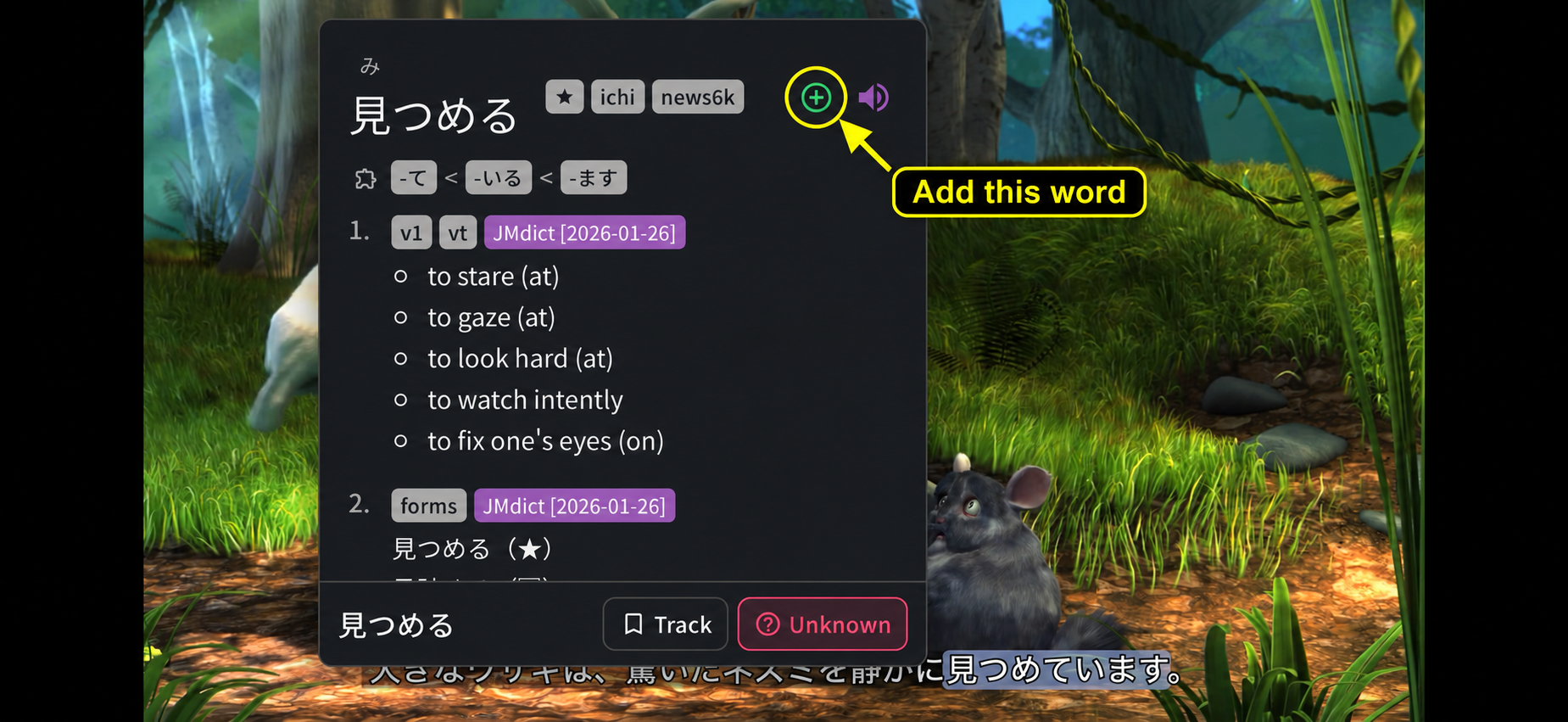
Tap the green plus to add this entry with your configured fields.
After a successful save, the green plus becomes a gold book icon. Tap it to open the saved card.
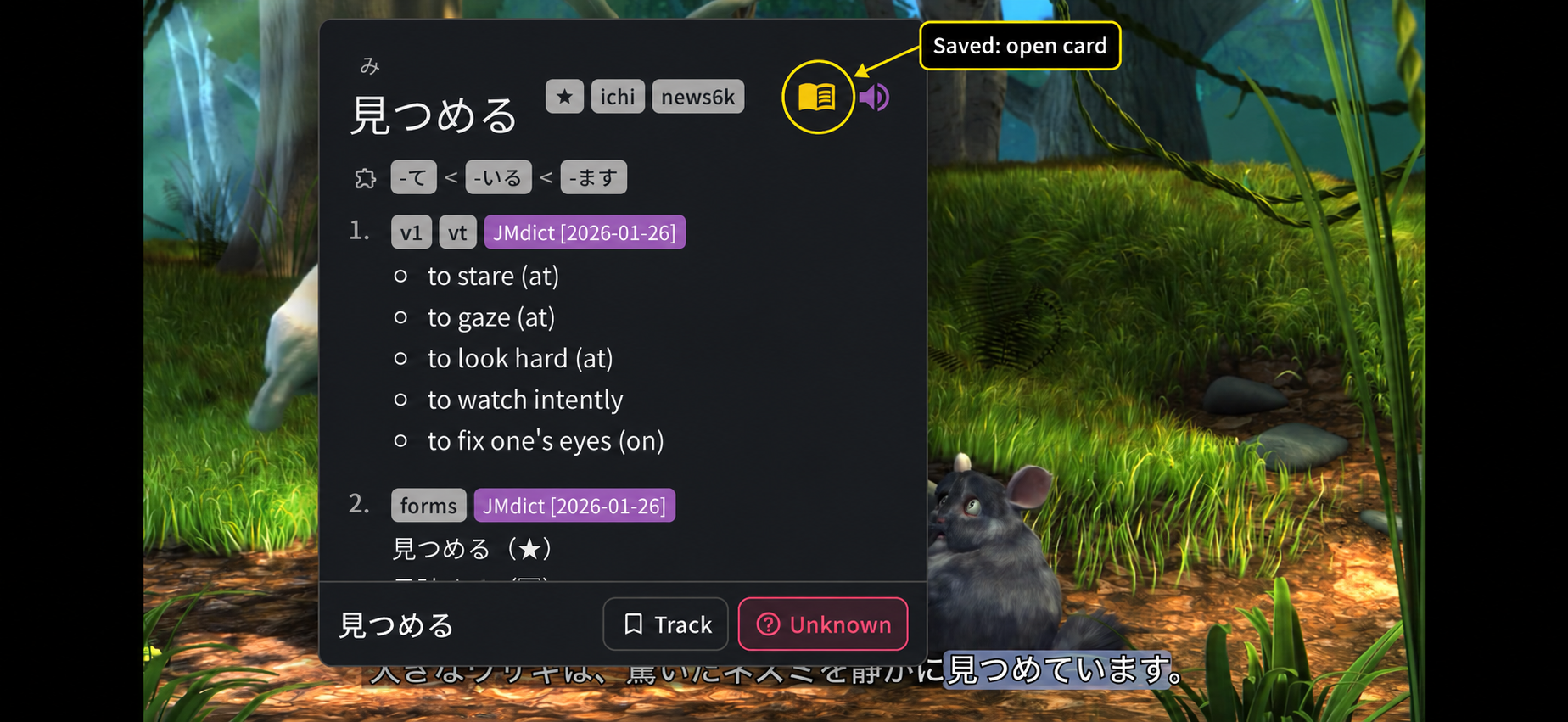
The gold book icon is the saved state. We opened it to verify the card was created.
This demonstration video is silent, so we set the SentenceAudio field mapping to None and saved the example without sentence audio. Use a suitable audio track and mapping when you want audio in your own cards.
The Anki setup guide covers platform-specific configuration. Audio, screenshots, and other exported fields depend on the integration and its settings. Keep the number of new cards small enough that reviewing them does not crowd out your next viewing session.
Quick troubleshooting
| Problem | Check first |
|---|---|
| Subtitles are consistently early or late | Adjust the subtitle offset, then test lines near the start and later in the video. |
| Timing drifts or whole lines differ | Confirm the subtitle file matches the episode and cut. One fixed offset may not solve it. |
| No dictionary entry appears | Check the enabled dictionary, Video lookup switch, and word boundary. |
| Subtitles are printed into the image | A supported video OCR backend can recognize visible writing. It does not transcribe unwritten dialogue. |
| Every line needs several lookups | Shorten the scene or choose clearer, more familiar material. |
If the setup still does not work, use the help center and include your platform, app version, subtitle type, and what happened.
Can anime be your only Japanese practice?
Anime can be part of your routine, but playing episodes does not guarantee understanding. Keep building vocabulary and grammar alongside this workflow, especially if you are a beginner.
Characters may use stylized, rude, old-fashioned, or genre-specific language. Notice who says a phrase, to whom, and in what situation before using it yourself. Balance anime with everyday conversations, interviews, or other speech that fits your goals.
Try one scene today
Watch a short exchange, replay a useful line, look up what changes your understanding, and watch again. Save an example if you want to review it, then continue with the story.
Download Manatan to get started. Prefer reading? Try our manga OCR walkthrough.