 Manatan
How to Read Manga in Japanese Without Typing Every Unknown Kanji
Unknown kanji should not turn every page into a typing exercise. Use OCR, dictionary lookup, and a manageable reading routine to stay with the story.
You open a manga in Japanese, follow the artwork, and reach a speech bubble you almost understand. Then one unfamiliar kanji stops you. Now you are drawing the character into a dictionary, switching apps, and trying to remember which panel you were reading.
That is the friction worth removing. You do not need to type every unknown character to look up a word.
With OCR and a dictionary, you can go from text printed inside an image to a useful definition, then return to the story. Here is how to do that in Manatan and keep your attention on the story.
The short version
- Open a manga file you own or are authorized to use.
- Use OCR to recognize the writing on the page.
- Look up a word in the recognized text with an enabled dictionary.
- Read the bubble again, using the definition and the artwork together.
- Save a useful word or sentence if you want to review it later, then keep reading.
OCR recognizes characters. A dictionary explains words. Neither replaces understanding the sentence in context. Keeping those jobs separate makes the workflow much less confusing.
Why manga needs OCR in the first place
A typical digital manga page is an image. The speech bubbles look like text to you, but the reader cannot necessarily select their contents the way it can select text in an EPUB novel.
OCR is short for optical character recognition. It extracts text from that image. Once the writing has been recognized, you can use it for dictionary lookup instead of manually entering unfamiliar kanji.
It is a shortcut around typing, not a guarantee of perfect results. Stylized lettering, low-resolution pages, handwritten sound effects, and text overlapping artwork can all make recognition harder. Always compare a surprising result with the original bubble before trusting it.
Start with the right page, not the perfect manga
For your first session, choose a page with clear lettering, a manageable amount of dialogue, and enough visual context to follow what is happening. A story you already know can be a useful starting point.
Furigana can help with readings, but it does not automatically make a story easy. A familiar-looking page can still contain difficult grammar, slang, or specialized vocabulary.
Try a few pages before committing to a whole volume. If every bubble needs several lookups and you have lost track of the scene, try something more approachable. You are choosing a useful starting point, not passing a test.
Manatan does not bundle commercial manga. Import only content you own or have permission to use, and check whether your files are compatible before you begin. The local manga guide covers supported file types and organization.
A practical Manatan workflow
1. Add your manga and an enabled dictionary
Import a supported manga file, such as a CBZ, and open a chapter. You will also need a compatible dictionary imported and enabled in Manatan.
For Japanese-to-English lookup, a compatible JMdict dictionary is one starting point. JMdict is maintained by the Electronic Dictionary Research and Development Group. The dictionary archive you import supplies the entries; OCR does not supply definitions by itself.
Start with one definition dictionary that gives you useful results. Frequency information and pitch-accent dictionaries are optional additions, not prerequisites for understanding your first page.
2. Recognize the page text
Run OCR for the page or chapter using the available OCR controls. If Manatan prompts you to download a required model, complete that download before expecting local recognition to work.
Check which OCR backend is selected. Supported on-device OCR and Manatan cloud OCR are different processing options; selecting one does not mean the other is being used. Available models and language support vary by backend and platform.
Menu names and lookup gestures can differ between desktop and mobile. The important checkpoint is simple: the text has been recognized, and dictionary lookup is enabled for it.
3. Look up the word that is blocking the sentence
Use dictionary lookup on the recognized text. On a touch device, use the reader's configured touch gesture; on desktop, use the configured pointer or keyboard lookup trigger.
Read the definition alongside the whole bubble. When an entry has several meanings, the first meaning is not necessarily the one that fits. The character's action, the preceding line, and the rest of the sentence help you choose.
If the result makes no sense, check the OCR text first. One misrecognized character can send you to a completely different entry.
4. Return to the bubble
Close the lookup and read the original line again. Can you now follow what the character means? If so, continue to the next panel.
You do not have to explain every particle or memorize every word before moving on. The lookup has done its job when it helps you rejoin the story.
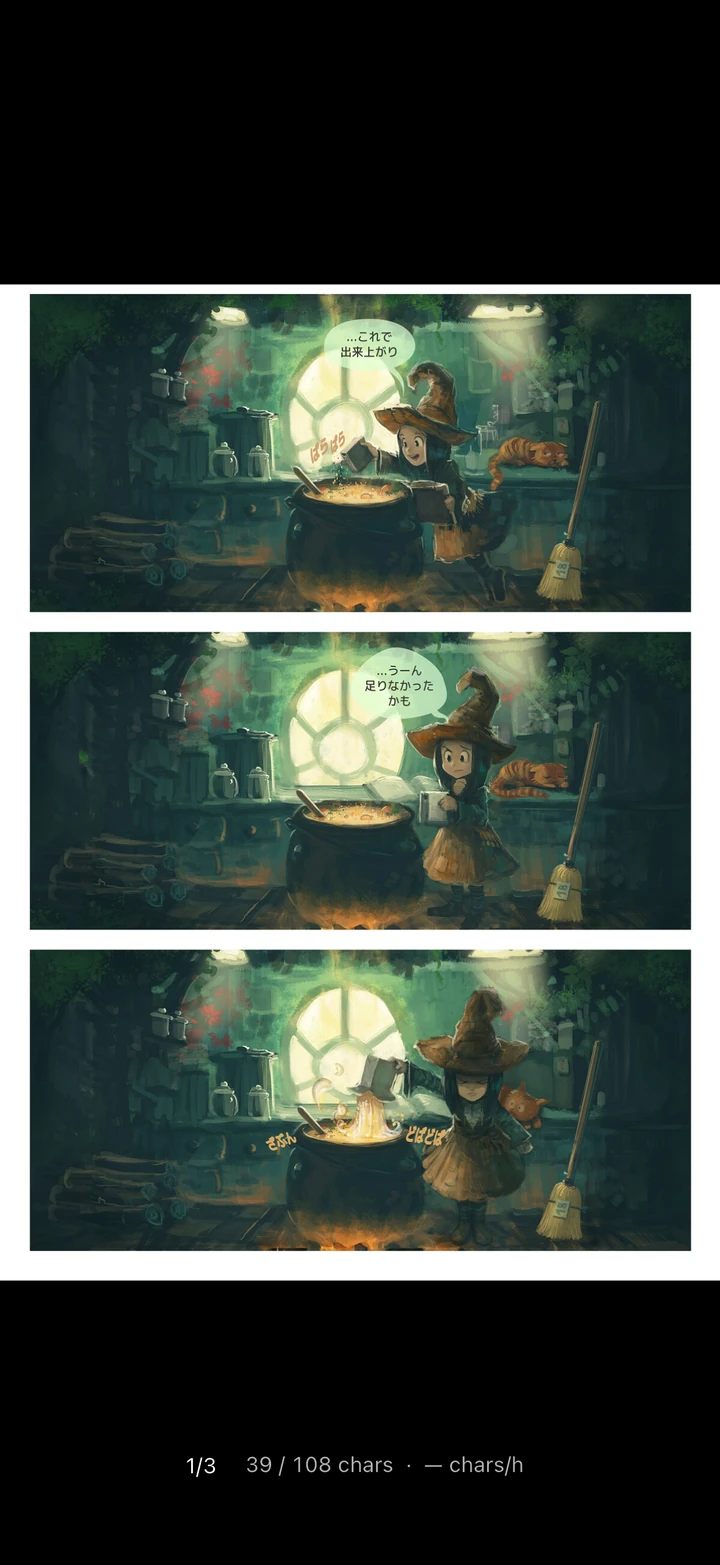
A real kanji example: 出来上がり
In the capture below, Pepper is working on a potion. The first speech bubble includes 出来上がり, read できあがり.
Real Manatan app capture. Comic: Pepper & Carrot, Episode 1: The Potion of Flight, by David Revoy and translation contributors, CC BY 4.0. The comic was imported for the capture; it is not bundled with Manatan.
The useful sequence is:
- Recognize: OCR makes the bubble's writing available for lookup.
- Look up: check 出来上がり as a word, rather than trying to translate each unfamiliar character separately.
- Use the context: meanings around completion or a finished result fit the scene. Here, the character is announcing that the preparation is ready.
- Read again: return to the original bubble and continue.
This is the difference between identifying characters and understanding a word. The aim is not to collect individual character definitions; it is to understand what Pepper is saying.
Which words should you look up?
Lookups are useful when they answer a question. They become exhausting when every unfamiliar mark automatically becomes another task.
A workable rule is to prioritize a word when:
- You cannot follow the action without it.
- It keeps appearing across the chapter.
- You recognize it vaguely but keep forgetting what it means.
- It is useful or interesting enough that you want to remember it.
You can often leave a decorative sound effect, an incidental name, or a word that does not change your understanding for another time. If skipping it makes the next panel confusing, go back and check it.
There is no mandatory number of lookups per page. Adjust the amount of checking so that you still spend time reading, not only managing dictionary windows.
Save selectively, then get back to reading
When you find a word you want to remember, save it through your configured study workflow: Manatan SRS or a supported Anki integration.
Choose an example you understand after the lookup. Keep enough context to remember how the word was used, but avoid saving a long sentence full of other unknown vocabulary just because the save button is available.
Manatan SRS provides a place to review your cards. If you prefer Anki, follow the Anki setup guide and check the instructions for your platform.
You do not have to make a card from every lookup. Finishing a scene with your attention still on the story is a worthwhile outcome too.
When something does not work
| What you notice | What to check first |
|---|---|
| The page is visible, but its writing is not available for lookup | Confirm OCR has completed and the required model or backend is ready. |
| The extracted text looks wrong | Compare it with the bubble. Try a clearer source page, and check the selected backend and language configuration. |
| The text looks right, but no definitions appear | Confirm a compatible definition dictionary is imported and enabled, and that popup lookup is enabled in the reader. |
| A definition appears, but does not fit | Check the word boundary, the OCR characters, and the other meanings in the entry. |
| Cloud OCR asks for membership or credits | Check the selected backend. Cloud processing is separate from supported on-device OCR. |
If a problem persists, use the help center and include your platform, app version, selected OCR backend, and what happened. Do not share copyrighted pages or private files publicly unless you have permission to do so.
A first session you can actually finish
Try a short session rather than setting yourself a whole-volume target:
- Spend a couple of minutes choosing and opening a readable page.
- Read for about ten minutes, looking up words that help you follow the scene.
- Reread a few bubbles and save a small number of useful examples if you want to review them.
Those timings are a starting suggestion, not a promise about learning speed. If a page takes longer, that is fine. If it is consistently frustrating, change the material or make the session smaller.
Frequently asked questions
Do I need to know every kanji before reading manga?
No. OCR can remove the need to type an unfamiliar character, and a dictionary can help you identify the word. You will still need to work through vocabulary and grammar. Start with material that gives you enough context to keep going.
Does OCR translate the entire page?
Not by itself. OCR recognizes writing. Dictionary lookup explains selected words. Translation is a separate feature and a different way of working with the page.
Is this only useful for Japanese?
This walkthrough focuses on Japanese. OCR language coverage depends on the selected engine and model, while dictionary lookup depends on the dictionaries you have imported. Do not assume every OCR backend supports every lookup language.
Do I need a paid membership?
Core manga reading, dictionary lookup, and supported on-device OCR are available without a membership. Optional Manatan cloud OCR requires an active subscription and service credits for new processing. Check the membership page for current options, and verify which backend you have selected.
Start with one page
Choose a story you want to read, recognize its text, and look up the word that is blocking the next bubble. Then return to the panel.
Download Manatan to get started, or open the local manga guide if you already have the app.
The goal is not to turn every manga page into homework. It is to spend less time typing kanji and more time following the story.