 Manatan
How to Read Japanese EPUBs With a Popup Dictionary
Import a Japanese EPUB, make the reader comfortable, and look up kanji without leaving the page. Follow each step with real Manatan screenshots.
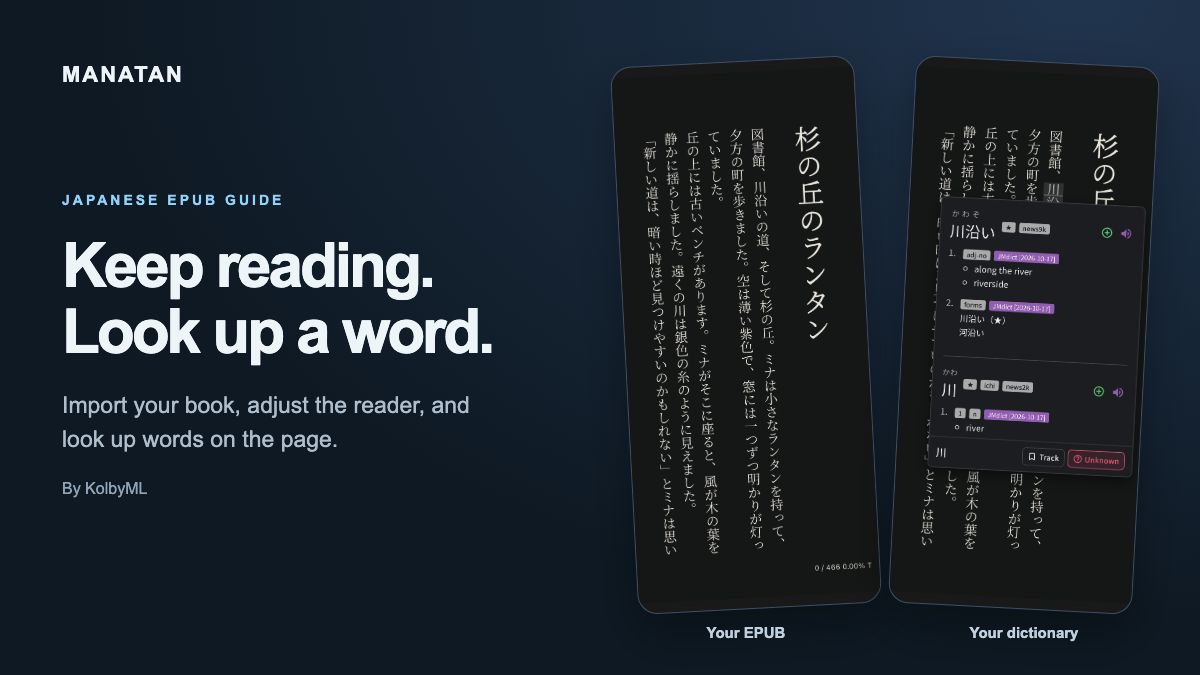
Reading Japanese is easier to stick with when an unfamiliar word does not mean leaving your book, opening another app, and typing kanji you do not know.
In Manatan, you can import an EPUB and look up words on the page. This guide takes you from choosing the file to saving a useful word for review.
Before you start
Have Manatan installed, an unprotected EPUB you have permission to import, and a compatible dictionary enabled. If you have not set up dictionary lookup yet, follow How to Import a Dictionary into Manatan first.
The screenshots use an iPhone, an imported JMdict dictionary, and 杉の丘のランタン, an original Manatan story.
1. Import your EPUB
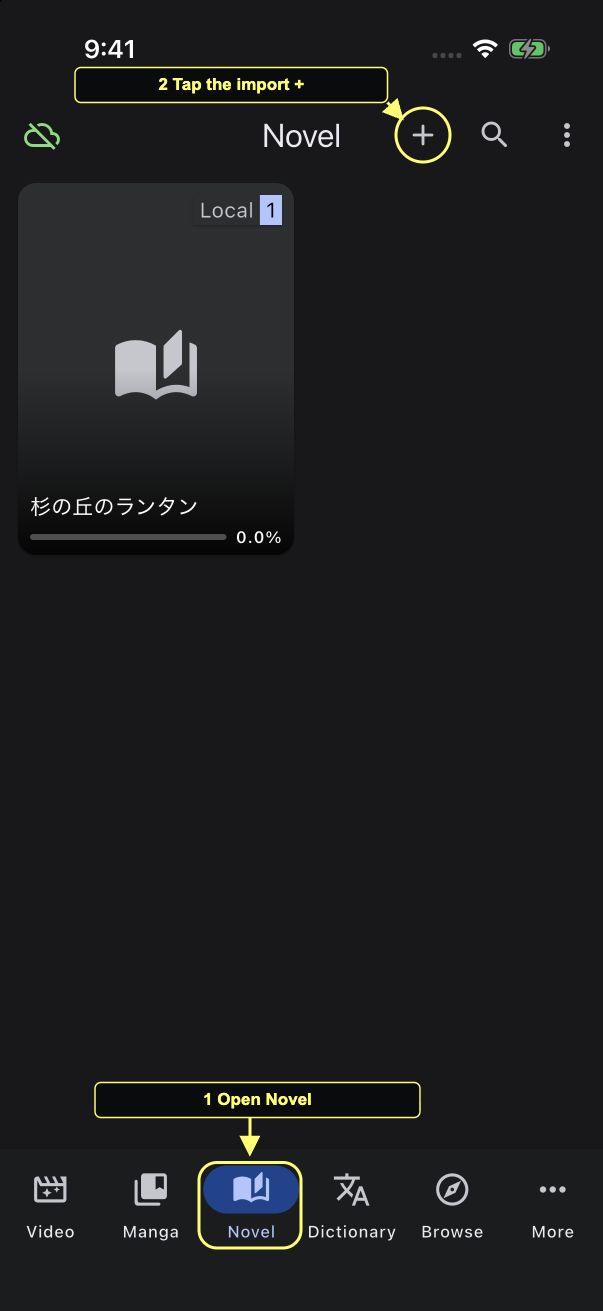
Open Novel in the bottom navigation, then tap the plus at the top of the library.
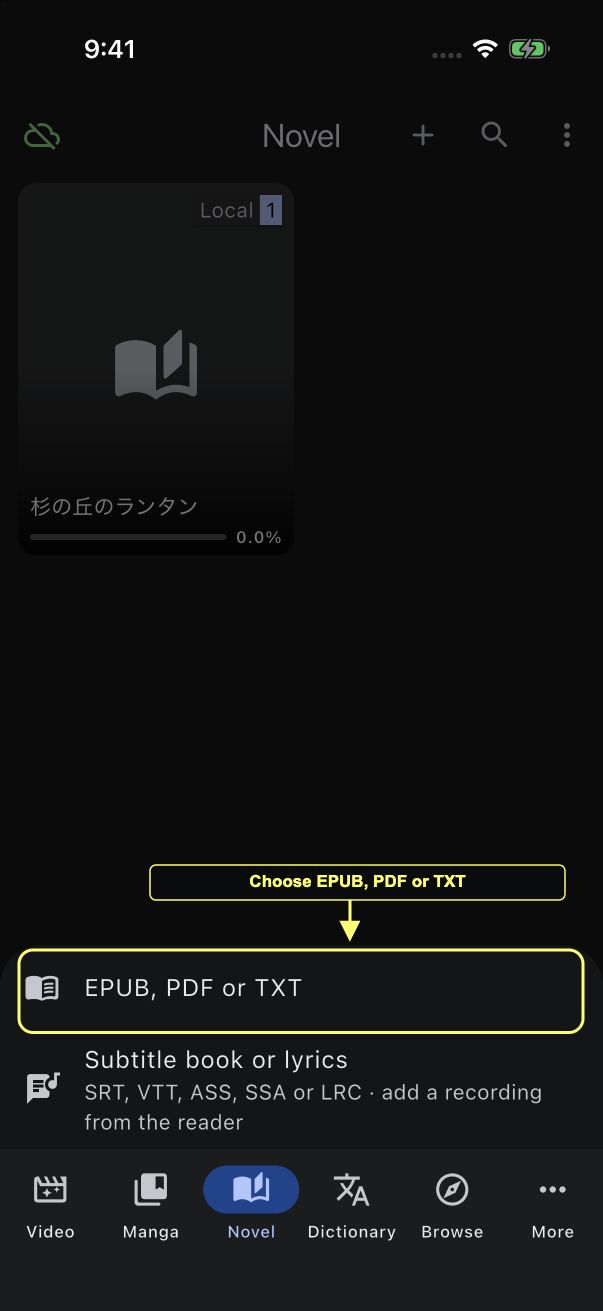
Choose EPUB, PDF or TXT. This guide uses an EPUB.
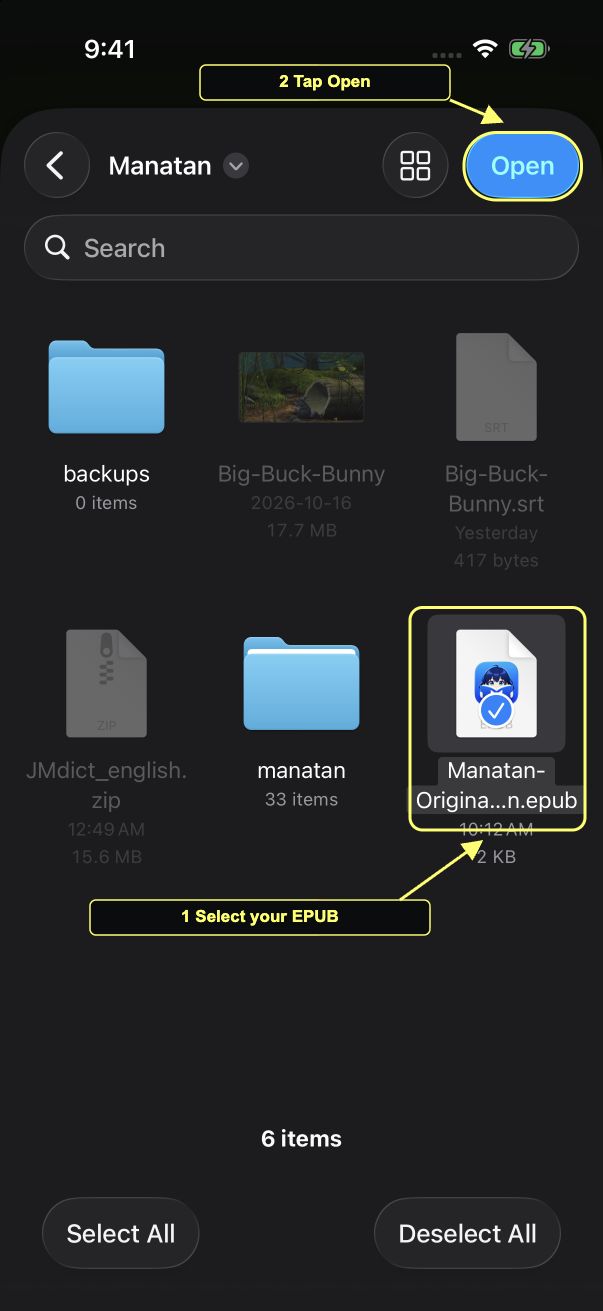
In the file picker, find your book, select it, and tap Open. Your file may be in Downloads, iCloud Drive, or another location you use in Files.
2. Open the imported book
Once the book appears in Novel, tap its cover or title to open it.
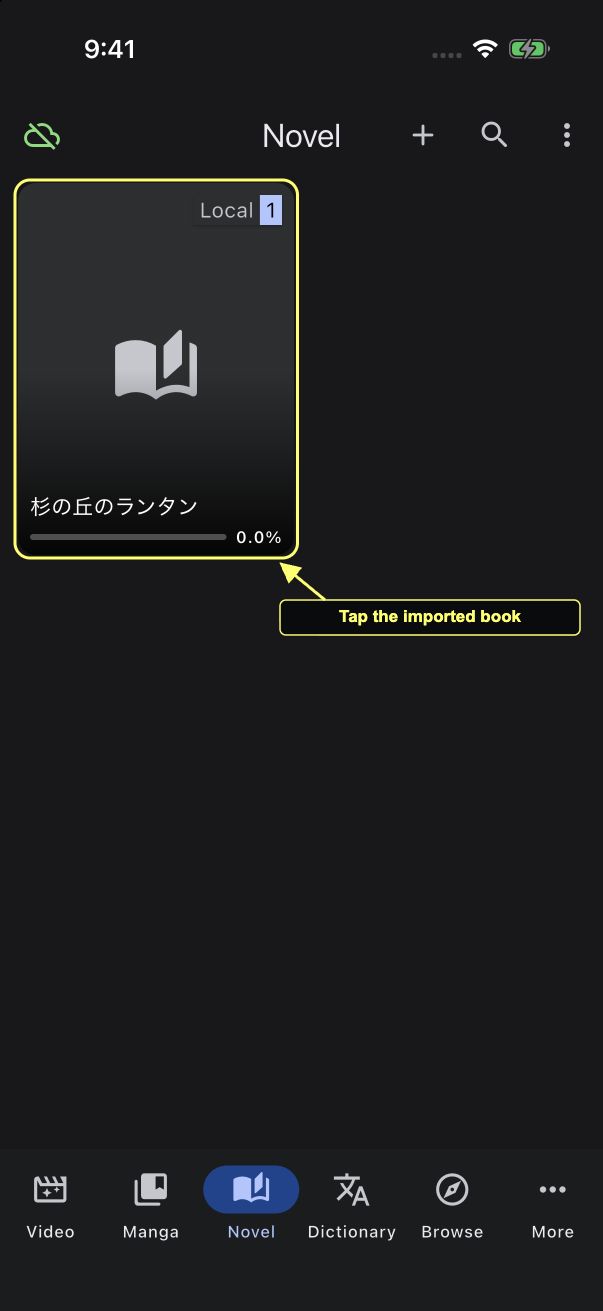
If Manatan says the book already exists, it has recognized a duplicate. Choose Skip if you only meant to add it once. Replace is for intentionally updating that book's file; the dialog explains that it keeps reading progress.
3. Make the page comfortable to read
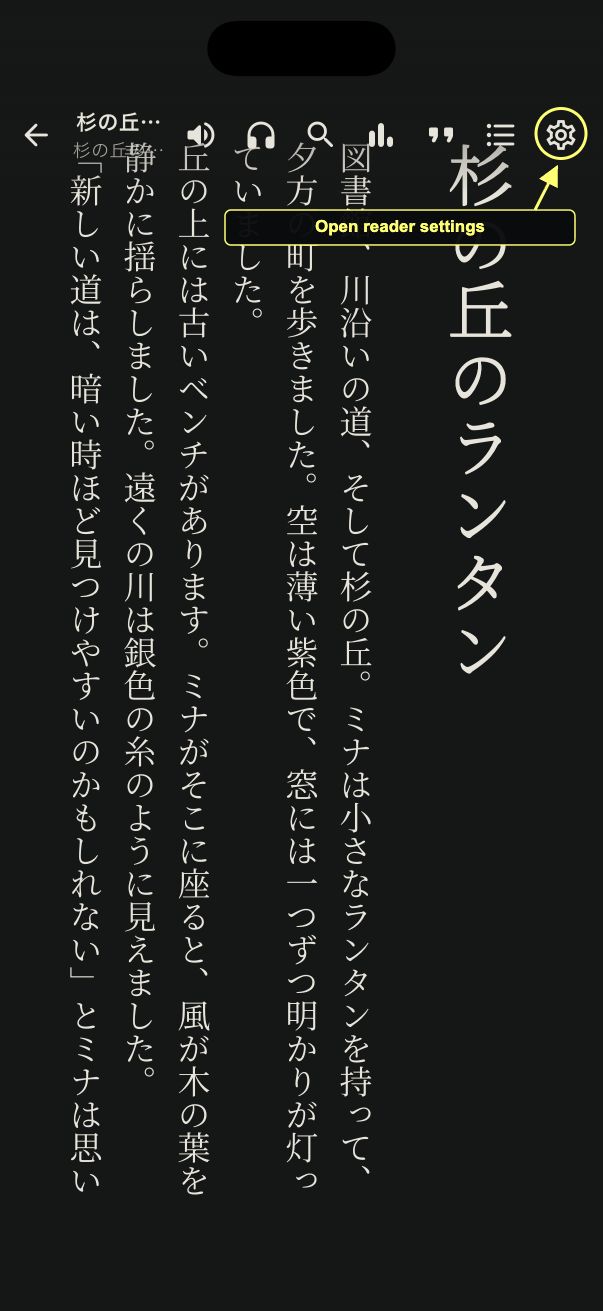
Tap empty space near the top of the page to show the reader toolbar. Open the settings gear at the upper right.
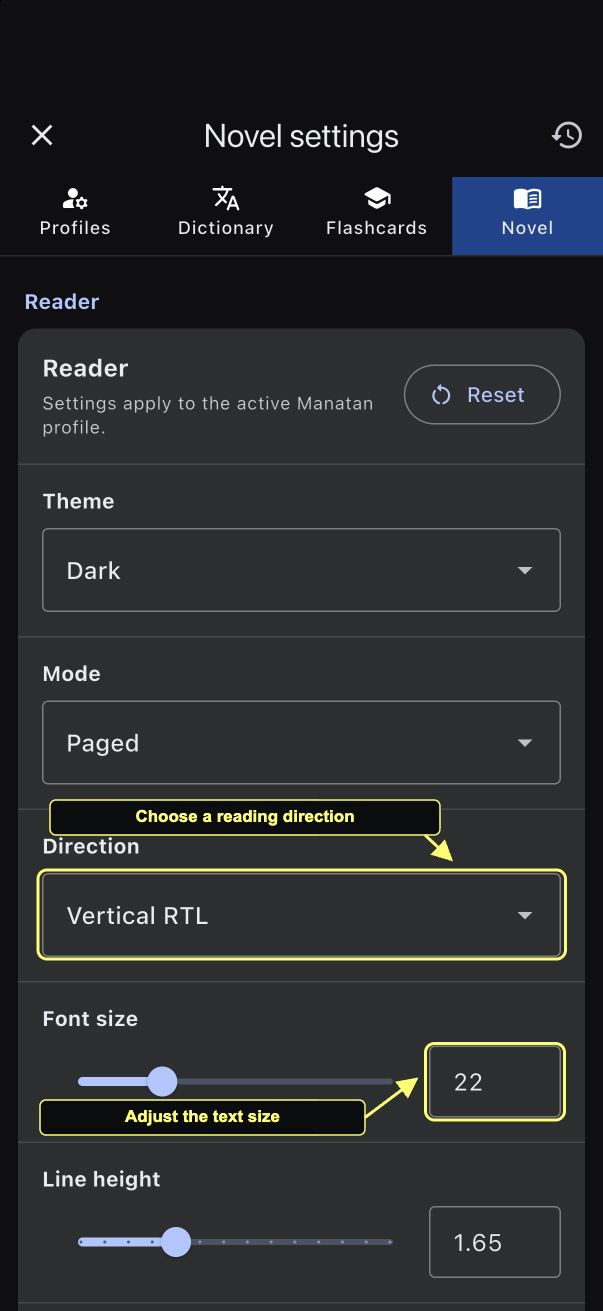
In Novel settings, adjust Font size and Line height until the text feels comfortable. Theme, Mode, and Direction let you change how the book is displayed.
This example uses Dark, Paged, and Vertical RTL for Japanese columns read from right to left. You do not have to use these exact settings for dictionary lookup. Close the panel with the X to return to the book.
4. Look up a word without typing it
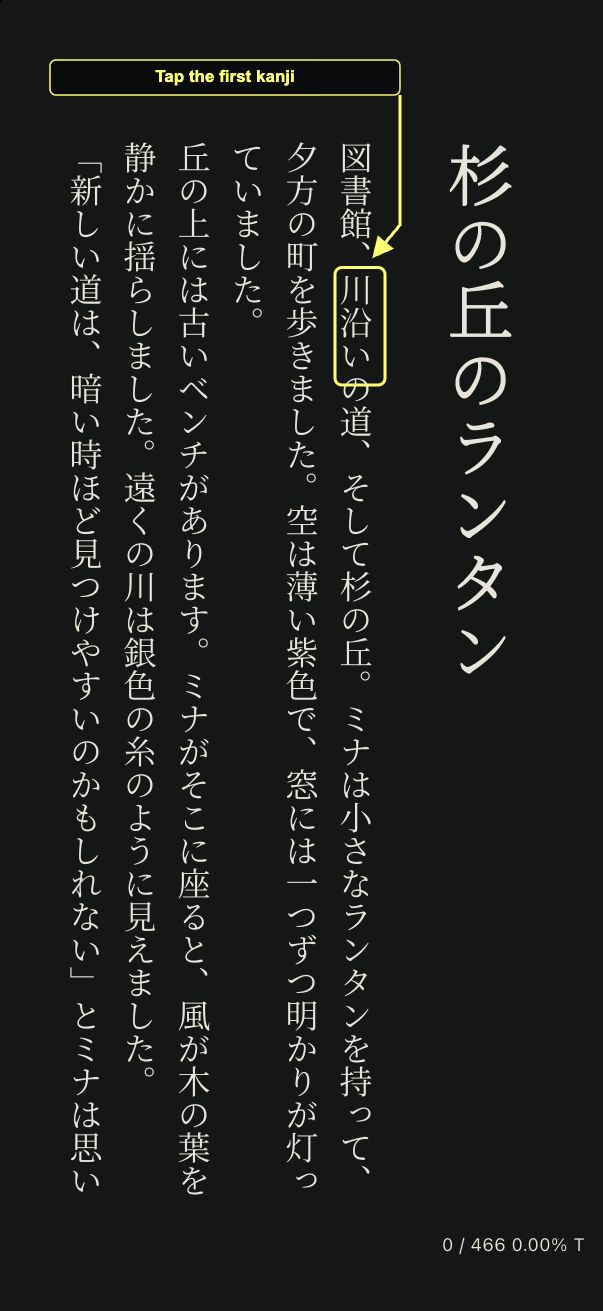
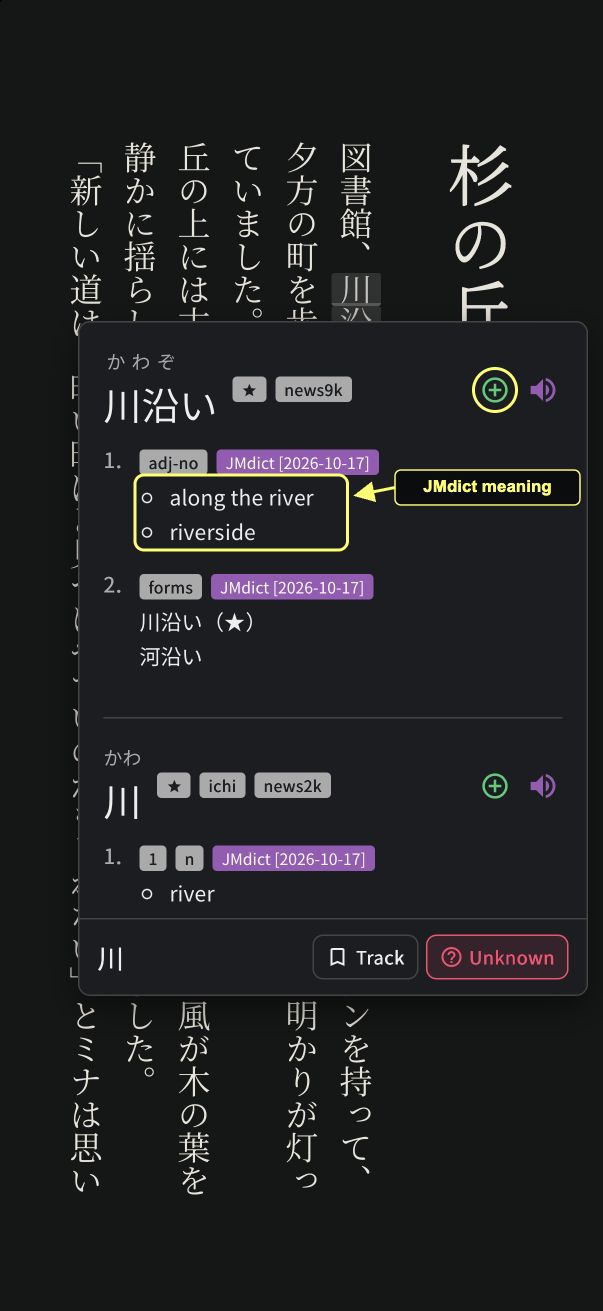
When you meet a word you want to understand, tap its first character. Here, tap 川, the first character of 川沿い, at the marked location.
Manatan opens the dictionary over the page. JMdict gives 川沿い the meanings “along the river” and “riverside.” Read the definition against the sentence, then tap outside the popup to continue reading.
You do not need to stop at every unfamiliar word. Look up enough to follow what is happening, and keep moving through the story.
5. Save a useful word for later
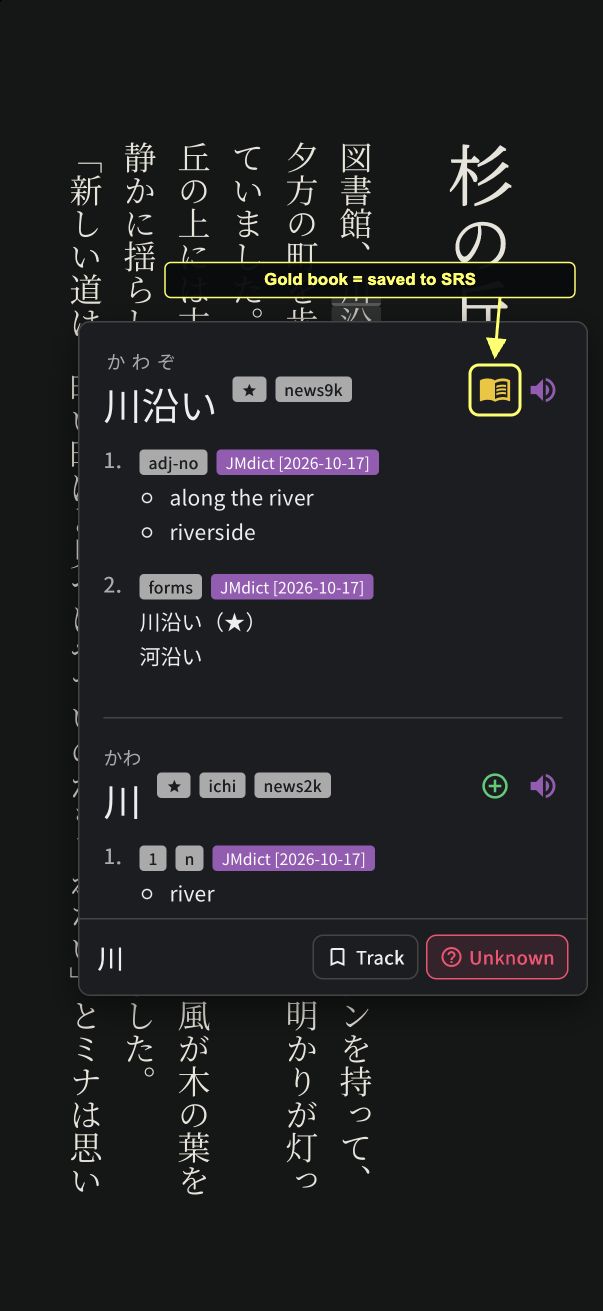
If you want to review the word, enable the built-in Manatan SRS option in Flashcards settings. Then tap the green plus beside the dictionary entry, circled in the screenshot above.
The icon changes to a gold book once the card is saved. The Track button at the bottom of the popup is a separate action, not the add-card button.
For the setup and your first review, follow How to Save Words and Review Them With Manatan SRS.
If lookup does not appear
Check that your dictionary is imported and enabled, and that the popup dictionary is enabled. This workflow needs actual text in the book; a page made only of an image is not the same as a text EPUB. The dictionary setup guide shows the switches to check.
Start with a few pages you want to read. Adjust the display once, look up the words that matter, and save only the ones you want to meet again.