 Manatan
How to Save Words and Review Them With Manatan SRS
Turn words you meet while reading into flashcards, then review them inside Manatan. Follow the complete workflow from dictionary lookup to your first review.
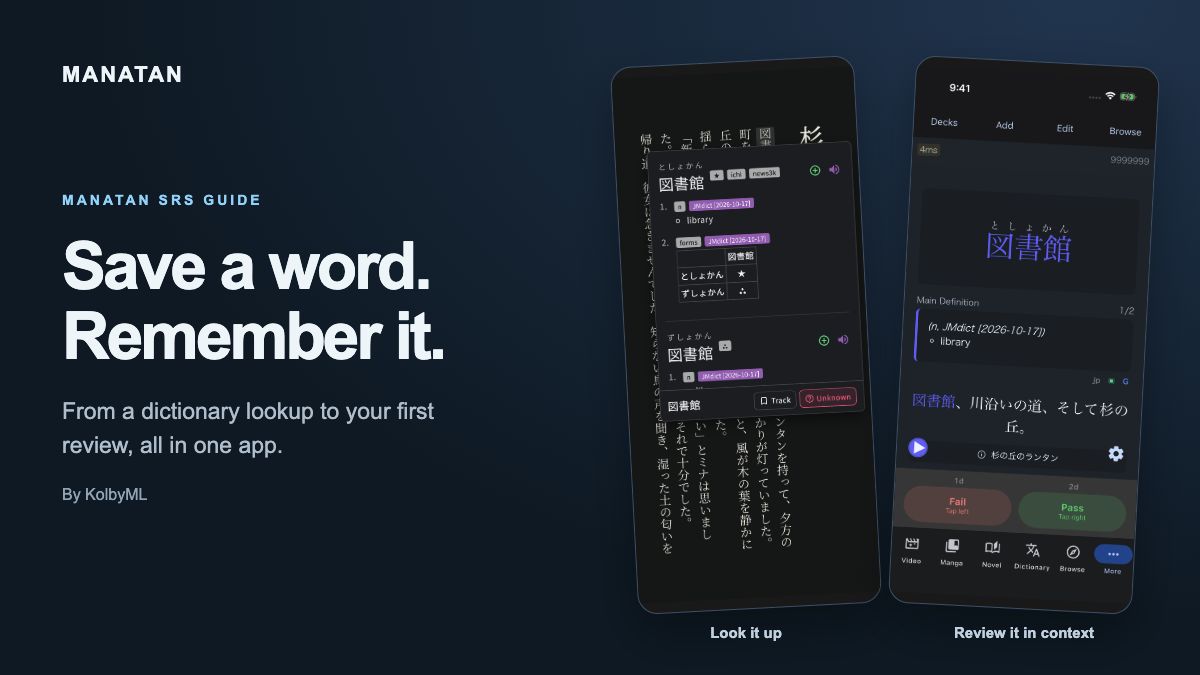
You look up a word, understand the sentence, and keep reading. A few pages later, the same word feels unfamiliar again.
Manatan SRS lets you save that word for review without leaving the app. This walkthrough follows 図書館 (としょかん, “library”) from an EPUB lookup to a flashcard with its original sentence.
Before you start
You need Manatan, an imported dictionary, and something to read. The screenshots use an iPhone, a Japanese EPUB, and JMdict. If you have not added a dictionary yet, follow the dictionary import guide first.
This guide uses the built-in Manatan SRS option. You do not need AnkiConnect, AnkiMobile, or a separate flashcard app.
1. Enable Manatan SRS
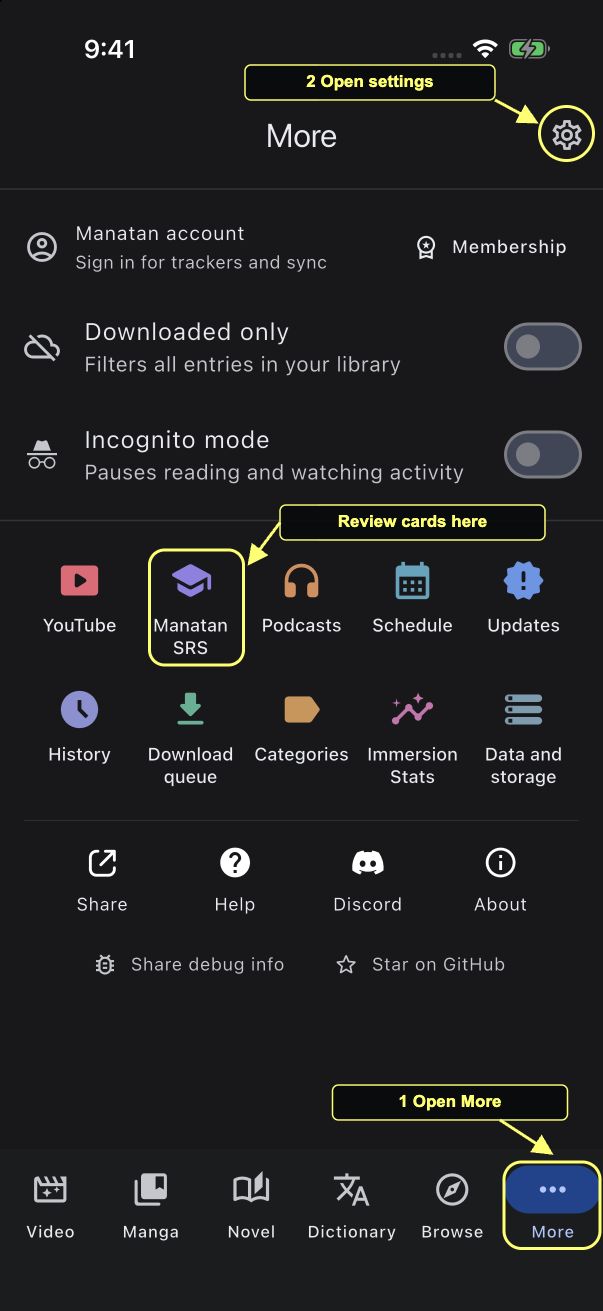
Open More, tap the settings gear in the upper right, then open Flashcards.
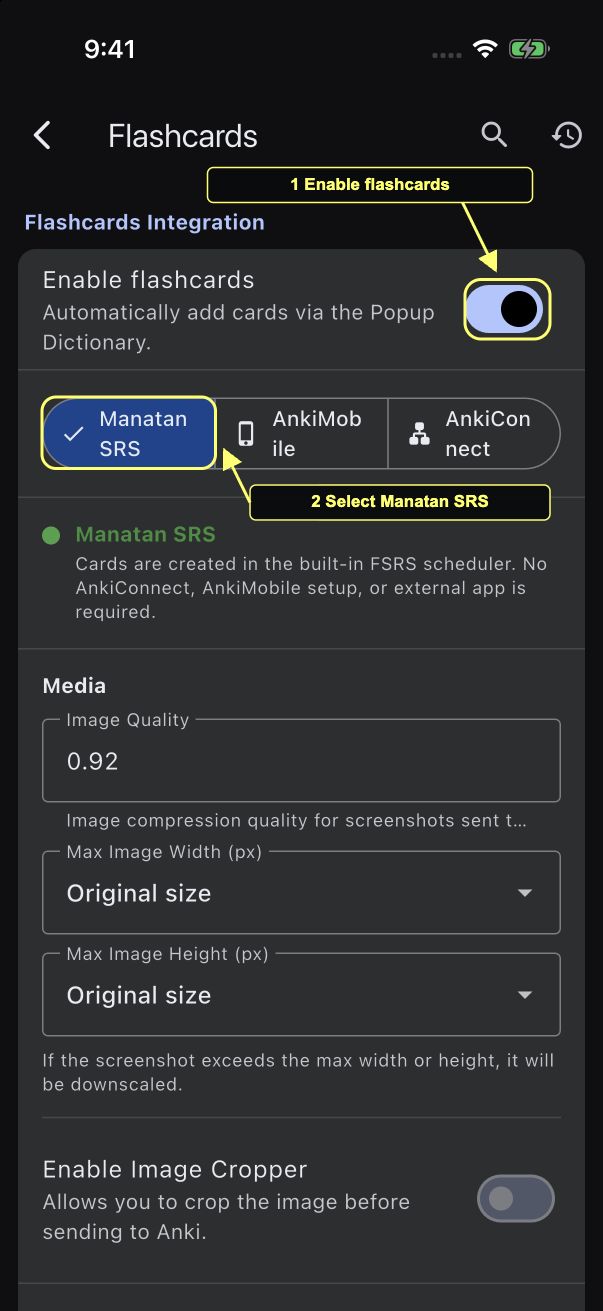
Turn on Enable flashcards and select Manatan SRS.
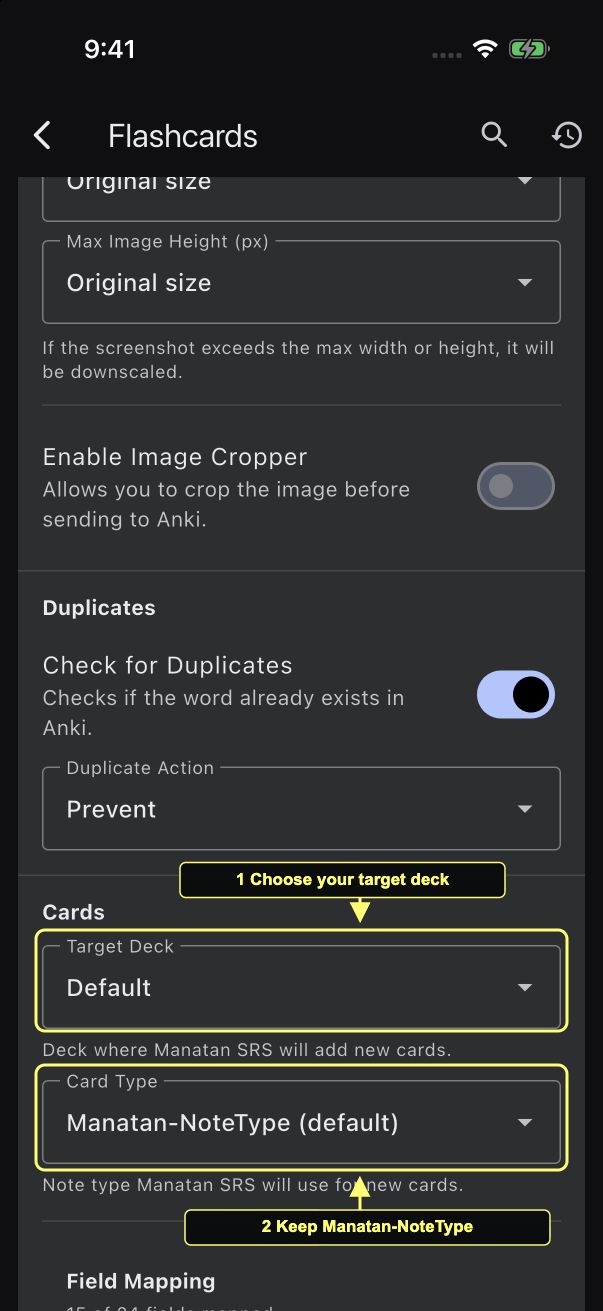
Under Cards, choose your Target Deck. Default is fine for your first cards. Leave Card Type set to Manatan-NoteType (default).
2. Save a word from the dictionary popup
Open your book and look up a word. Check the reading and definition, then tap the green plus beside the dictionary entry you want to save. In this example, that is 図書館 with the reading としょかん.
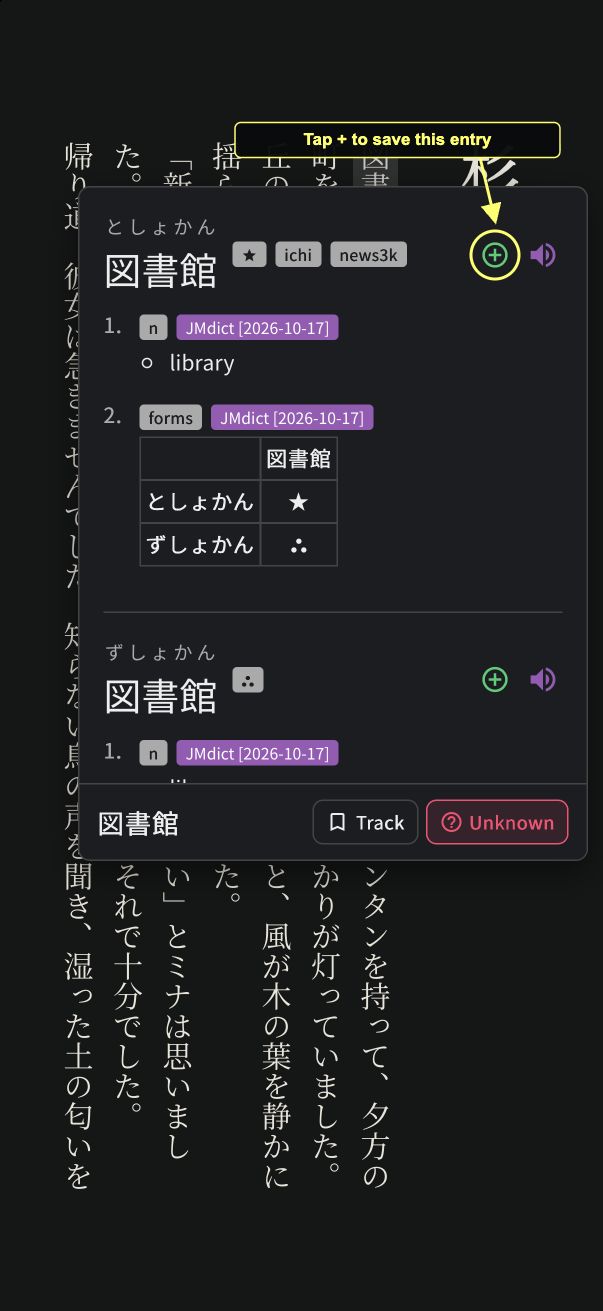
The plus changes to a gold book after the card is saved. That is your confirmation.
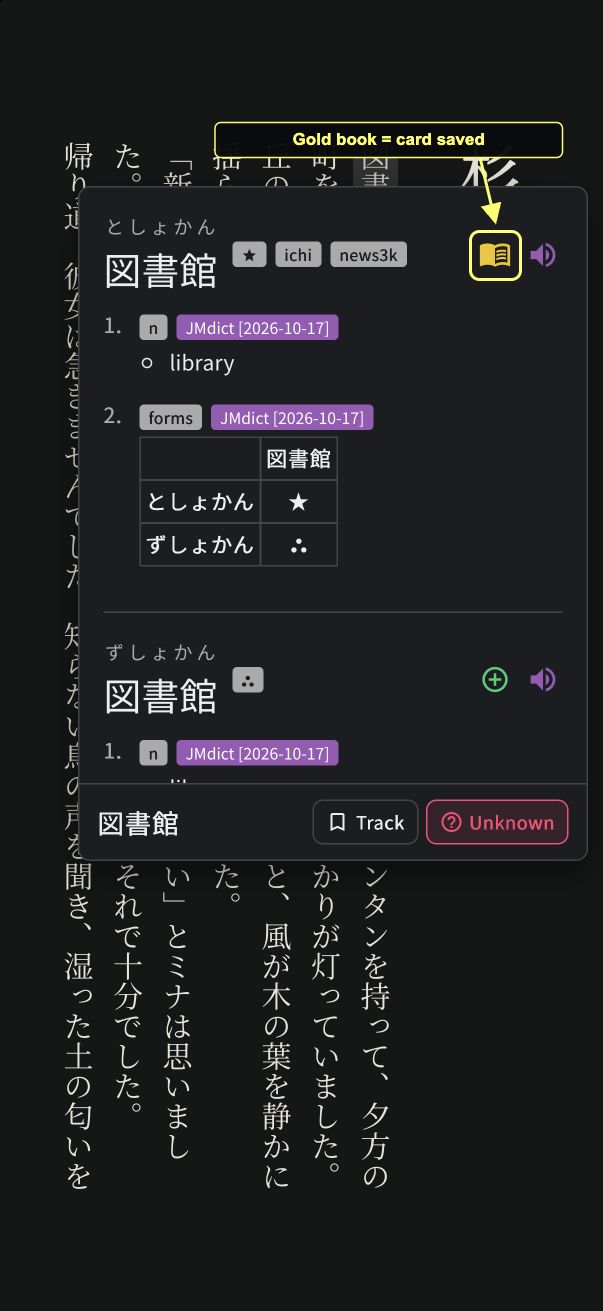
The Track button at the bottom of the popup is separate; it does not replace the add-card button.
For this card, Manatan saved the word, its reading, the JMdict definition, and the sentence it came from:
図書館、川沿いの道、そして杉の丘。
You do not have to save every unknown word. Start with a few you want to recognize the next time you meet them, then get back to the story.
3. Find the card you saved
Open More > Manatan SRS, then select Browse. Search for the word you just added. 図書館 appears as a new Recognition card in this example.
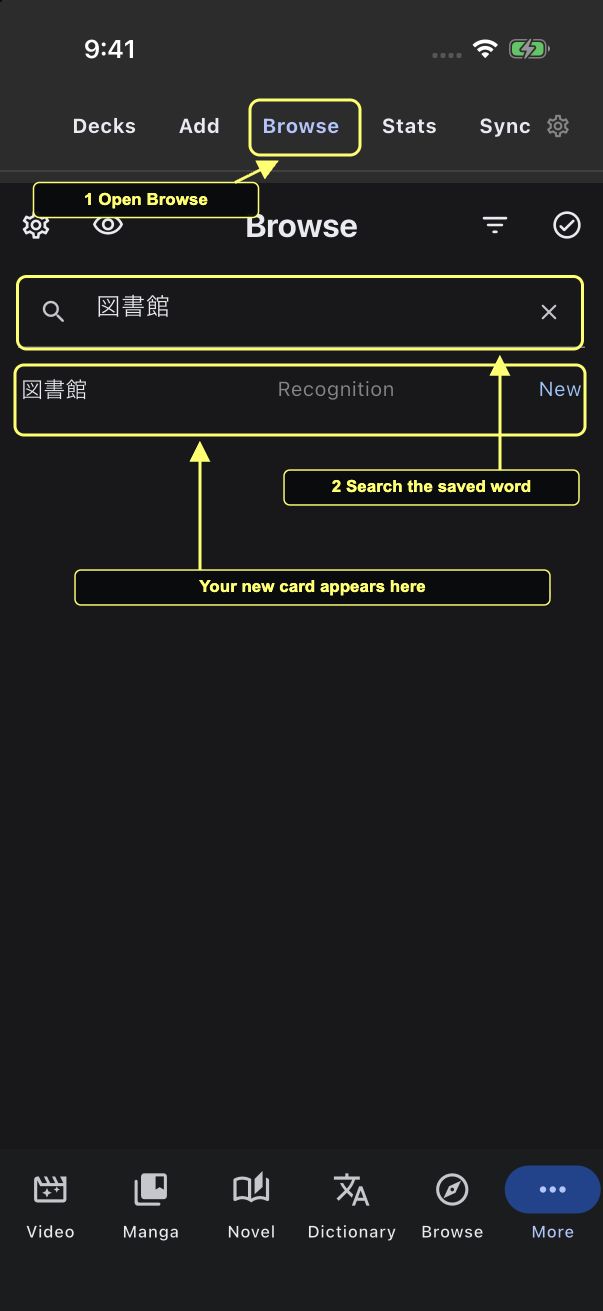
If you cannot find it, check the target deck in Flashcards settings and confirm that the dictionary entry changed to the gold book icon.
4. Start a review
In Manatan SRS, open Decks, select the deck you chose earlier, and tap Study Now.
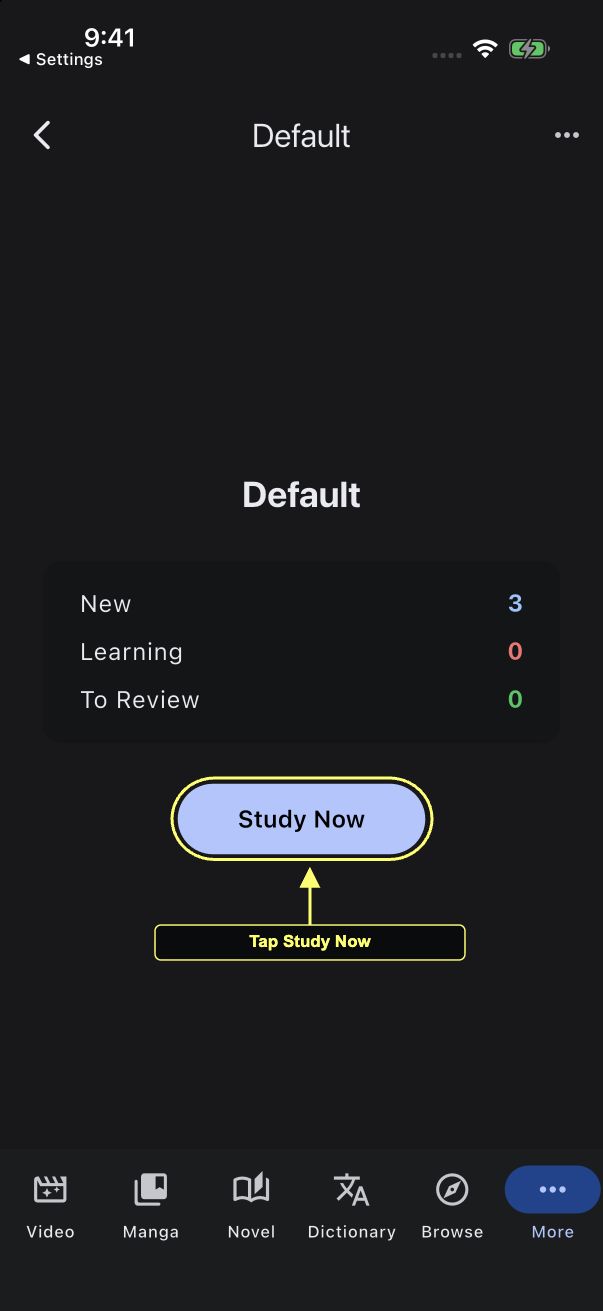
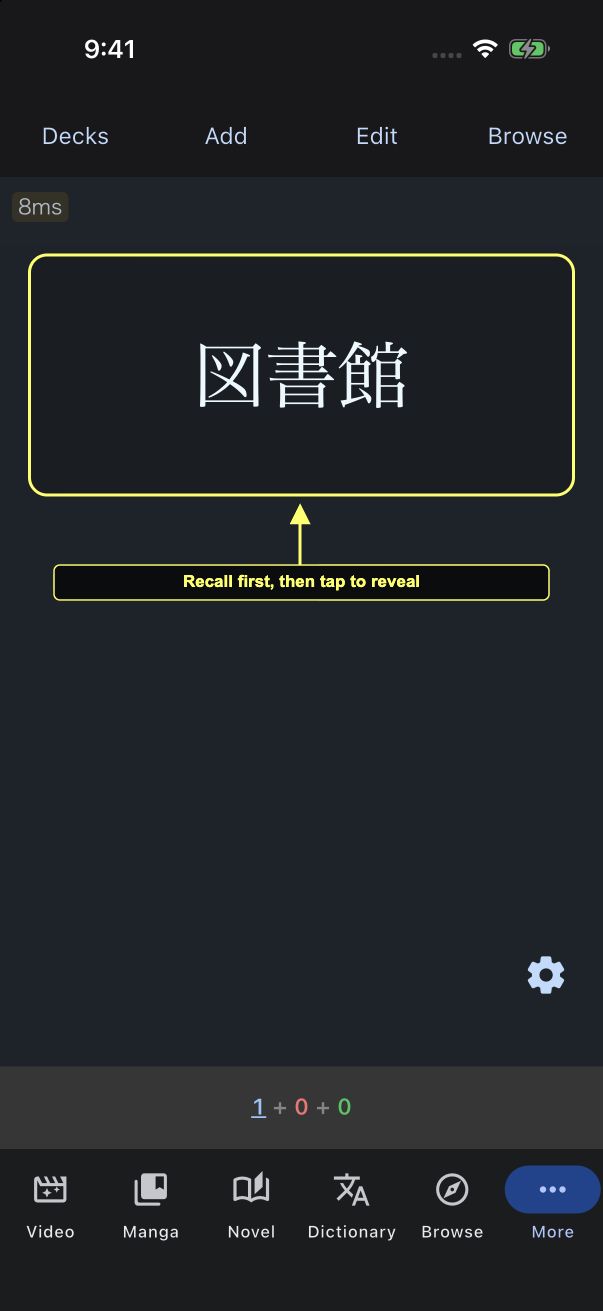
The front of this card shows 図書館. Try to recall its reading and meaning before revealing the answer. On the iPhone, tap the card background to reveal it.
5. Check your answer and grade it
The answer shows としょかん, “library,” and the original sentence. Use the sentence to reconnect the word with what you were reading.
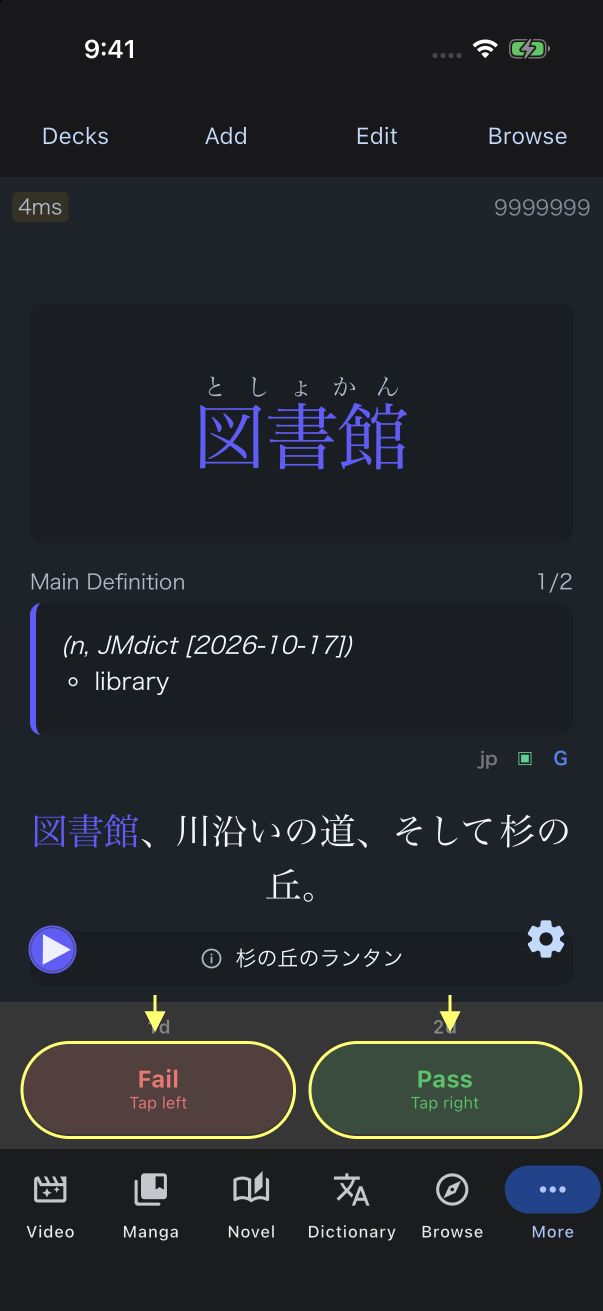
Choose Pass if you recalled the answer, or Fail if you did not. Be honest about what you remembered before revealing it. Manatan schedules the next review; the intervals shown will vary with your card and review history.
Keep the routine small
Review the cards that are due, save a few useful words during your next reading session, and keep reading. If reviews start crowding out the content you enjoy, add fewer new cards.
The goal is not to collect every word. It is to recognize more of them when you return to your book, manga, or video.