Watch YouTube with dubbed audio
Hear the dialogue in your learning language and follow along with matching subtitles in the Manatan browser extension.
Browser extension
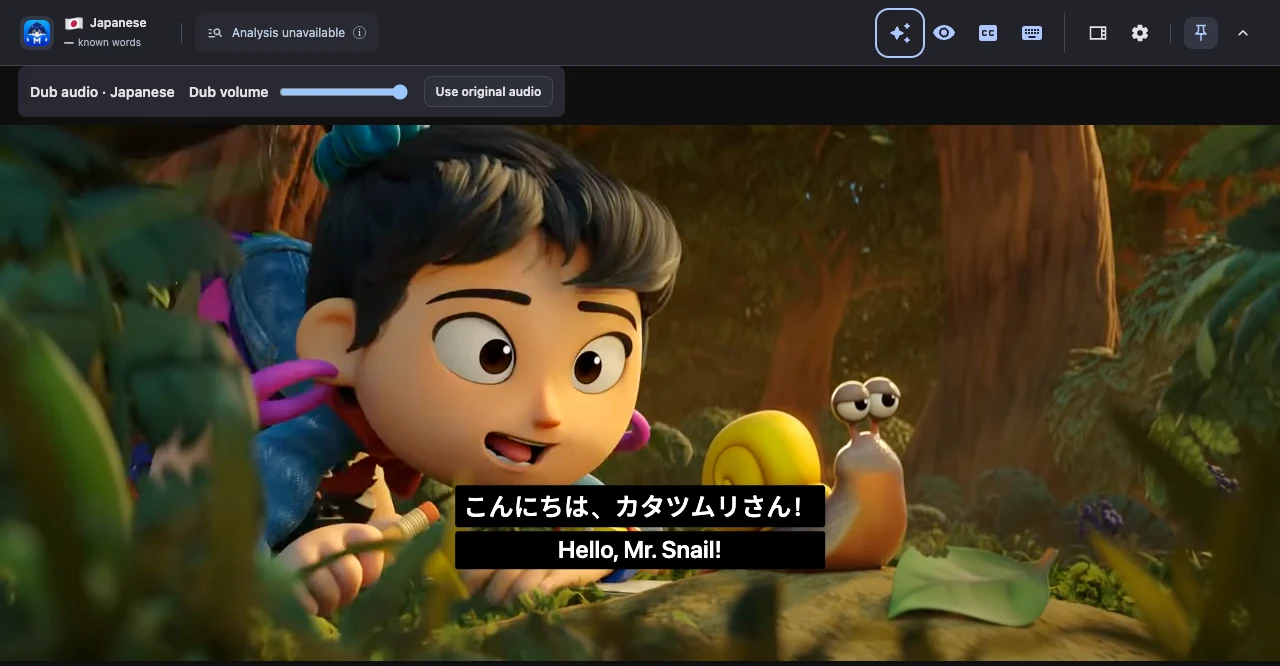
Switch between audio tracks
The demo shows the same scene from Sprite Fright with English captions and then with both Japanese and English captions. In the extension, choose Use original audio to switch back to the source track.
Choose a dubbing language
Open AI subtitles, choose a language under Dub into, and select Watch dubbed. Playback can start once enough audio is ready, and the extension prepares more as you watch.
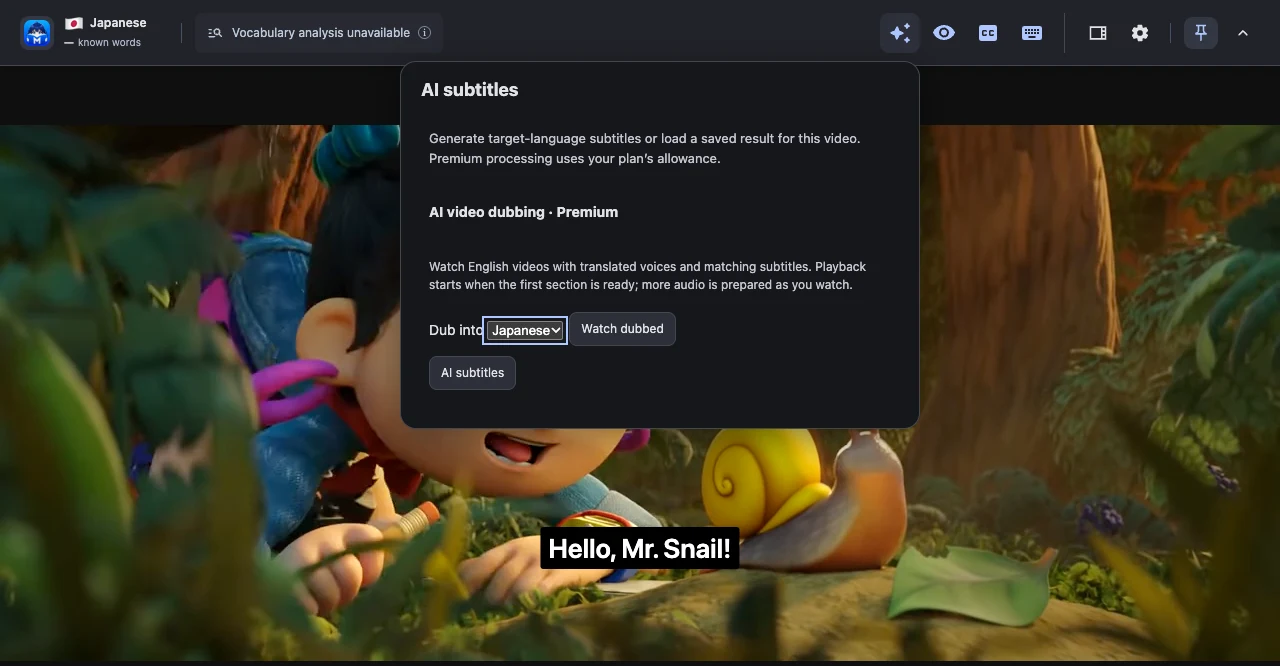
Set up dubbing
Install the extension
Add Manatan to your desktop browser and sign in.
Get the browser extensionOpen an English video
Choose a supported YouTube video and open AI subtitles in the Manatan toolbar.
Watch Sprite Fright on YouTubeStart playback
Choose your target language and select Watch dubbed when generation is available.
Requirements
- Source video
- Dubbing supports eligible English-language YouTube videos in the desktop browser extension.
- Service availability
- Live dubbing generation is currently unavailable. When enabled, generation requires an active membership and available service credits.