Watch with the original and translation
Keep the original dialogue on screen and add a translated subtitle track when you want to check the meaning.
iPhone & iPad · Android · Desktop · Website

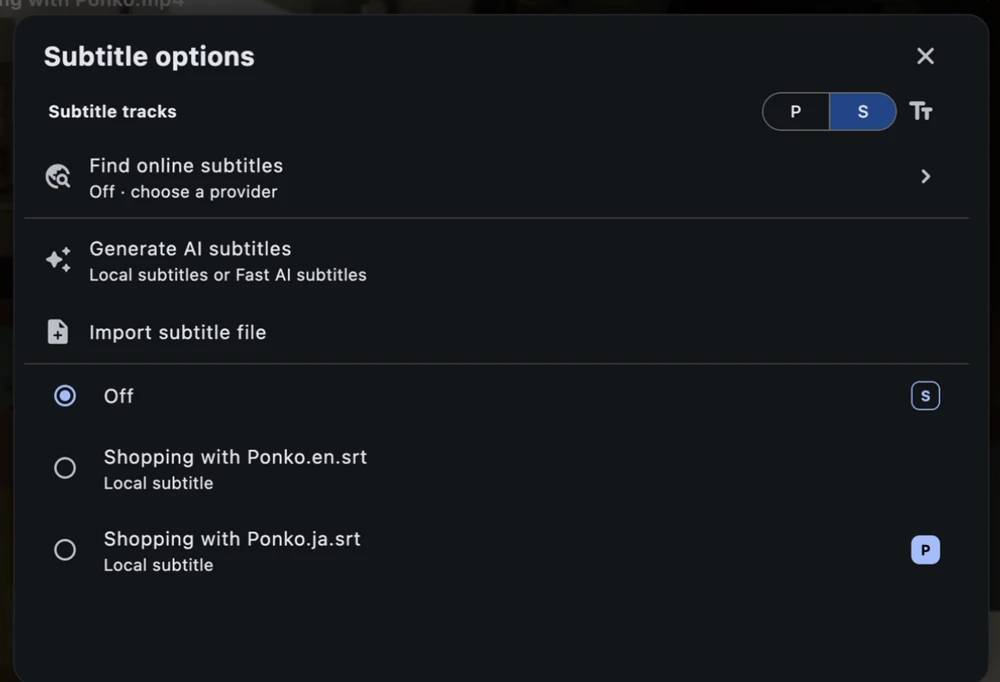
Add a second subtitle track
Keep the original as the primary track. In Subtitle options, switch to Secondary subtitles (S) and select or import a matching translation. Both tracks stay visible during playback.
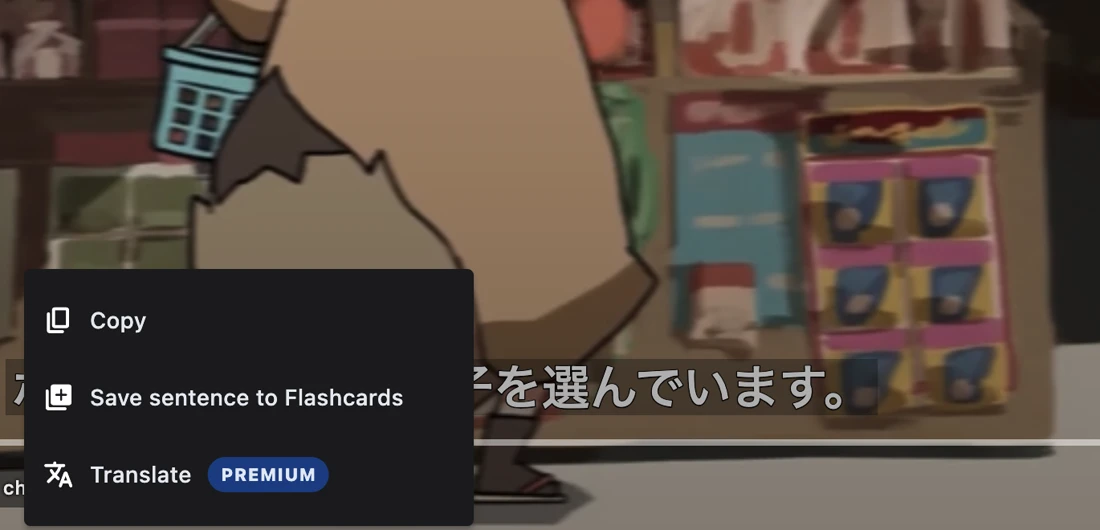
Translate a single line
Right-click a subtitle on desktop or touch and hold it on mobile, then choose Translate. Manatan Translate shows the original and the result together. You can also translate selected text in supported readers.
Set up bilingual subtitles
Select the original track
Open Subtitle options in the video player and choose the original captions under Primary subtitles (P).
Add your translation
Switch to Secondary subtitles (S). Choose an available translated track or import a matching subtitle file.
Compare the lines
Play a few lines with both tracks visible. To translate a single line, open its menu and choose Translate.
Requirements
- Two subtitle tracks
- Use original and translated subtitle tracks timed for the same video.
- Manatan Translate
- On-demand translation requires an active Manatan membership and available service credits.