 Manatan
How to Learn Japanese With YouTube in Manatan on iPhone
Watch a short video, look up words in its Japanese subtitles, and keep useful vocabulary for review. Follow the workflow on iPhone.
A short YouTube video can give you something concrete to follow: a conversation, a recipe, a trip, or an explanation. The useful part is staying with that topic, not stopping to collect every unknown word.
This guide follows one video in the Manatan iPhone app. Start with a few minutes you want to understand, then use subtitles and dictionary lookup when you need help.
Before you start
Install Manatan, sign in to your Manatan account, and import a compatible Japanese dictionary. The dictionary examples in this guide use real JMdict results. Our getting started guide and dictionary import guide cover the initial setup.
You also need an internet connection and a video that can play in Manatan's embedded YouTube player. Availability and caption tracks depend on the video. YouTube playback keeps YouTube's own controls and may include advertisements.
1. Open YouTube from More
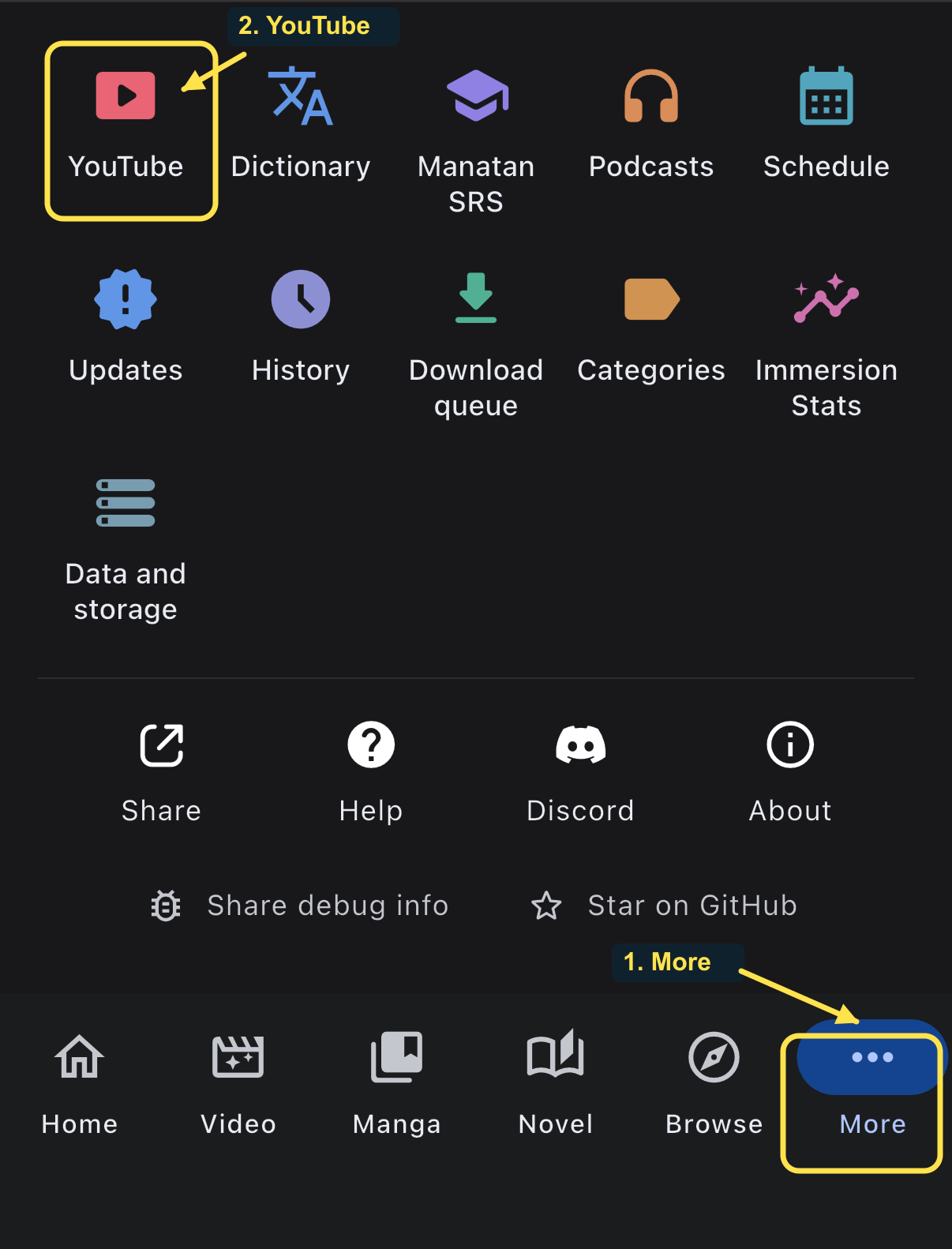
Tap More in the bottom navigation, then YouTube. If you see a sign-in prompt, open Manatan account and finish signing in before returning. Review the YouTube information screen if it appears on your first visit.
2. Choose one video
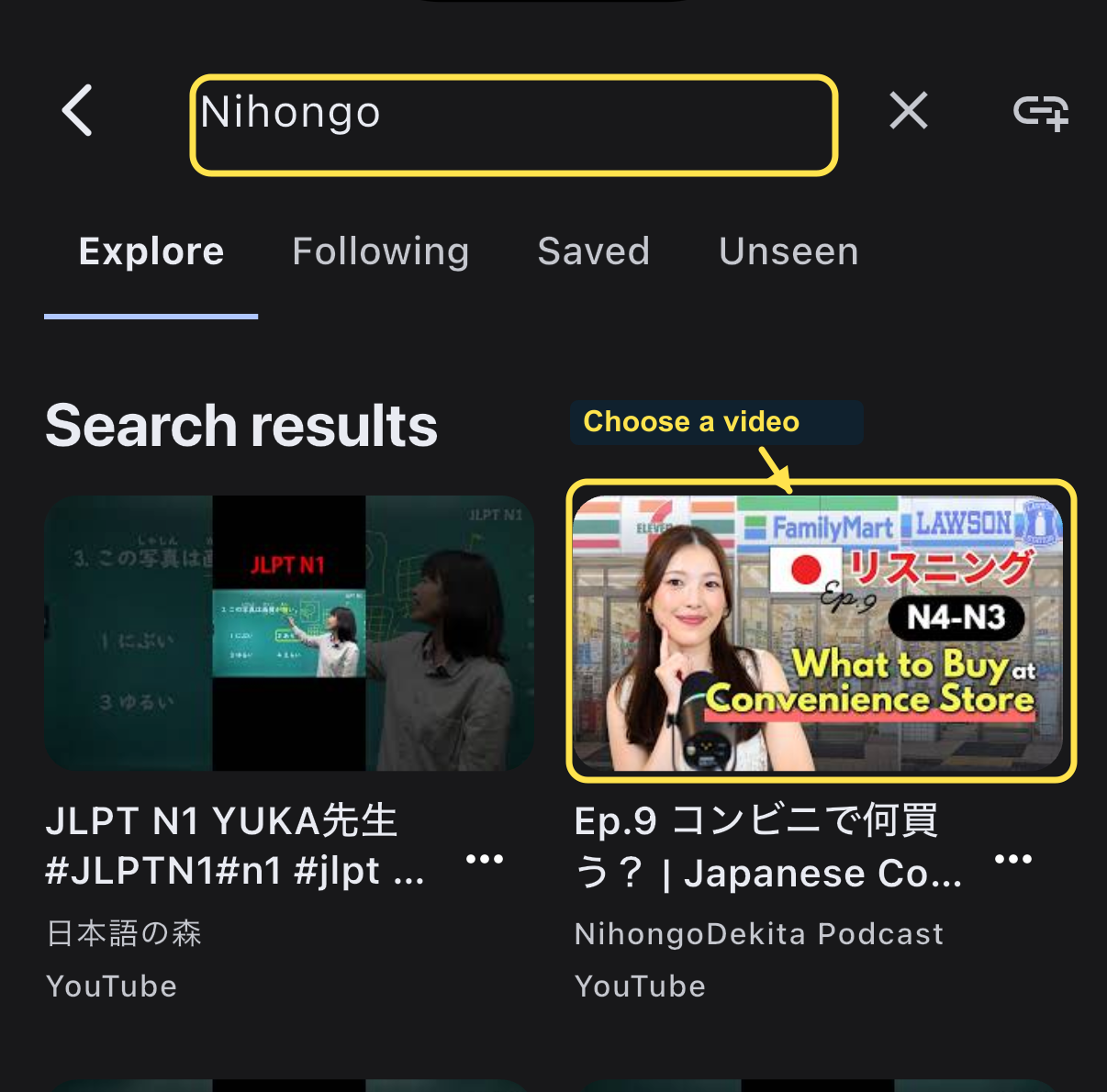
Use the search button to find a video or channel in Manatan's catalog. Choose a short topic that interests you and speech you can follow at least partly. The search is for Manatan's catalog, not every video on YouTube.
Here we search for Nihongo and open NihongoDekita Podcast's Ep.9 コンビニで何買う?, an N4 to N3 listening episode about convenience stores. You can use a different video that suits your level.
Tap a video to open its player. If the creator does not allow embedding, choose another video.
3. Check the Japanese subtitle track
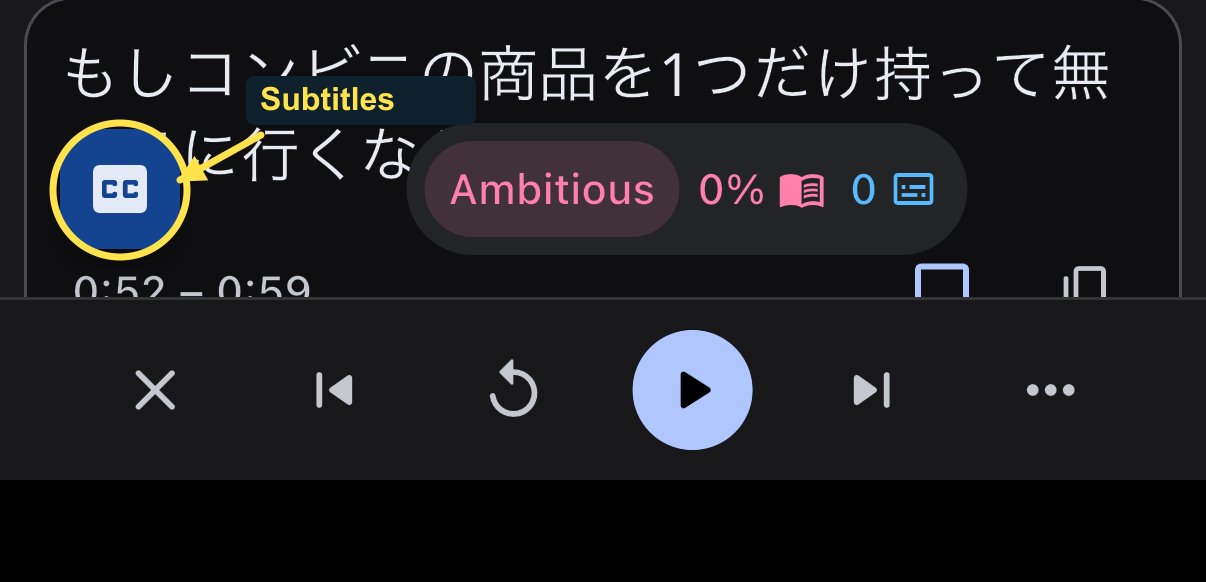
Tap the floating CC button to open Video options. Keep Segment browser selected, then open Target subtitles and choose an available Japanese track. Track names vary by video, and automatic captions can make mistakes, so check a few lines against what you hear.
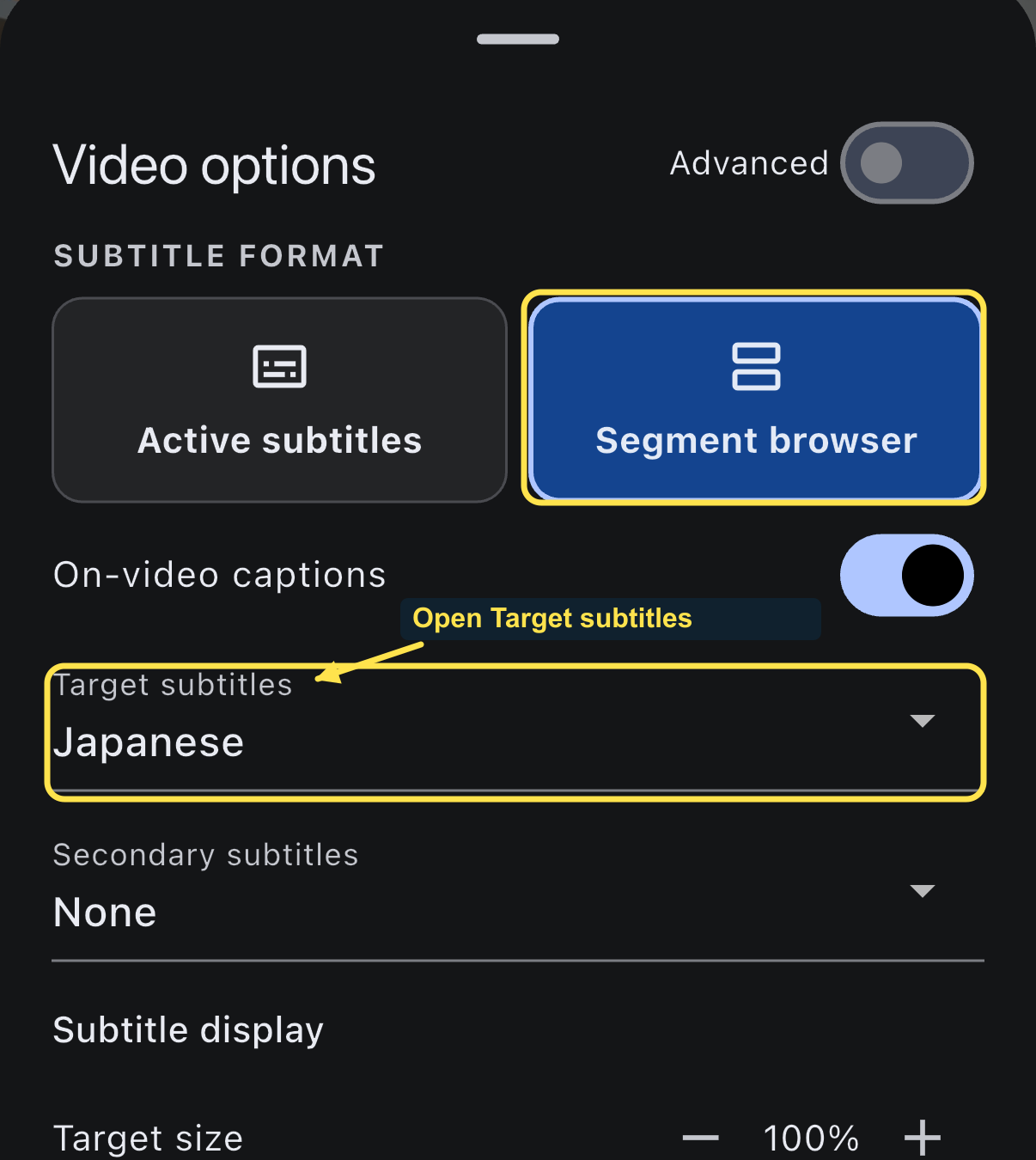
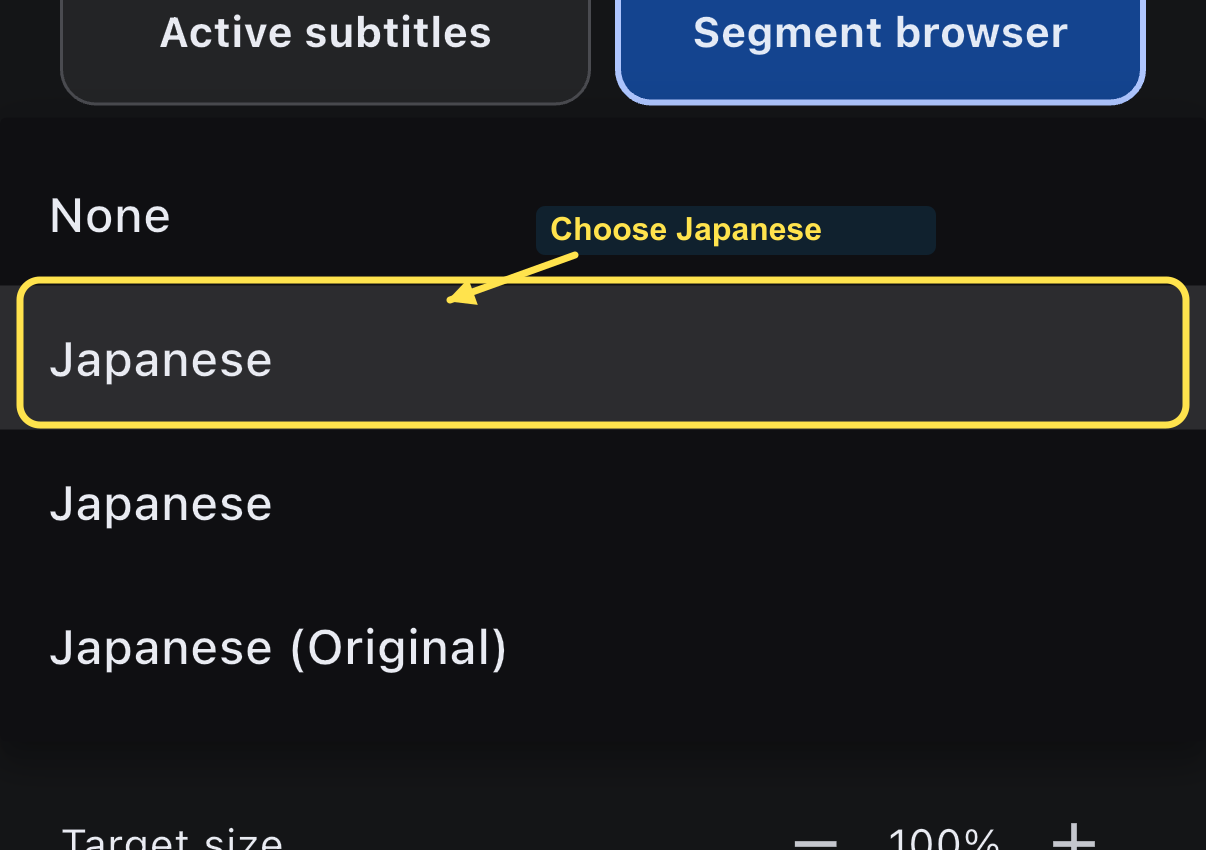
Active subtitles shows just the current line instead of the list. Target size adjusts Manatan's subtitle text. On-video captions controls YouTube's caption overlay, not words burned into the video. For this walkthrough, leave the other settings unchanged and swipe down on the sheet to return.
If no interactive captions are available, try a different video. A matching subtitle file you are allowed to use is another option through Import subtitle file. This walkthrough does not require generating paid AI subtitles.
4. Watch first, then tap a word
Play a short section and follow the situation before looking anything up. When a word blocks your understanding, tap it in Manatan's subtitle text below the video. Use that text for lookup, rather than expecting YouTube's own caption overlay to open a dictionary.
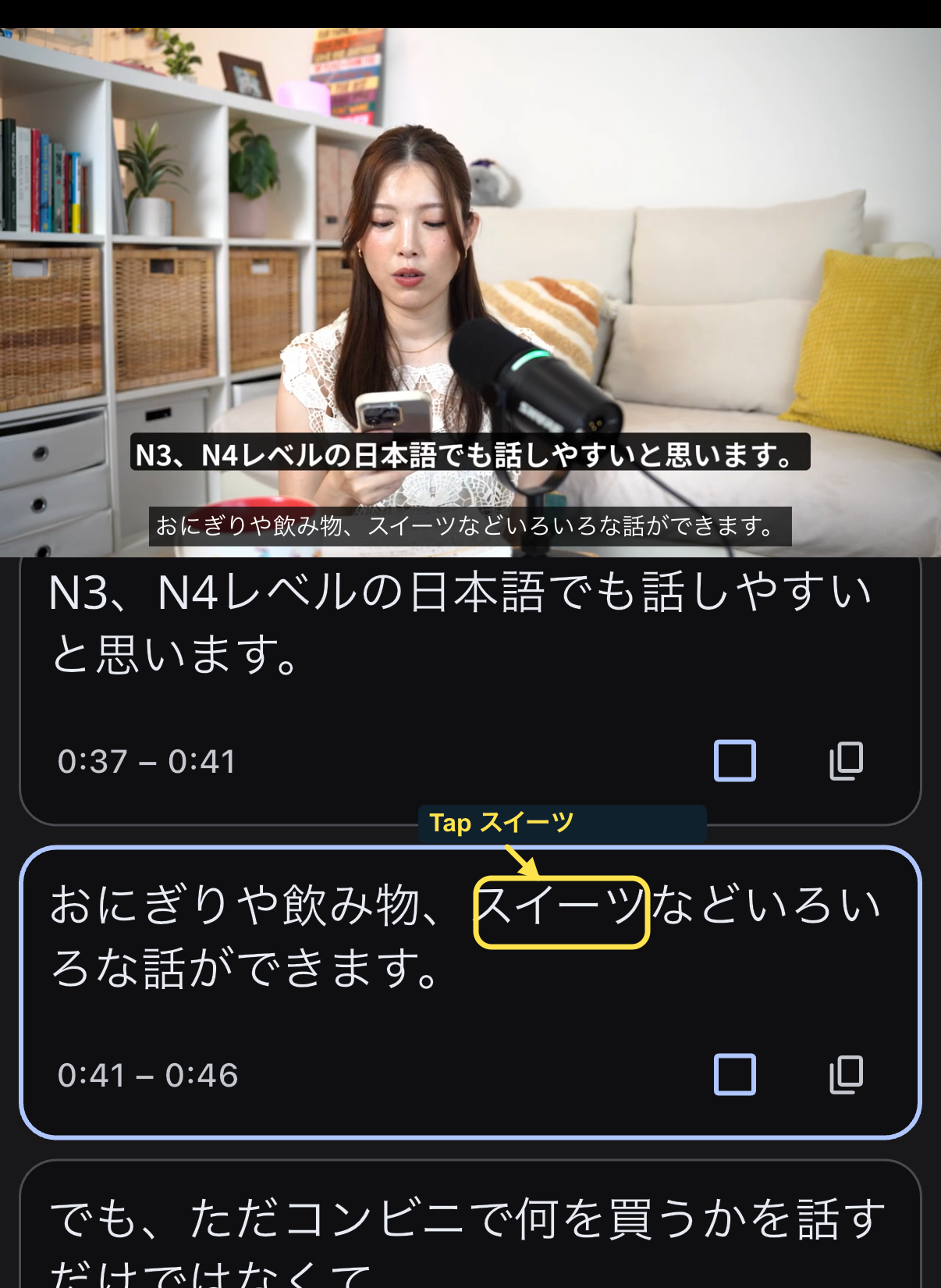
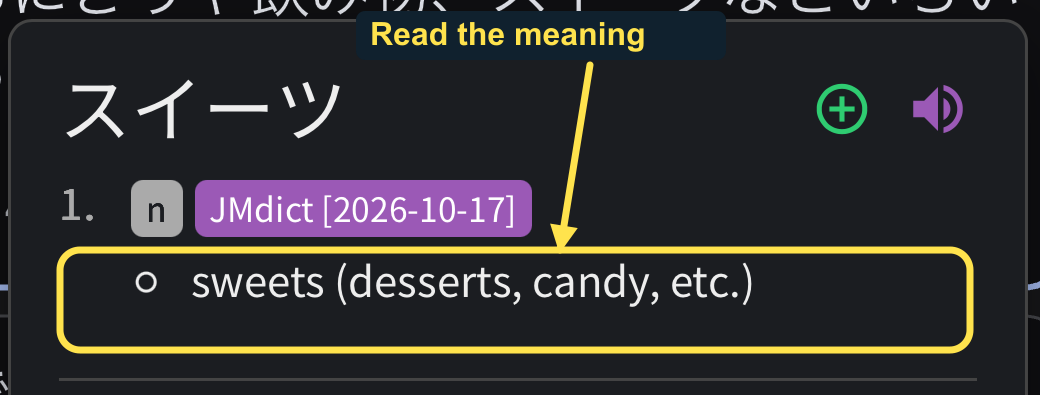
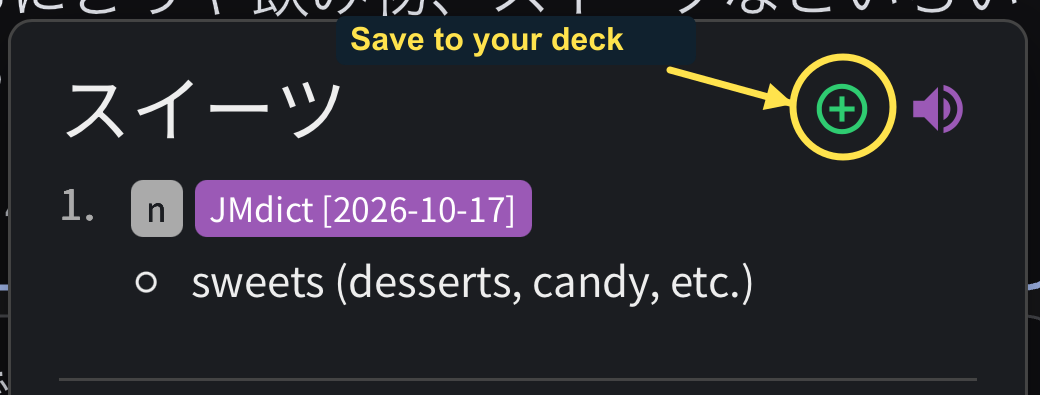
In the line at 0:41, tap the first character of スイーツ. JMdict gives sweets (desserts, candy, etc.). Read the meaning that fits the sentence, then tap outside the popup to close it.
5. Replay the line
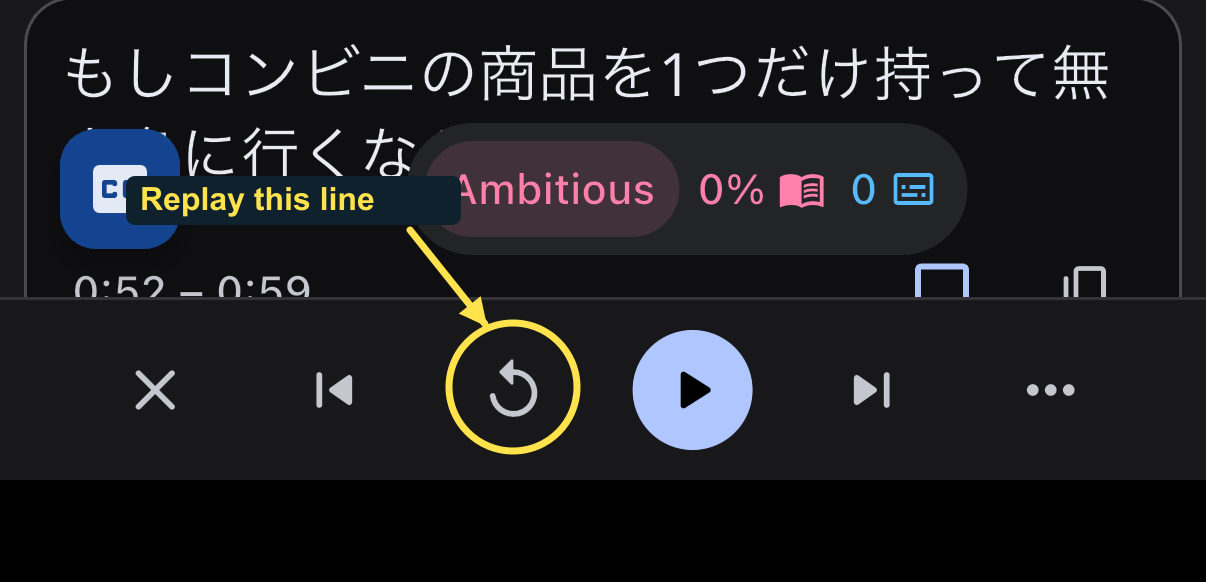
Use Replay current subtitle, the circular arrow, to return to the start of the line. If playback is paused, tap Play. Listen for the word you just checked, then continue or move to the next subtitle. Repeating one useful line is enough.
6. Save something worth reviewing
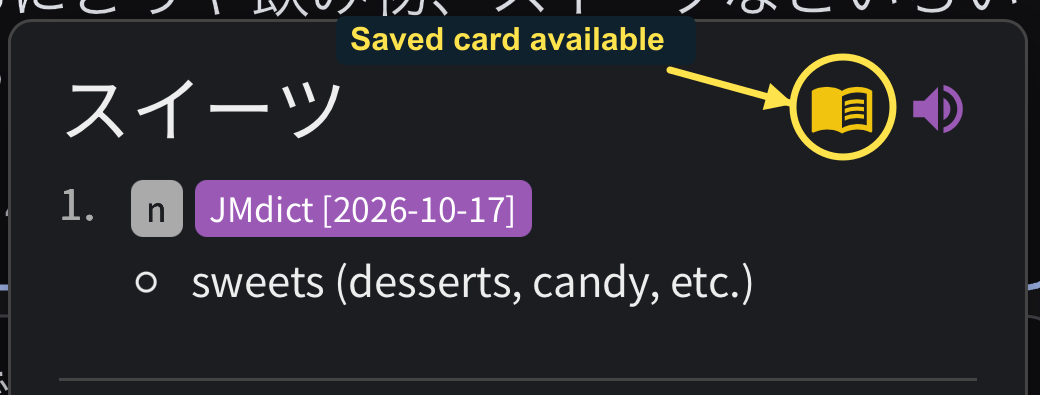
If you want to keep a word, select Manatan SRS as your flashcard provider and choose a destination deck first. Tap the green plus in the dictionary entry. Once saved, it changes to a yellow card icon. This example saves スイーツ using the same Manatan SRS setup as our linked guide.
For that setup and your first review, follow save words and review with Manatan SRS. Keep the number manageable so most of your session stays focused on listening.
Prefer Shorts?
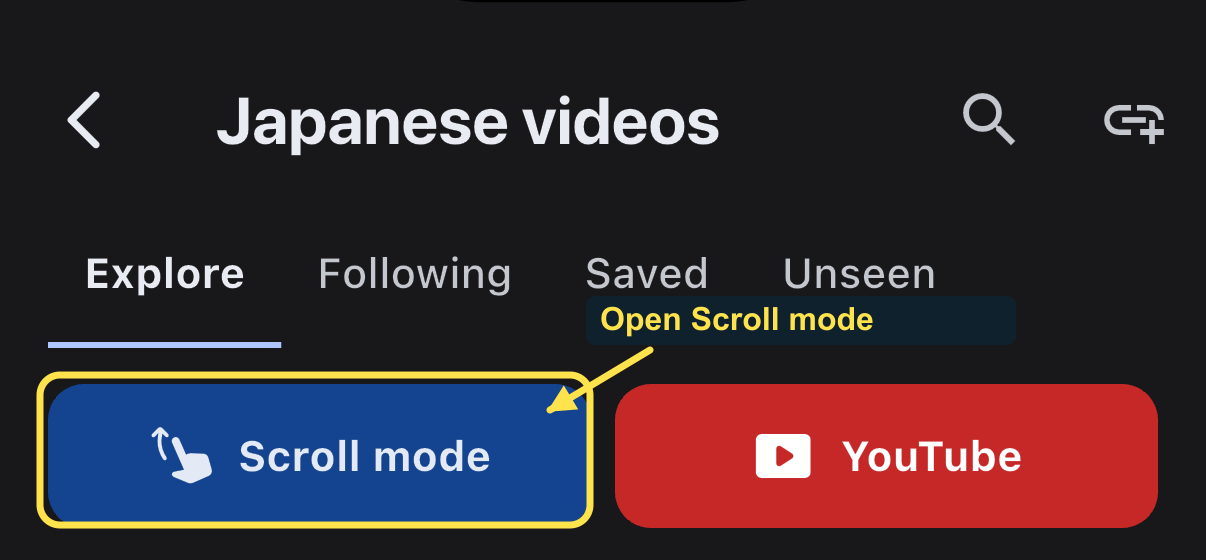
Return to the YouTube catalog and tap Scroll mode. This feed shows YouTube Shorts rather than mixing them with regular videos.
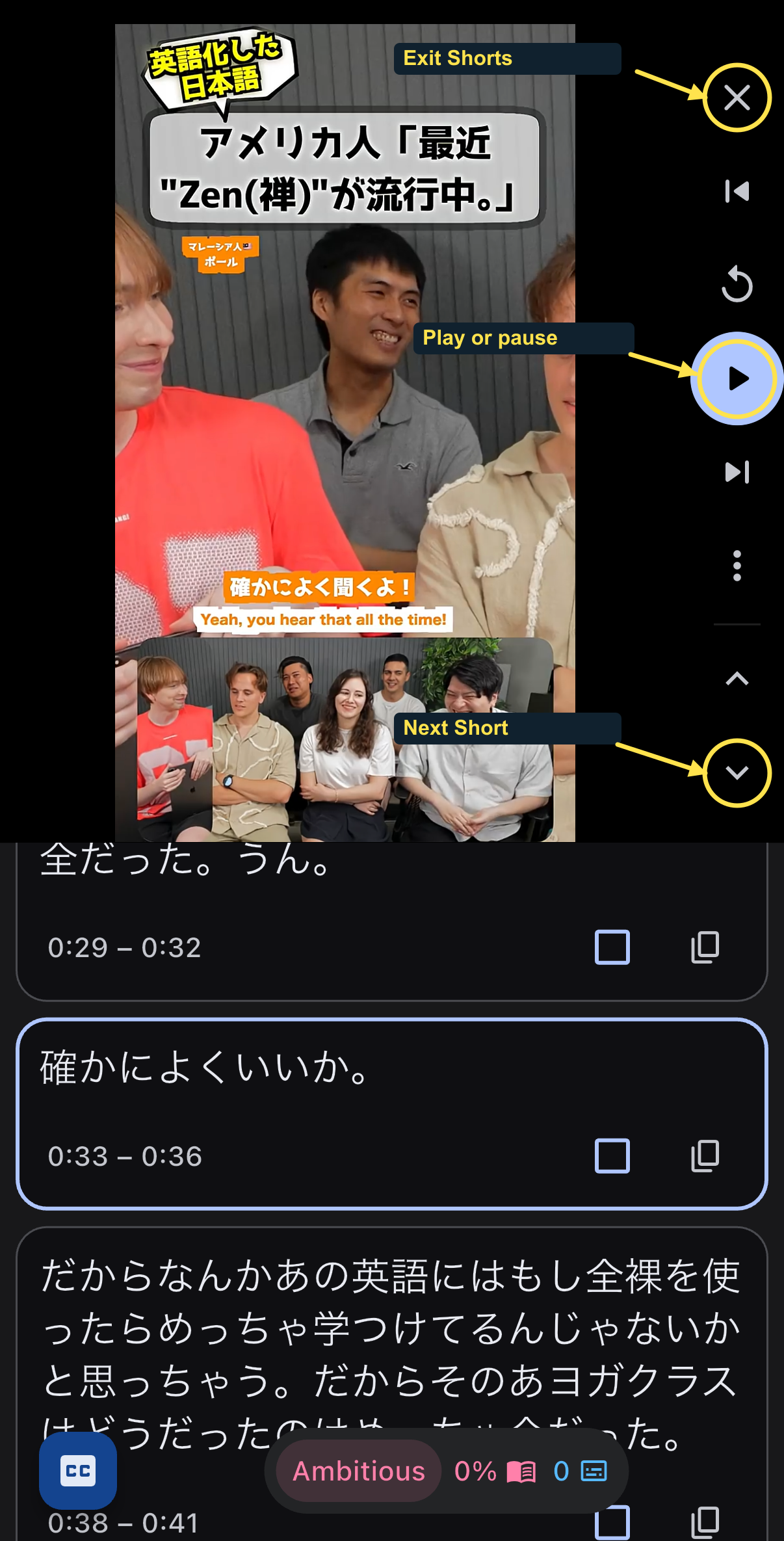
Swipe over the video to change Shorts, or use the up and down arrows on its right. Scrolling the subtitle cards only moves the transcript. Playback controls sit beside the video so the subtitle list stays full width. Tap CC for the same subtitle options, or the visible X at the top of the rail to leave Shorts.
Keep the session small
Finish a short section, save a few words if they are useful, and return to the same video next time. If you would like a simple schedule, try our 30-minute immersion routine.
The goal is to understand more of something you chose to watch, then keep going.