Jellyfin setup
Manatan can play anime from your Jellyfin library.
⚠️ WARNING
This guide does not cover how to install the Jellyfin extension. The extension should be included by default in future versions of the Manatan app.
1) Accessing your Jellyfin
-
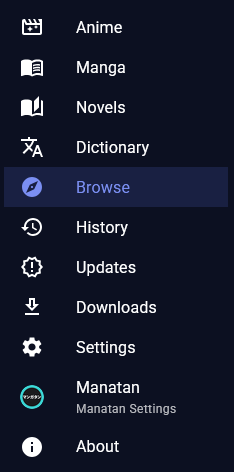
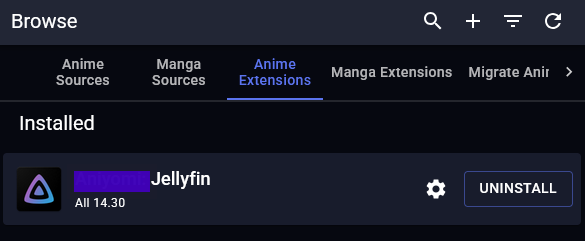
Open Browse > Anime Extensions.
-
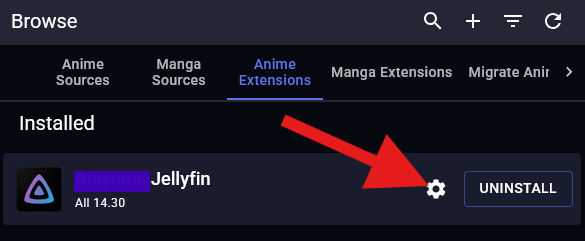
Open the source settings.
-
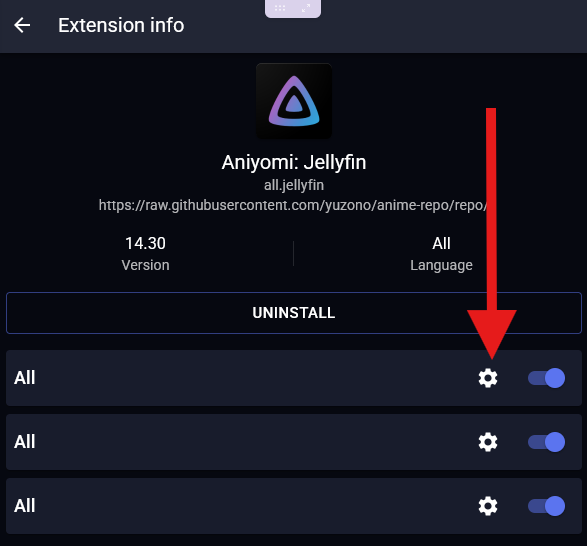
The extension might support multiple instances of itself so you might have all your libraries organized, if that's the case select the settings of the desired source instance
-
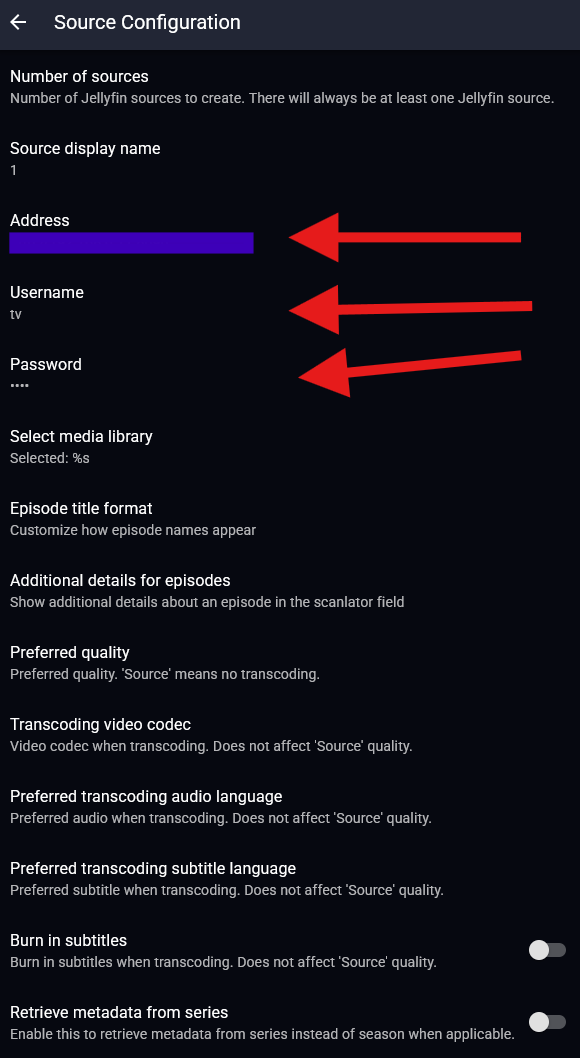
Fill the required fields to log in, after successfully connecting to Jellyfin you'll be able to select the library


-
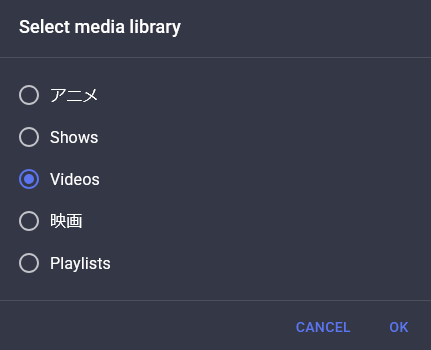
Select the desired library
-
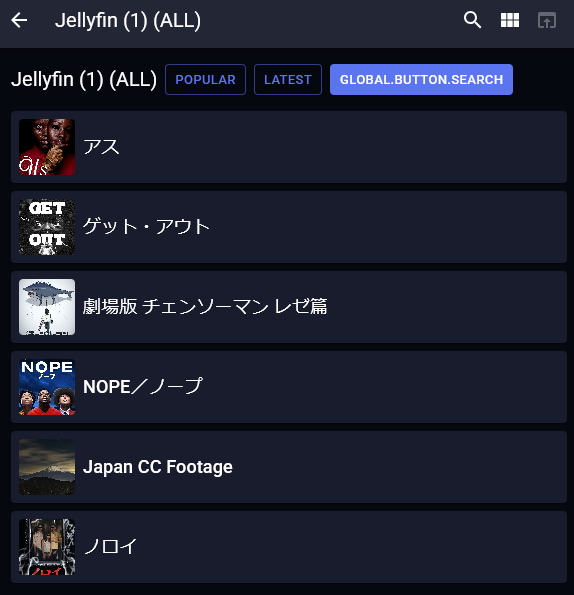
Now you can access the content from Manatan!
2) Quality issues
When using the source it might be the case that the quality of the stream is bad, no matter what.

This is an effect of transcoding the content (this issue is not present on source quality).
There are two solutions for this problem
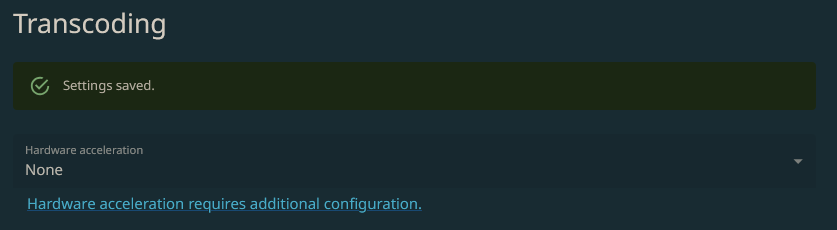
- Disable transcoding straight from Jellyfin's dashboard.

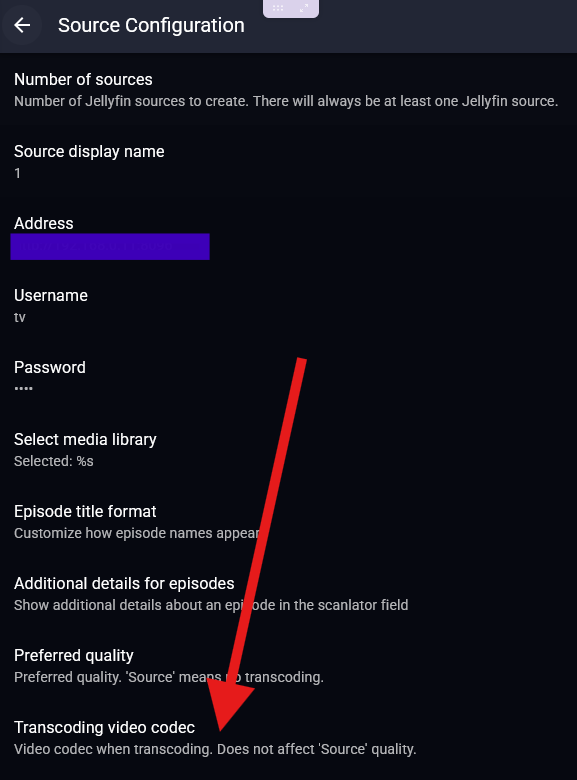
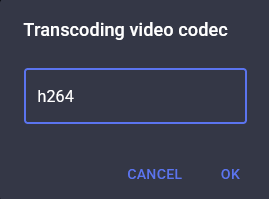
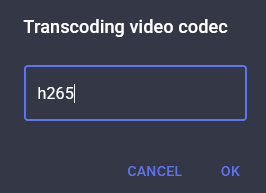
- Change the transcoding to h265 in the source settings (useful if you want to keep transcoding on in the server).
3) Playback issues
Transcoding
There are instances where either certain or all videos can't be played, this can often be fixed with the same solutions discussed in Quality issues
- Disable transcoding straight from Jellyfin's dashboard.
- Change the transcoding to h265 in the source settings (useful if you want to keep transcoding on in the server).
Missing episodes
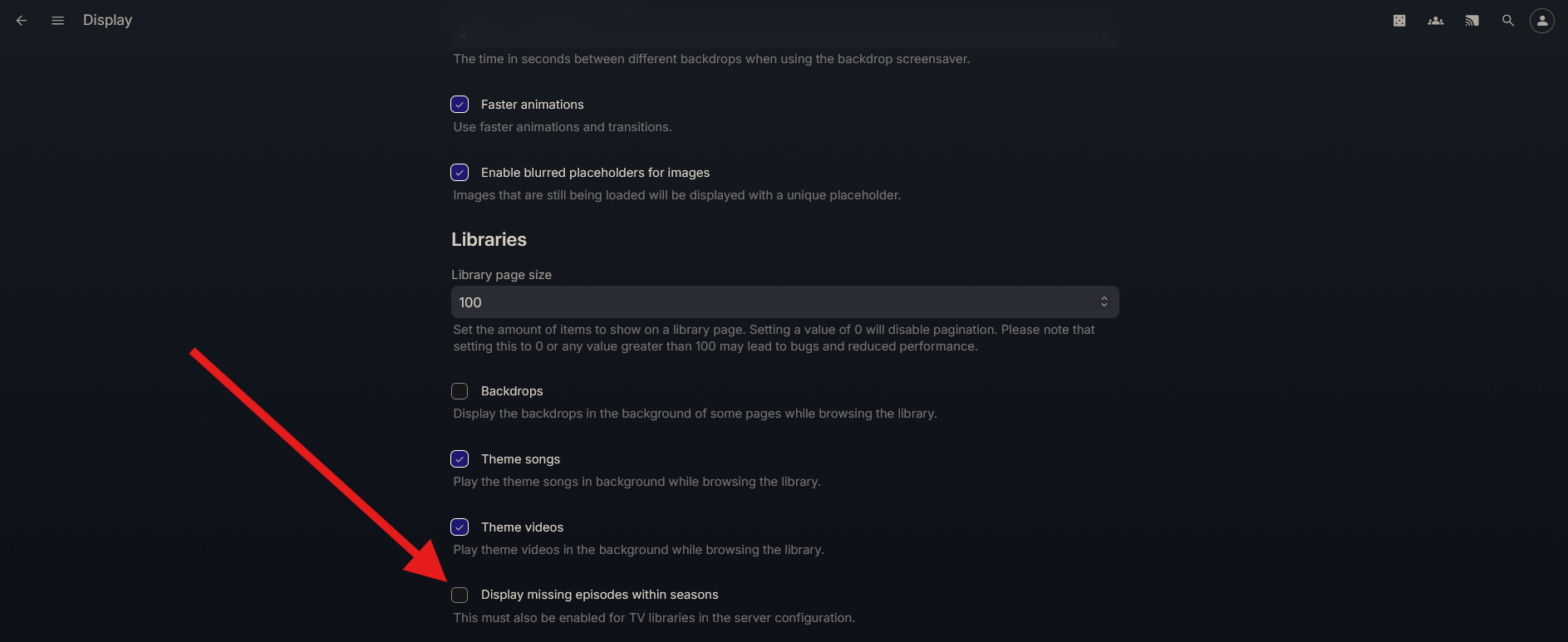
However, there is a chance the issue might be caused by displaying missing episodes in Jellyfin clients, so the solution naturally is to disable this feature
- Disable display missing episodes within seasons from the user instance in a web browser from the display settings.
If this still doesn't work:
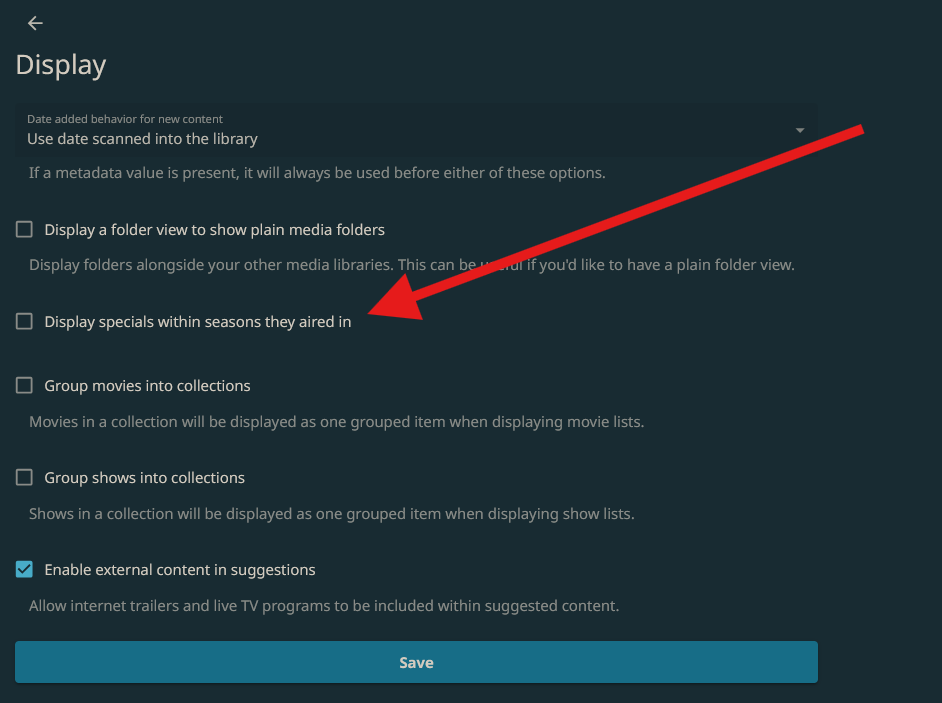
- Disable display specials within seasons they aired in from the display settings for libraries on the Jellyfin dashboard.
Notes
- At the moment of writting the source quality is not available on the app.
- At the moment of writting subtitles from the server do not work on the app.
- At the moment of writting the watch history is not syncronized into the jellyfin server and its completely local.
- If the errors that you are running into are not covered in this document please look into the github issues before reporting it.
Tips
If you encounter any issues not covered in this document and its not a github issue please Join the Discord for guidance and create the issue yourself.