 Manatan
How to Mine Multiple YouTube Subtitle Lines Into One Flashcard
Keep a complete thought when YouTube splits it across subtitles. Select adjacent lines in Manatan on iPhone, choose a word, and save its combined context.
YouTube subtitles do not always break where a sentence ends. A useful example might begin in one segment and finish in the next. Saving only the line containing your word can leave out the setup that makes it understandable.
In Manatan, select the adjacent segments, then choose a word from their combined text. You save one vocabulary card with the passage as its context, not one card per subtitle line.
This guide uses the iPhone app. For opening a video and choosing Japanese captions, start with our YouTube guide.
1. Check your flashcard setup
Open More, tap the settings gear, then Flashcards. Enable flashcards, choose Manatan SRS, select your target deck, and use Manatan-NoteType (default). Our Manatan SRS guide covers the initial setup.
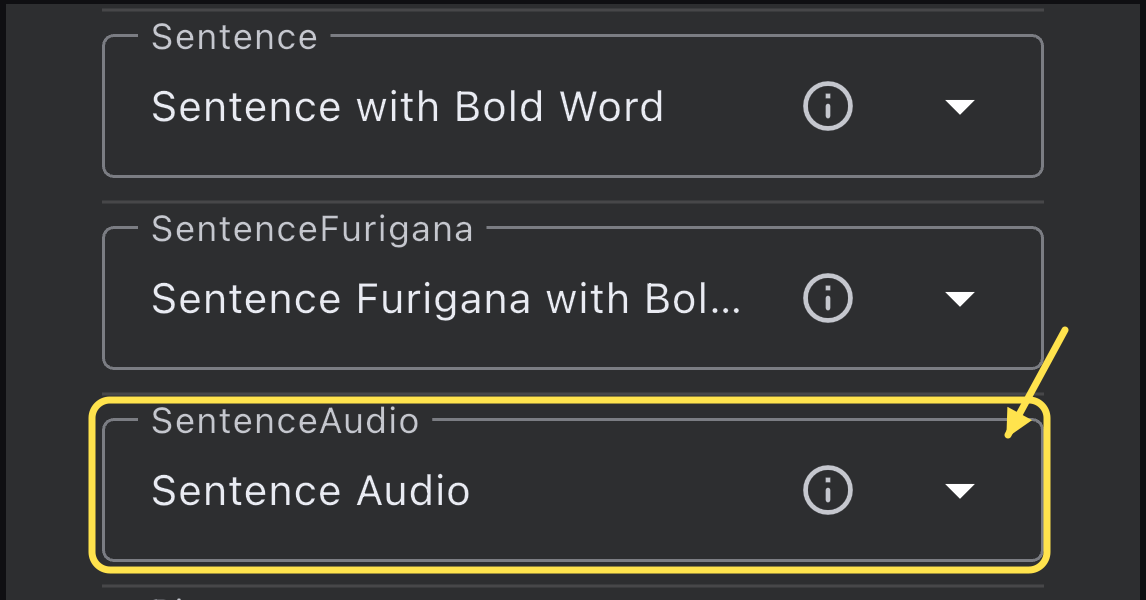
To keep the passage's audio, scroll to Field Mapping and check that SentenceAudio is set to Sentence Audio, not None. Word Audio is pronunciation for the word itself; it is not the video's sentence clip.
Return to your video. Tap CC and use Segment browser so you can see and select separate subtitle cards.
2. Select the lines that belong together
Pause at a useful passage. Tap the square checkbox beside each subtitle segment you want to include. Tap the checkbox, not the Japanese text: tapping a word opens its dictionary entry instead.
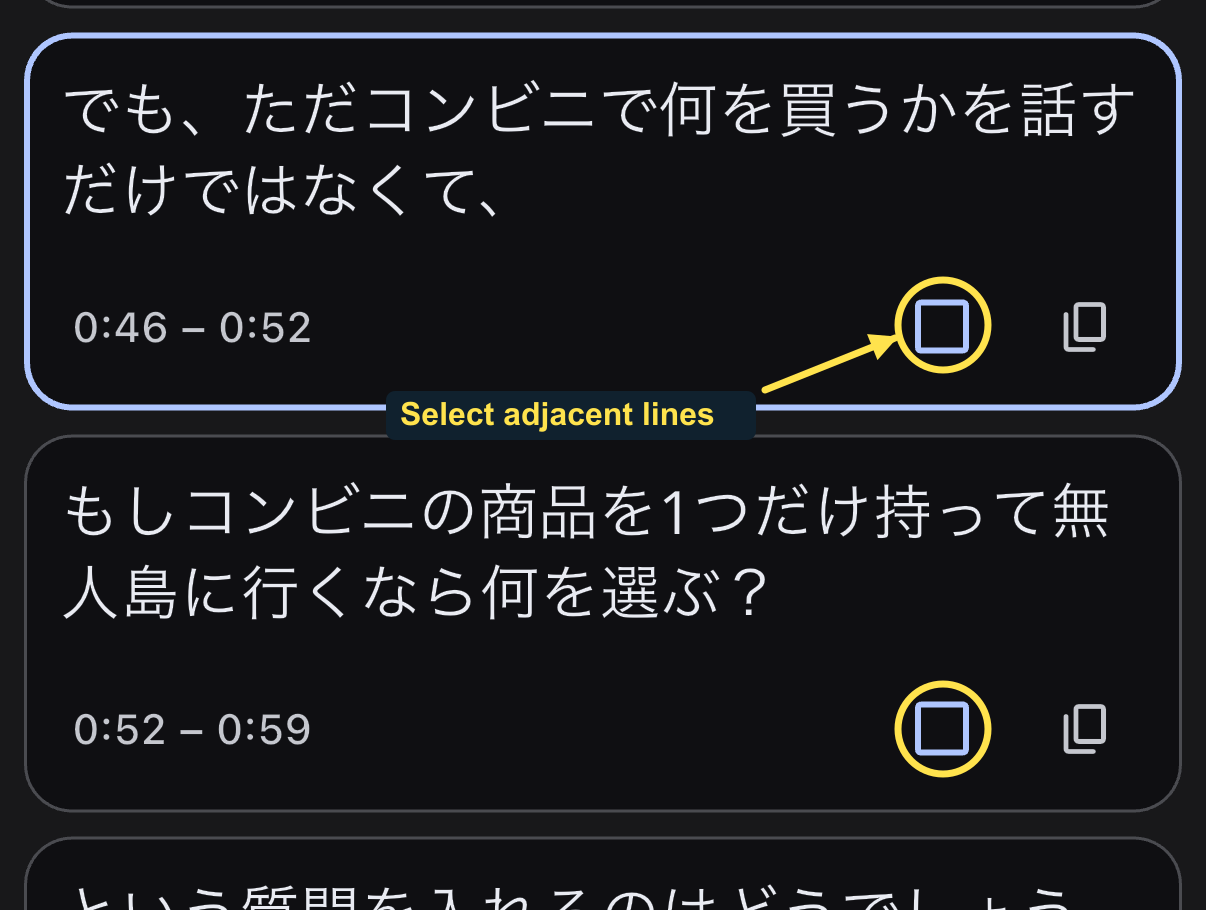
Here we use NihongoDekita Podcast's convenience-store episode and select the segments starting at 0:46 and 0:52. Together, they introduce a question about choosing one convenience-store item to take to an uninhabited island.
Choose consecutive segments with no skipped line between them. You can combine up to 10 segments, with a total audio range of no more than 30 seconds. Usually, two or three lines are enough.
3. Tap Mine 2 lines
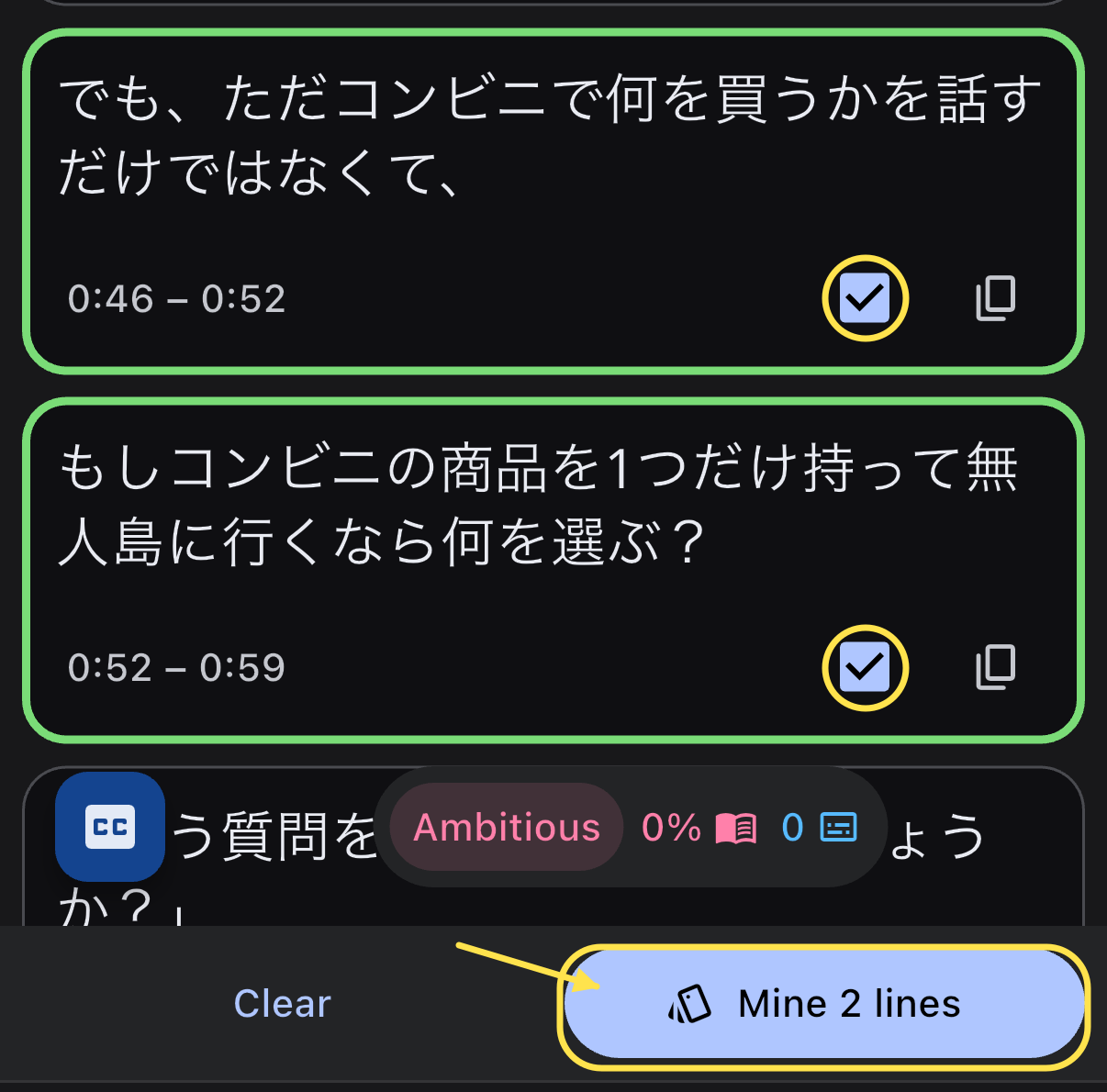
The selected cards gain green outlines and checked boxes. Tap Mine 2 lines beneath the transcript. The number changes with your selection. Clear removes the selection without creating anything.
This opens a preview. It does not save a card yet, and it does not permanently merge or rewrite the video's subtitle track.
4. Choose the word from the combined text
Check the time range and read the preview. Our two segments now appear together under 0:46 to 0:59.
Tap a word in this preview to open the dictionary with both lines as its mining context. In this example, tap the first character of 無人島, which means uninhabited island or desert island.
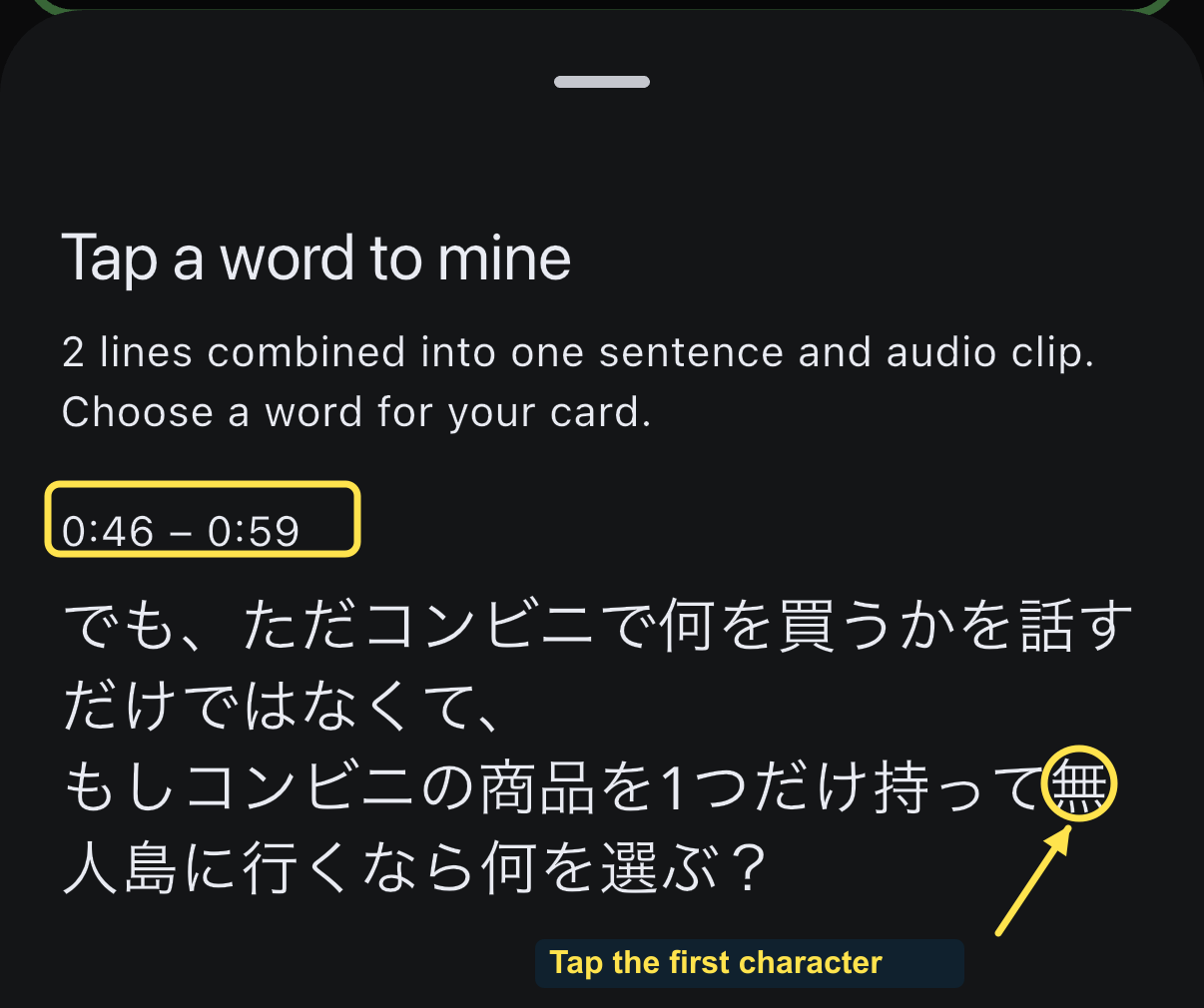
Use the combined preview for this tap. Simply selecting lines does not change the context of an ordinary word lookup elsewhere in the transcript.
5. Save the matching dictionary entry
Read the definition, then tap the green plus beside the entry you want. Press it once and wait for the save to finish.
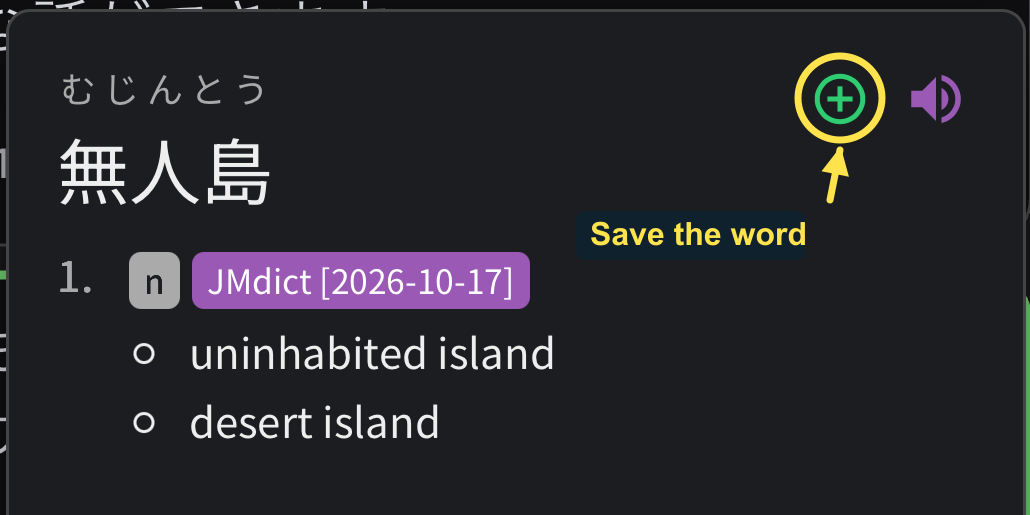
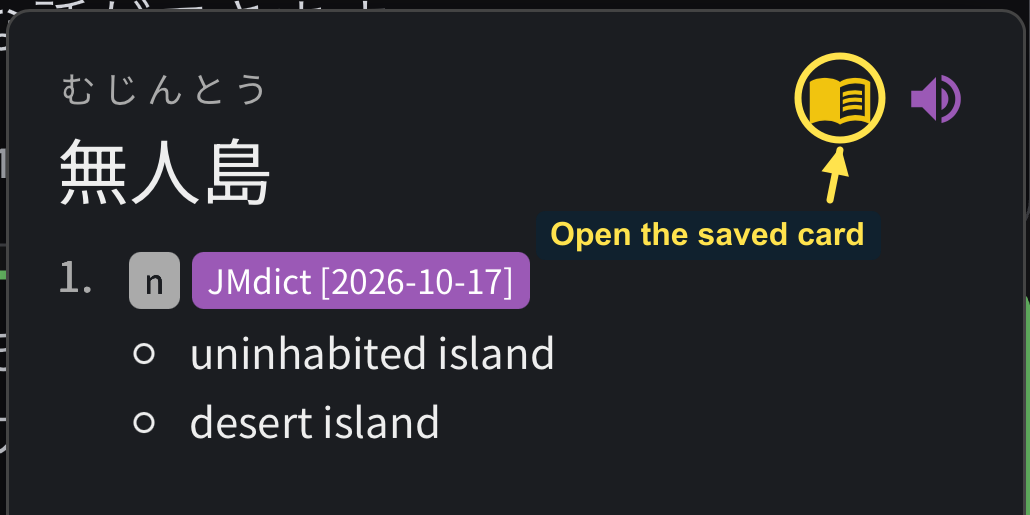
After saving, the plus changes to a yellow card icon. The card's target word is 無人島; both selected lines become its sentence context.
6. Check the card before mining more
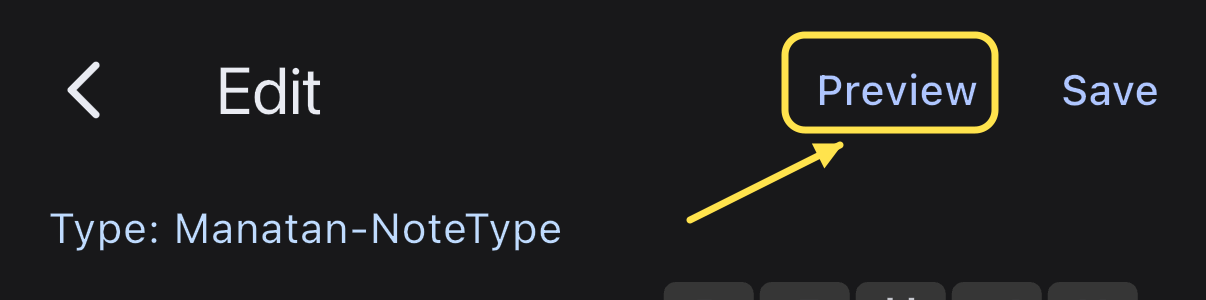
Tap the yellow icon to open the saved card, then choose Preview. Select Back at the bottom to inspect the answer side. You do not need to rate the card to check it.
Confirm that both subtitle segments are present. In this example, the pink play button replays the sentence audio; the neighbouring blue button plays the word pronunciation. Check that the sentence clip includes the whole thought rather than just the line containing your word.
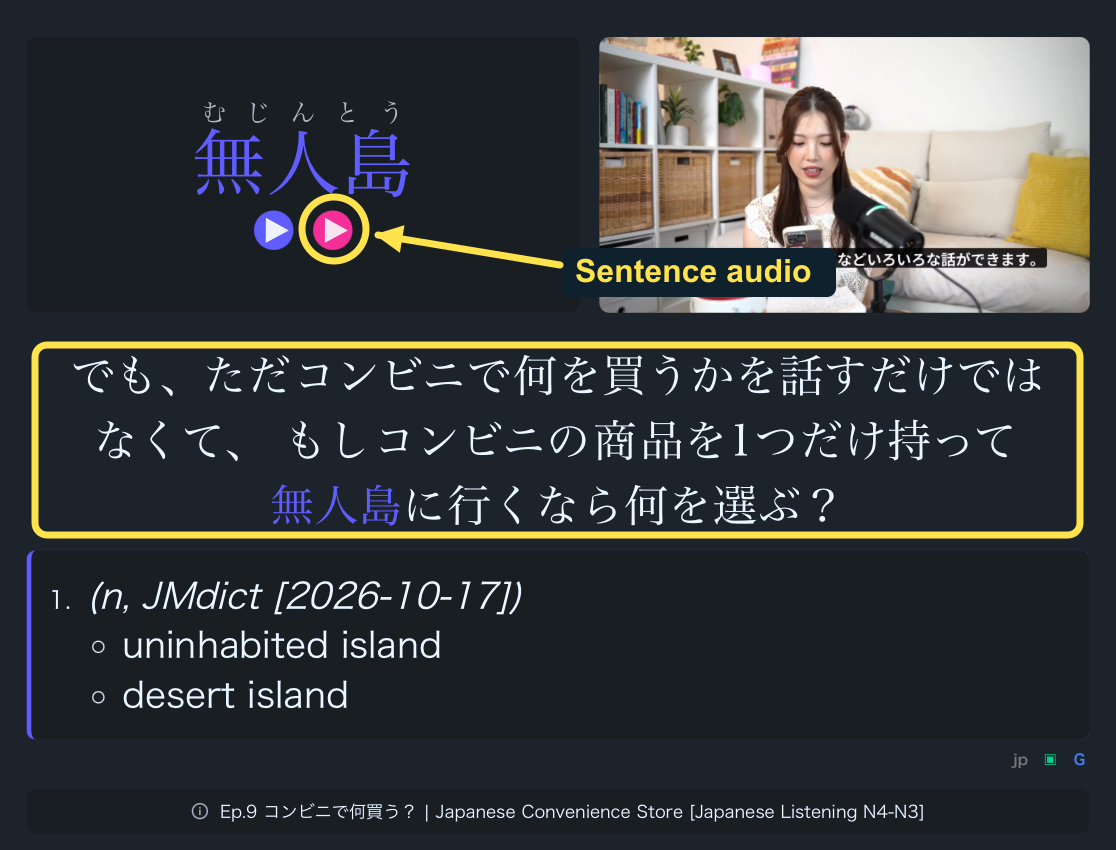
Audio depends on the source and your field mapping. If the clip is missing, check SentenceAudio before saving more cards. A word-pronunciation button alone is not proof that the video passage was saved.
Keep the context useful
Combine lines when the extra context helps you understand or remember the word. Avoid adding a long paragraph just because it fits within the limit. A short, complete thought is easier to revisit than a large chunk of transcript.
Once the first card looks right, return to the video and keep watching.