How to Import Videos into Manatan
Import multiple video episodes into a new or existing show, keep your watch progress, or connect a folder collection. Illustrated with full iPhone app screenshots.
Have videos on your device that you want to watch in Manatan? You can open one for a quick session, import several episodes into a new show, add more episodes to an existing local show, or connect a folder containing a whole collection.
This guide is for local files in the Manatan app, not uploading videos to the Manatan website. Start with an MP4 or MKV file you have permission to use.
App version: The multi-video and Existing show controls below require the updated video importer. If your installed build only offers a single-file import, use the folder method for a collection until an update containing these controls is available for your platform.
Choose how you want to add the video
Open the Video tab and tap +. You have two options:
-
Open Local Video plays a file without adding a title to your library. Use it when you just want to watch something once.
-
Import to Library adds one or more videos to a new or existing Local Source show in your Video Library.
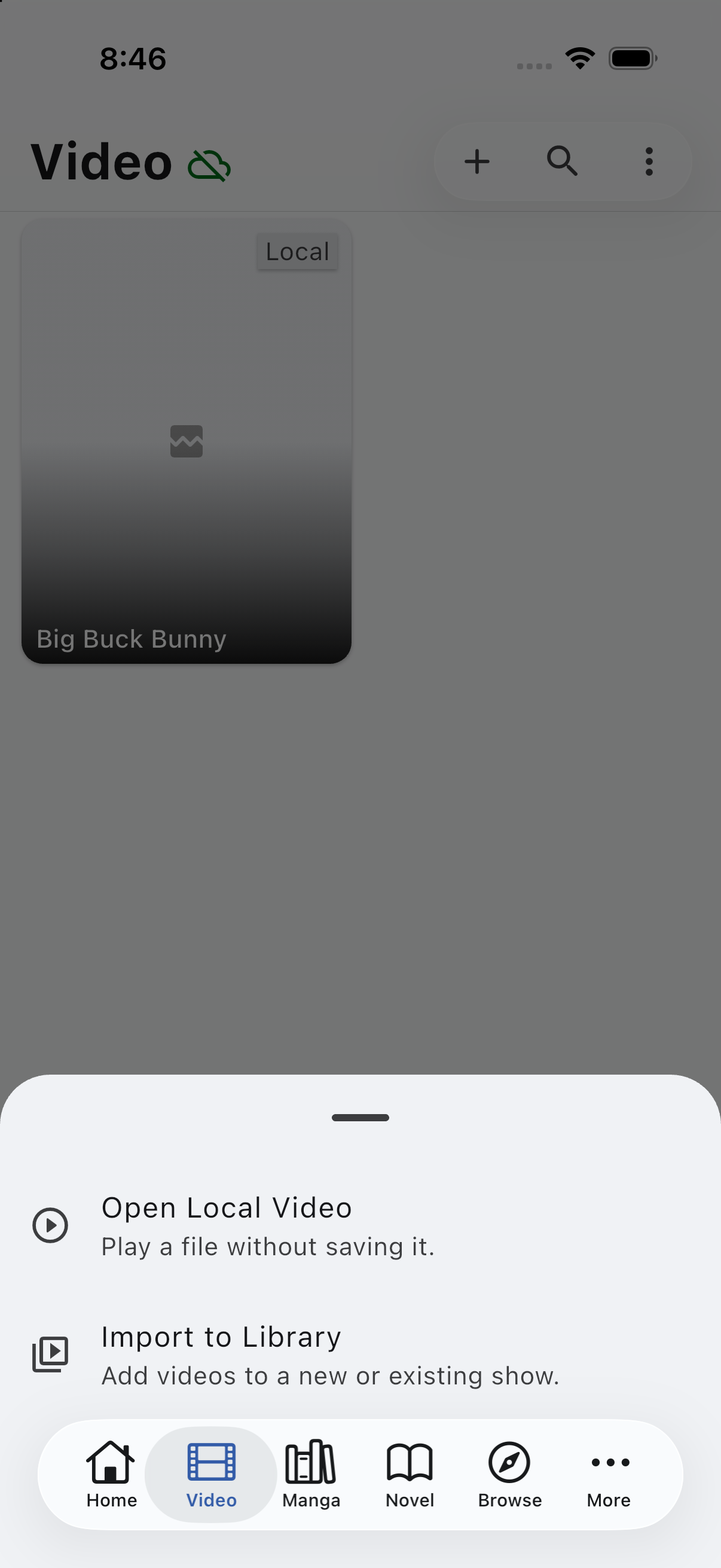
Video → + gives you a quick-open option and a library-import option. Select any screenshot to open the original.
Importing does not copy the video. Manatan keeps a link to the original file. Leave it in a stable location, and keep any external drive or folder available.
Method 1: Import one or more videos into a new show
1. Choose your videos
Tap Import to Library → Choose Video Files. Select the videos you want to group under one show or movie. You can select up to 200 videos per import.
On iPhone and iPad, this opens Files: tap the videos to select them, then tap Open. Android and desktop use their system file pickers. If a file is in cloud storage, make sure it has downloaded to your device before trying to play it.
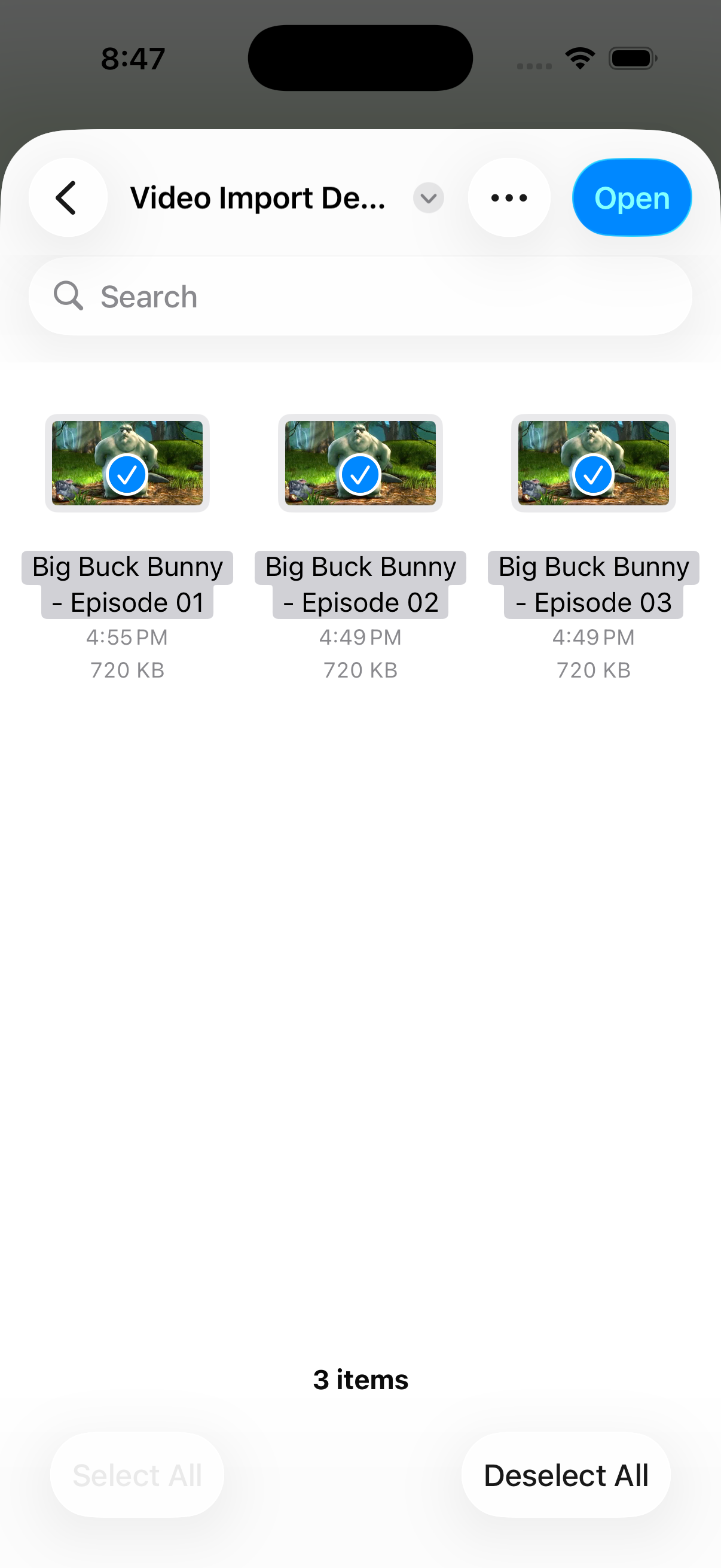
Select the videos themselves—not subtitle files or a folder. These three numbered files demonstrate selecting multiple episodes at once.
2. Review the files and name the show
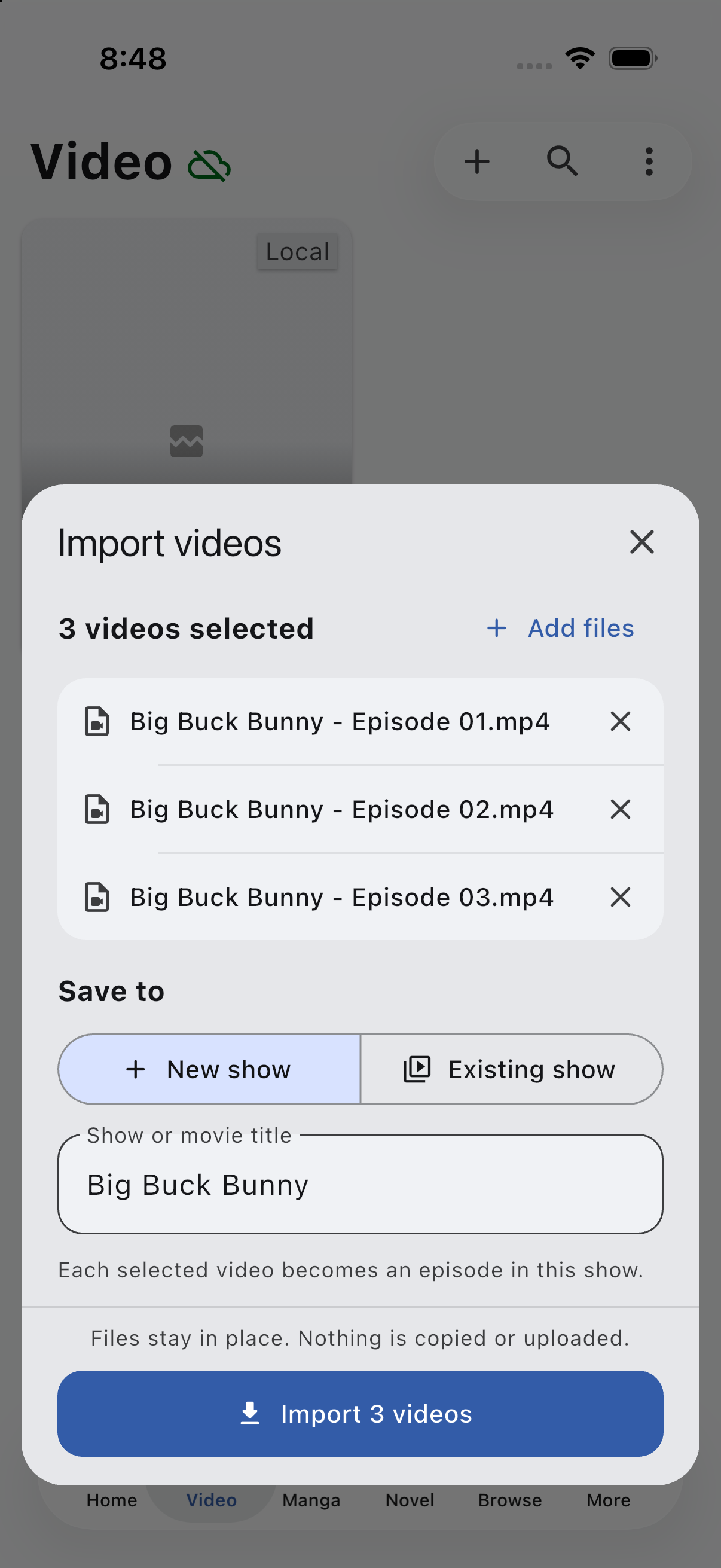
In the compact Import videos form, check the selection. Use Add files to include more videos, or the × beside a filename to remove it from this import. For a longer selection, tap Review all … files to see the rest.
Under Save to, leave New show selected. Check Show or movie title, then tap the import button—for example, Import 3 videos. Each selected video becomes an episode in that show. For a single movie, select just its one video.
Review the files and choose one recognizable title for the group. The original videos stay where they are.
3. Open your show and play an episode
Return to the Video tab, open the imported title, and choose an episode. Use clear numbers in your filenames, such as My Series - Episode 01.mp4 and My Series - Episode 02.mkv, to help Manatan identify and order the episodes.
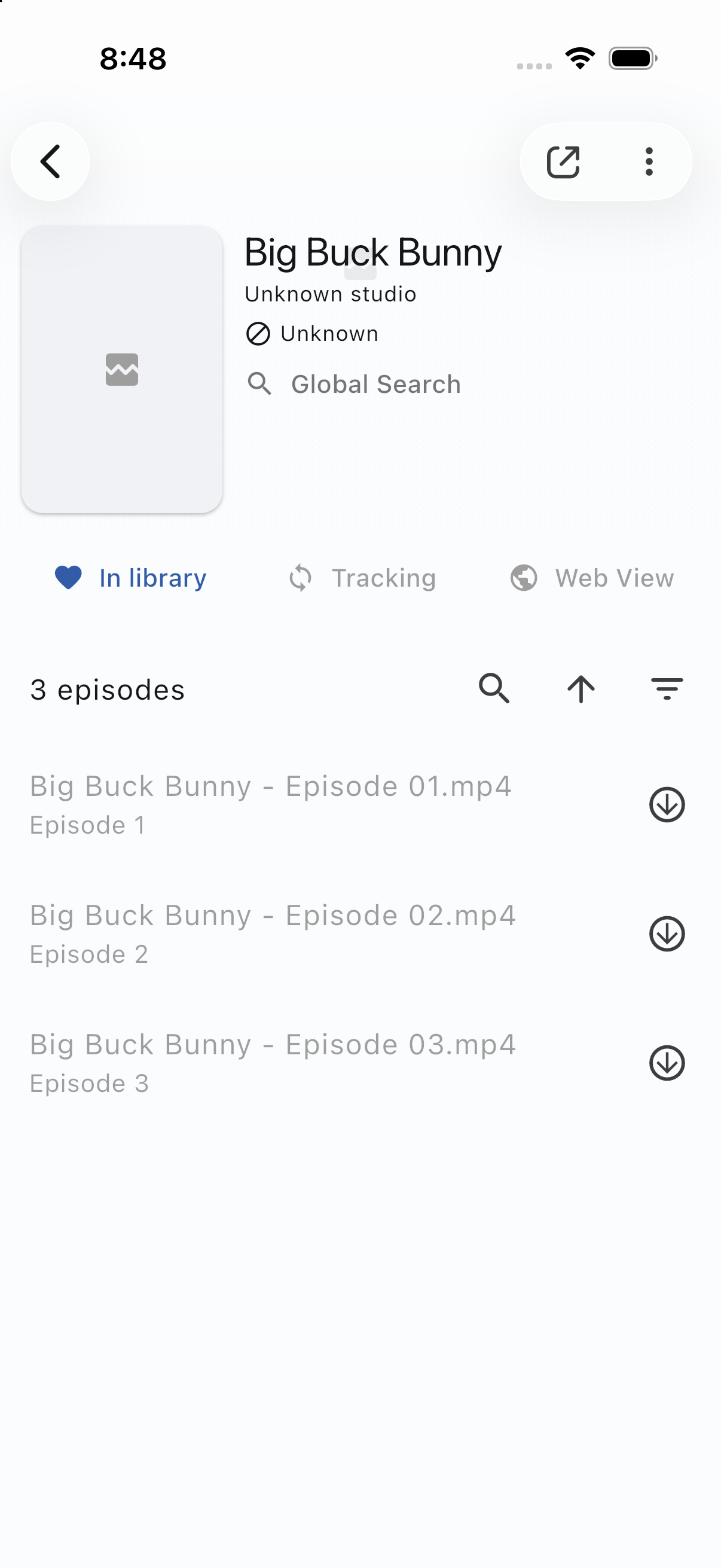
Several selected files appear as episodes within one library title, rather than separate shows.
Method 2: Add episodes to an existing local show
- Open Video → + → Import to Library again and choose the additional video files.
- Under Save to, select Existing show.
- Tap Choose an existing show, search if needed, and select the intended Local Source show. Check its name before continuing.
- Tap the add button—for example, Add 3 episodes. The count describes selected files; files already linked to that show are skipped.
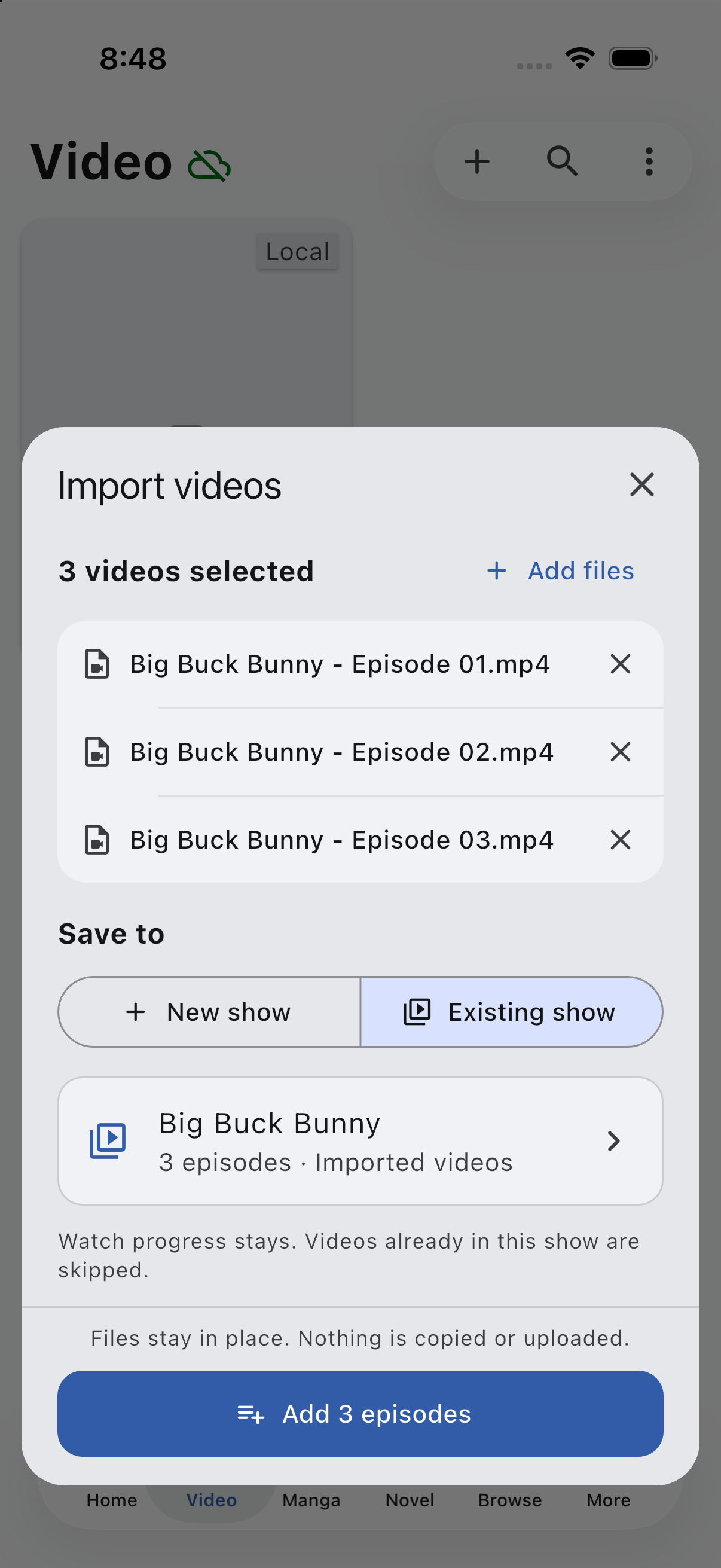
Existing show adds to the selected local title. Existing episodes and watch progress are kept; files already linked to that show are skipped.
You do not need to recreate the show to add another batch later. This chooser is for Local Source shows, not titles from an online source. Skipping an already linked file is not content-based detection: a separate copy of the same video can still be a different file.
You can also open Browse → Video Sources → Local source and use its + action. This opens the same importer without automatically putting a new title in Video Library; add it to your library from the title page if you want it there.
Add your subtitles
If the video already contains a subtitle track, open the player’s Subtitle options and choose it. To use a separate subtitle file, choose Import subtitle file, select the matching file, and select the imported track.
Use subtitles timed for the same version of the video. A subtitle file from another cut can drift out of sync even if the episode title matches. Text subtitles are useful for word lookup; subtitles burned into the video picture are not a selectable text track.
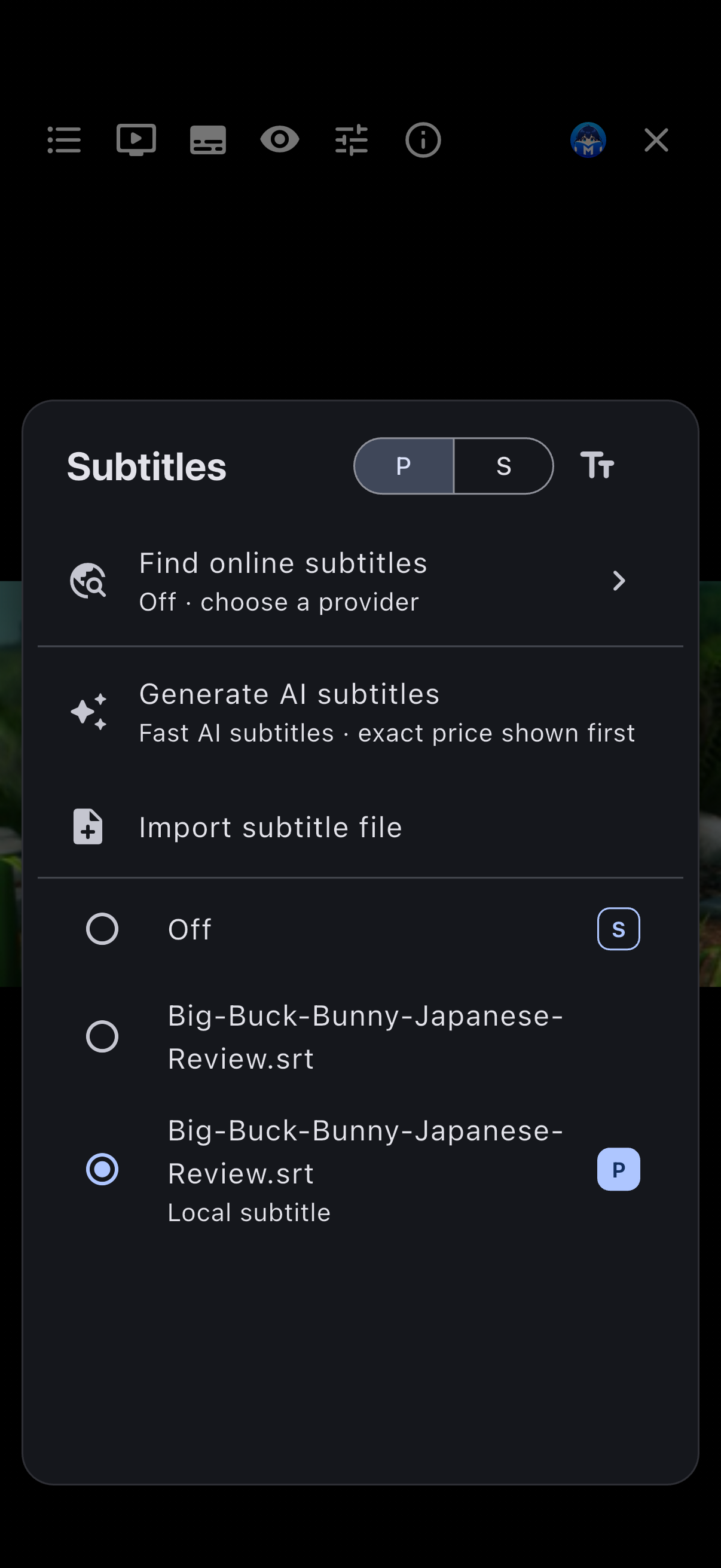
Import your matching subtitle file through Subtitle options.
Method 3: Connect a folder for your collection
If you already organize videos in Finder, File Explorer, or a mobile file manager, connect the collection’s root folder instead of choosing files in the importer. Both methods can group multiple episodes under one show.
1. Set the Local Source location
Open Settings → Browse → Local anime source location. On iPhone, reach Settings from More. Despite the setting’s name, this is the local folder for your video collection.
Choose Browse, select the folder that will contain your series or movie folders, and Save. On mobile, use the system folder picker so Manatan has permission to access it. If you chose a main Manatan folder during setup, its local-anime subfolder is the default video root.
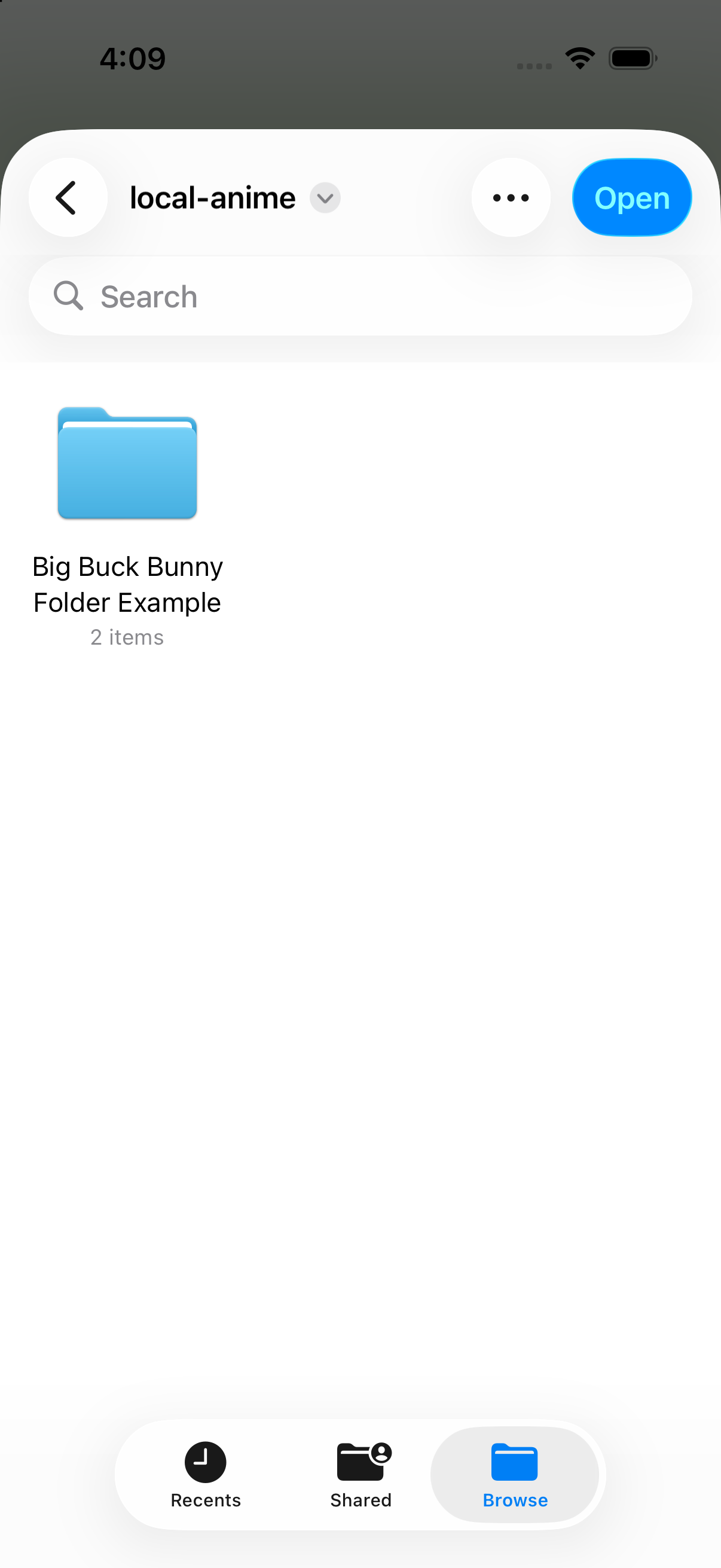
Select the parent folder containing your series, tap Open, then Save in Manatan—not an individual series folder or episode file.
2. Put one series or movie in each folder
For a simple collection, use this layout:
local-anime/                 ← folder connected to Manatan
├── My Series/
│   ├── Episode 01.mp4
│   ├── Episode 01.srt
│   ├── Episode 02.mkv
│   └── Episode 02.srt
└── My Movie/
    ├── My Movie.mp4
    └── My Movie.srt
The root can have a different name if you connected your own folder. Keep the structure connected root → series or movie folder → video files. MP4 and MKV are supported by the folder scanner. Use clear episode numbers in filenames to help Manatan identify and order episodes.
For separate subtitles, keep an SRT, VTT, ASS, or SSA file beside its video with the same base filename—for example, Episode 01.mp4 and Episode 01.srt. This lets Local Source associate them. You can also import a subtitle manually from the player.
3. Refresh Local Source
After copying your files, open Browse → Video Sources → Local source and refresh the list. Open the series and refresh its episodes if needed. Add the title to your Video Library when you want to keep it there.
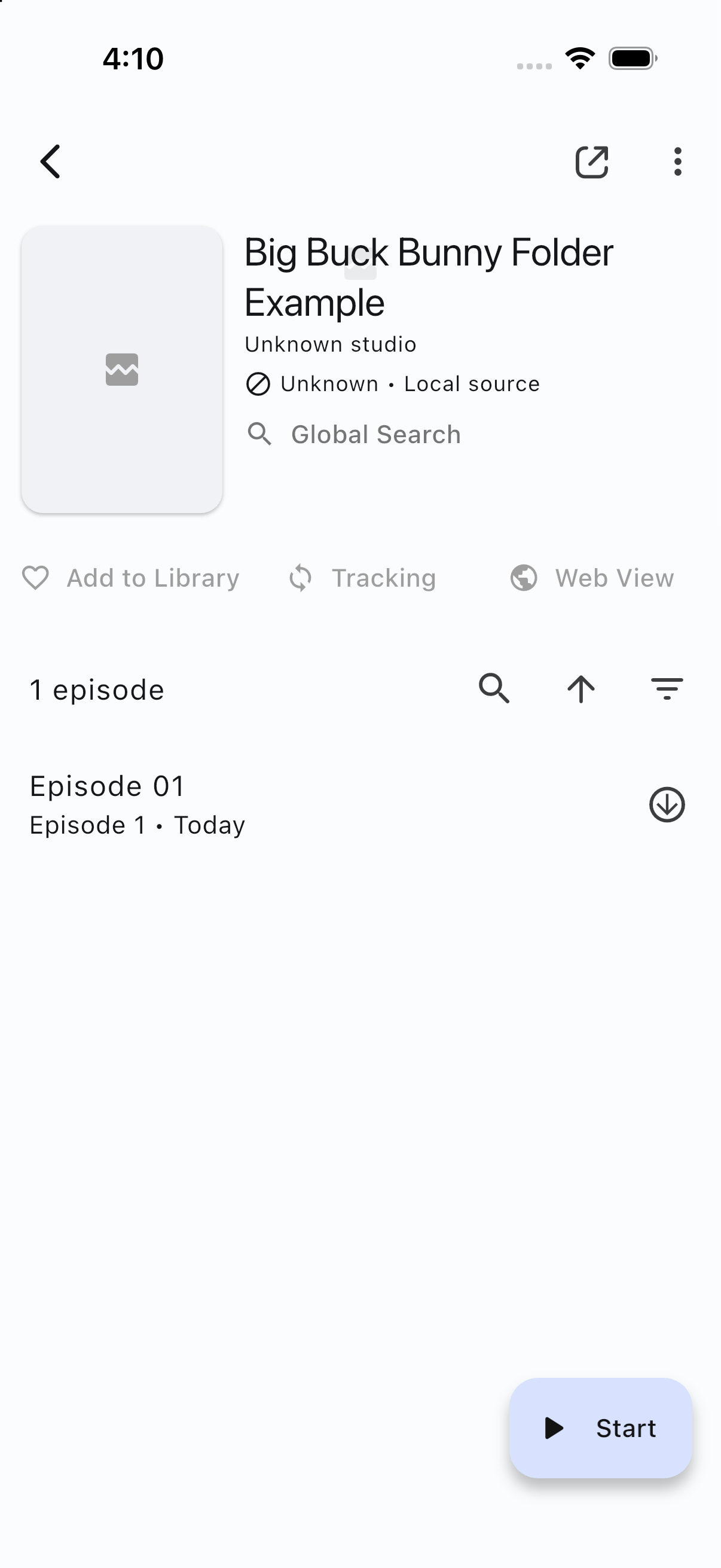
The folder is discovered as a title, with its video listed as an episode. Add to Library is a separate action.
Manatan reads these files from the connected folder; it does not upload your videos or transfer them to another device through account sync. To watch on another device, make the media available there separately and connect the appropriate local folder.
If something is missing or will not play
-
The library is empty: Open Local Video does not add a title. Use Import to Library, or add a Local Source title to your library.
-
Your app only lets you choose one file: the updated multi-video importer may not be available in your installed build yet. Use the folder method for now.
-
You cannot find a show in Existing show: choose a Local Source show, not a title from an online source, or select New show to create one.
-
Fewer episodes were added than selected: check the import result. Files already linked to the chosen show are skipped rather than added again.
-
A folder does not appear: select the parent folder containing your series folders, check permissions, and refresh Local Source.
-
A video disappeared after moving it: the imported entry points to the original file. Restore access or use the title’s file-relink option when it is offered.
-
A cloud or external-drive file is unavailable: download it locally or reconnect the drive before playing.
-
The picture or audio will not play: MP4 and MKV are containers, not a guarantee that every codec inside them works on every device. Try a compatible version of the video; renaming the extension does not convert it.
-
Subtitles are missing: select the correct track, check the sidecar filename, or use Import subtitle file. Make sure the subtitle timing matches your video.
Need dictionaries for subtitle lookups? See How to Import a Dictionary into Manatan. For comics, see How to Import Manga into Manatan.
Image credits
The sample video is a silent excerpt from Big Buck Bunny, © Blender Foundation / Peach Open Movie team, licensed under CC BY 3.0. Original project. The three numbered sample files are copies of that excerpt used to demonstrate the import workflow, not three episodes of the film. The Japanese descriptive subtitles were created for Manatan’s review sample; they are not dialogue from the film.