How to Import Manga into Manatan
Import manga archives and page folders through Manatan’s import wizard, or organize chapters yourself in a connected local folder. Follow both methods with pictures and folder examples.
You can bring your own manga into Manatan in two ways: use the import wizard to copy an archive or image folder into Local Source, or connect a folder and manage its chapters yourself in your file manager.
For your first book, use the wizard. For a collection you already organize on disk, the folder method gives you more control. Both methods are for the Manatan app, not the website.
Before you start
Have a manga file or a folder of page images ready, and only import material you have permission to use. The importer accepts CBZ, ZIP, CBR, RAR, and EPUB archives containing supported page images. A text-only EPUB belongs in the novel reader instead.
You do not need to extract a CBZ before importing it. If your pages are already loose files, use Import Folder.
Method 1 Import through the app
Open Local File Import
In Manatan, open Browse → Manga Sources → Local source, then tap the + action to open Local File Import.
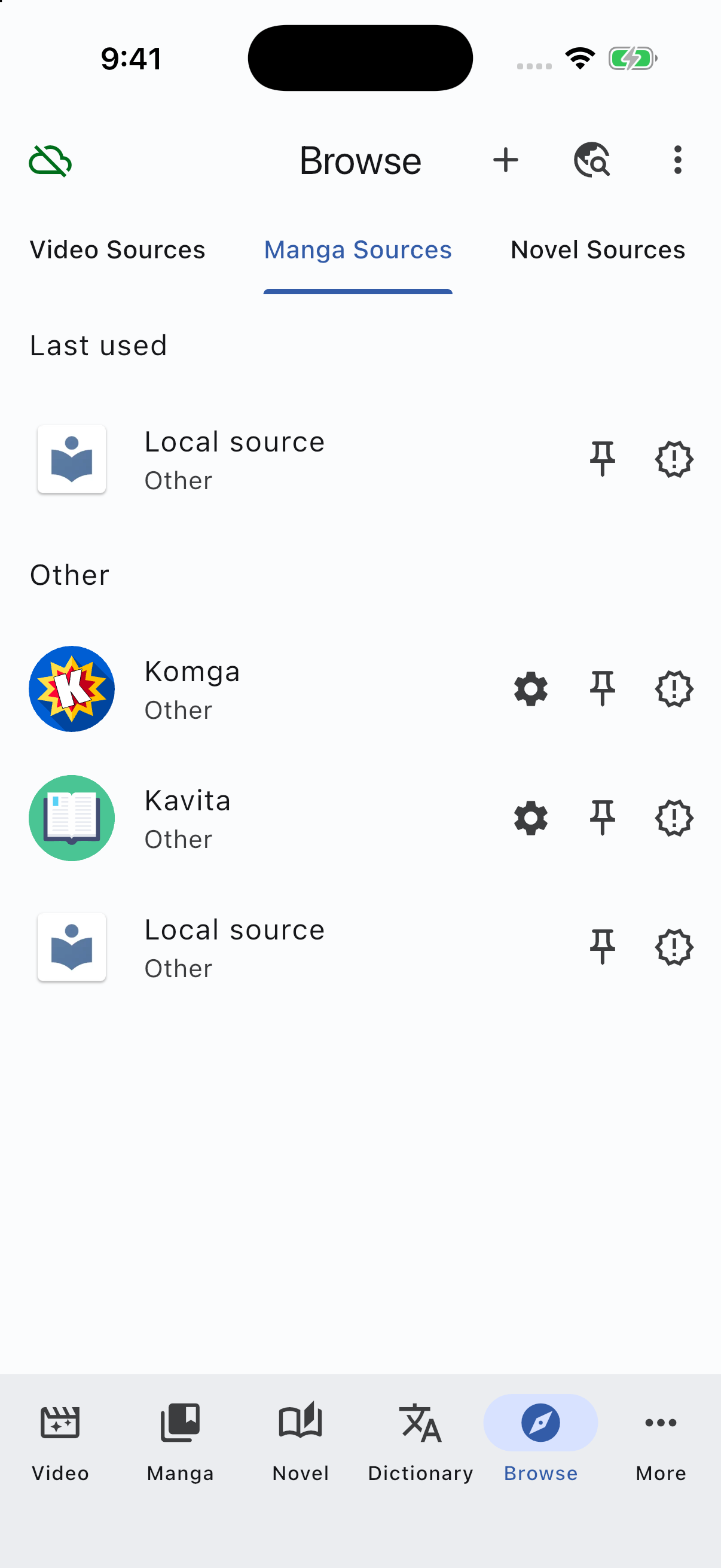
Start in Browse and choose Manga Sources, then open Local source.
Choose Import File for an archive, or Import Folder for a folder containing manga pages. Select the file or folder using your device’s normal picker.
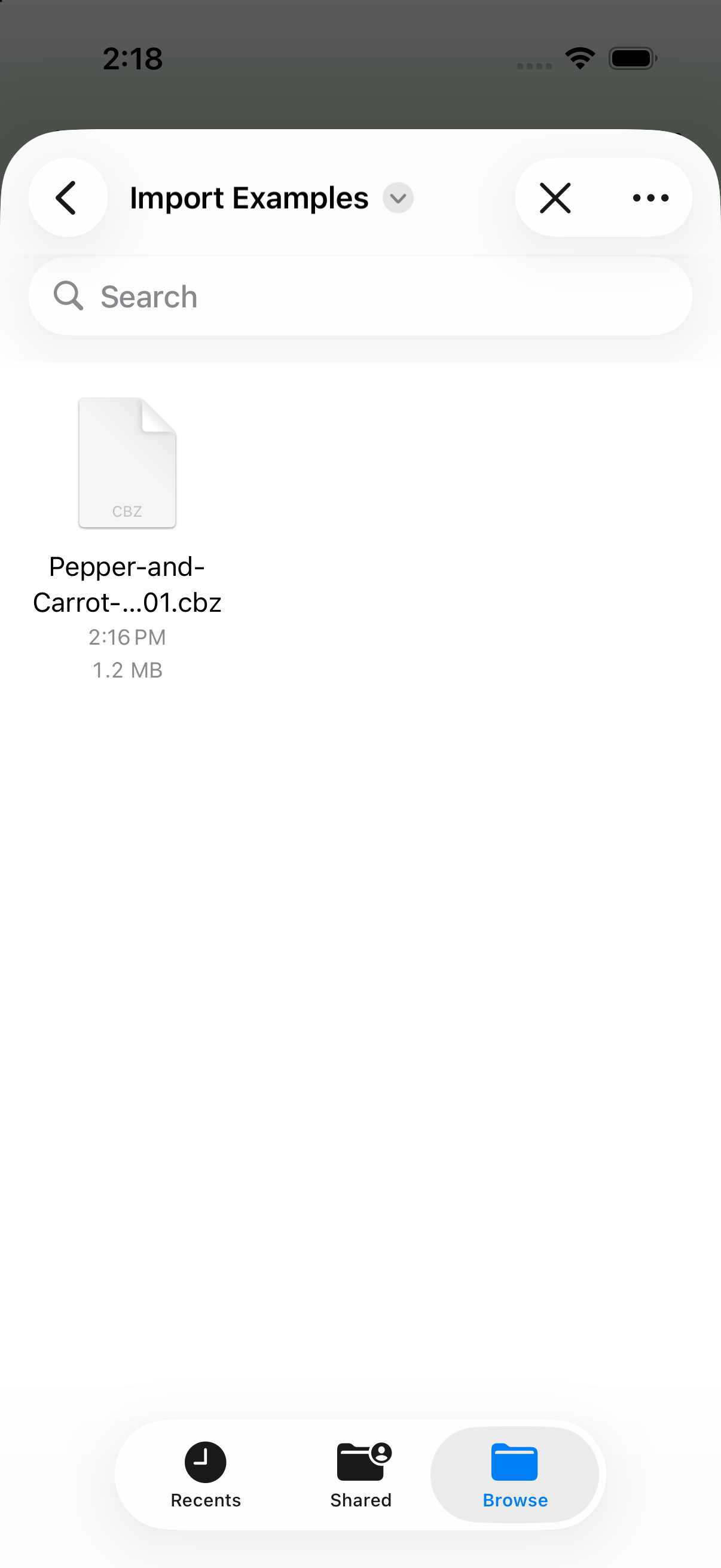
On iPhone, select your archive in Files. The wizard imports a copy rather than monitoring the original folder for changes.
Check the chapter details
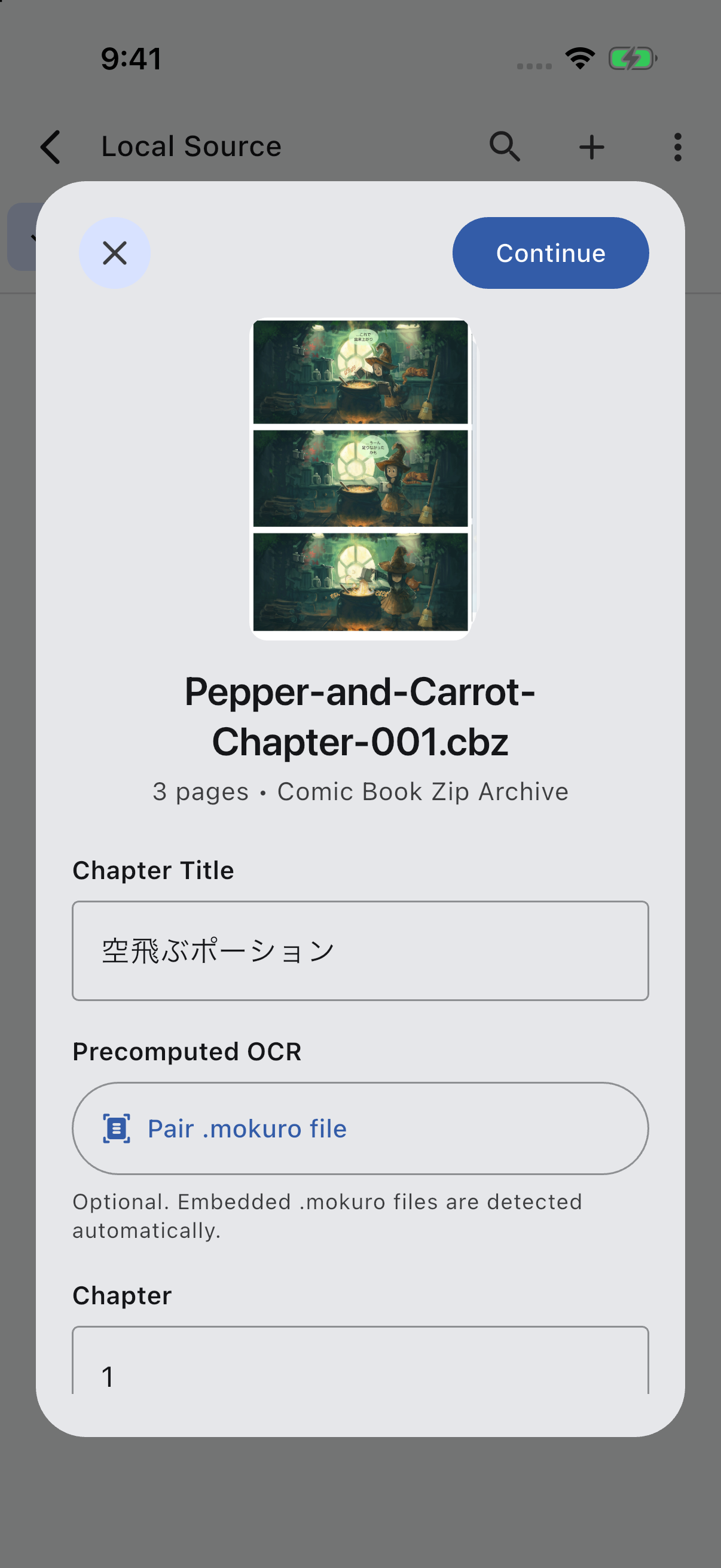
Manatan previews the pages and shows the file type and page count. Check Chapter Title and Chapter before continuing. A chapter or volume archive becomes one entry within a series; use a different chapter number for each entry in that series.
If the archive contains ComicInfo.xml metadata, some details may already be filled in. You can edit them before importing.
Check the title and chapter number. Scroll down to the Series selector.
Precomputed OCR is optional. If you already have a matching .mokuro file, use Pair .mokuro file. Embedded Mokuro data is detected automatically. You can still import ordinary manga images without a .mokuro file.
Choose a series and import
Scroll to Series. Select an existing series to add another chapter, or leave New Series selected and tap Continue.
For a new series, enter the name you want to see in Local Source, then tap Import. When adding to an existing series, check the selection and tap Import from the chapter details screen.
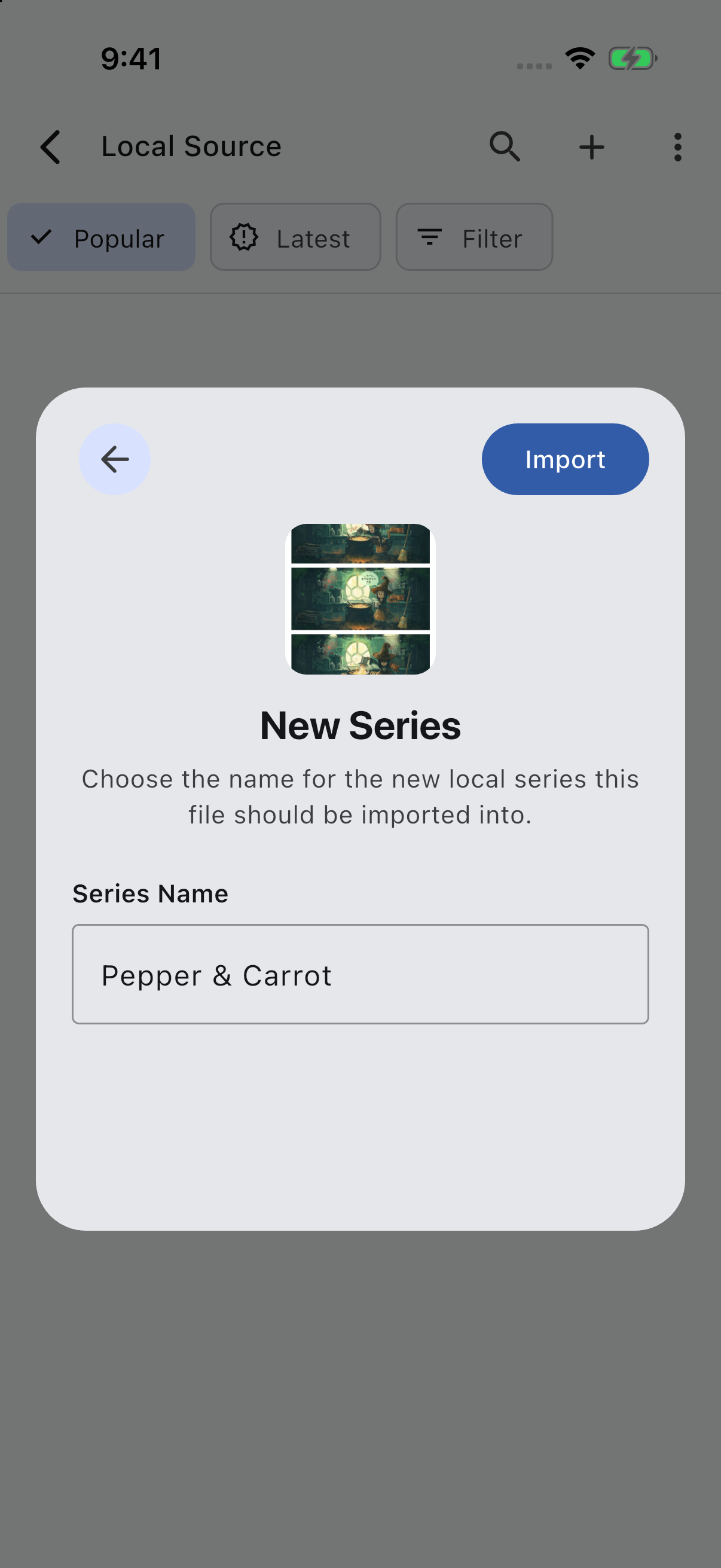
Give the series a recognizable name, then import.
Wait for the import confirmation, then open the title in Local source and choose a chapter. Add the title to your Manga Library if you want it there; importing from Local Source does not automatically add it to the library.
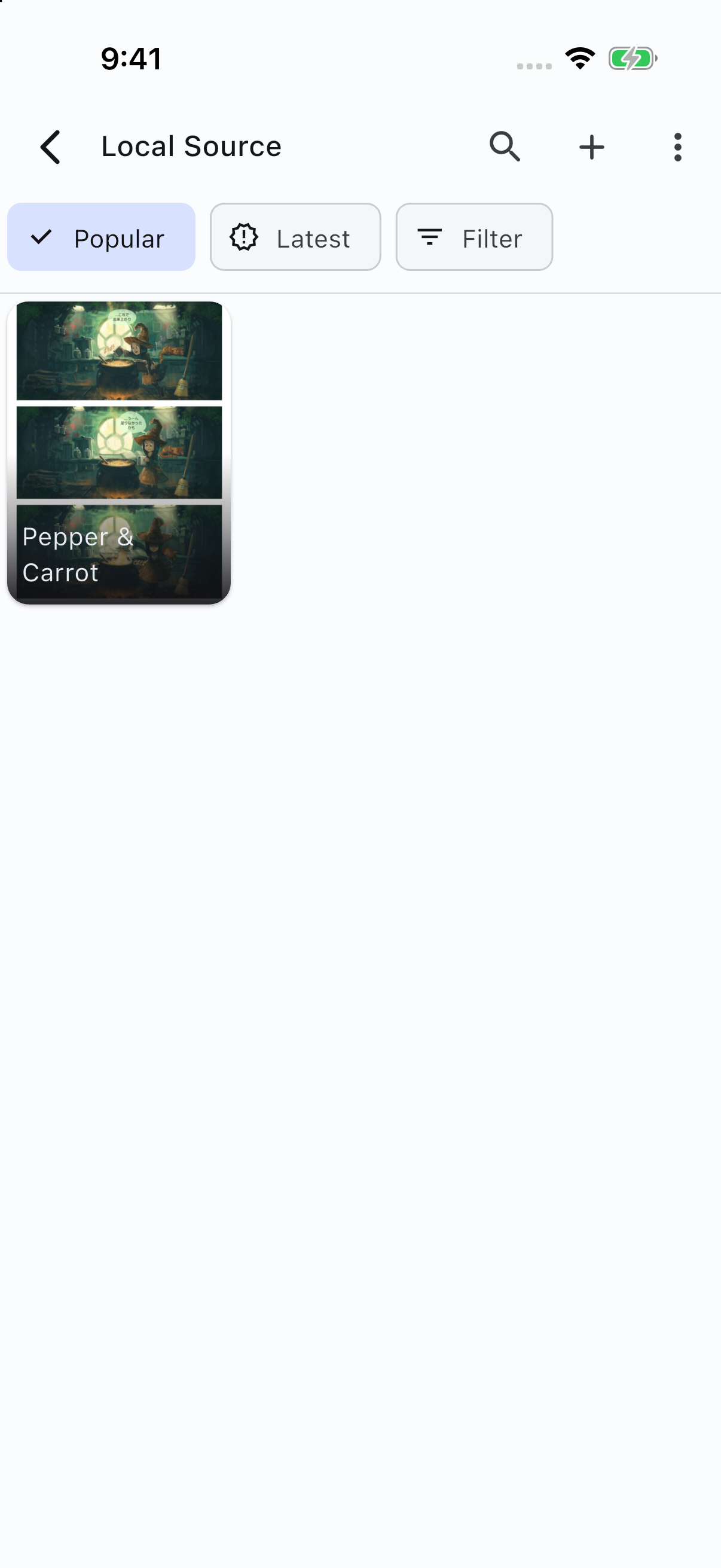
The imported series now appears in Local Source.
Method 2 Add manga through the file system
This method is useful when you want to keep organizing chapters in Finder, File Explorer, or your device’s file manager.
Connect your manga folder
Open Settings → Browse → Local Manga source location. On iPhone, you can reach Settings from More. Use Browse to select the folder that will contain your manga series, then Save. On mobile, use the system folder picker so Manatan receives access to that folder.
If you already chose a main Manatan folder during setup, its local-manga subfolder is the manga root. You can use that existing location instead of creating another one. Do not put files in a random app-private directory or guess a path: use the location shown in your settings.
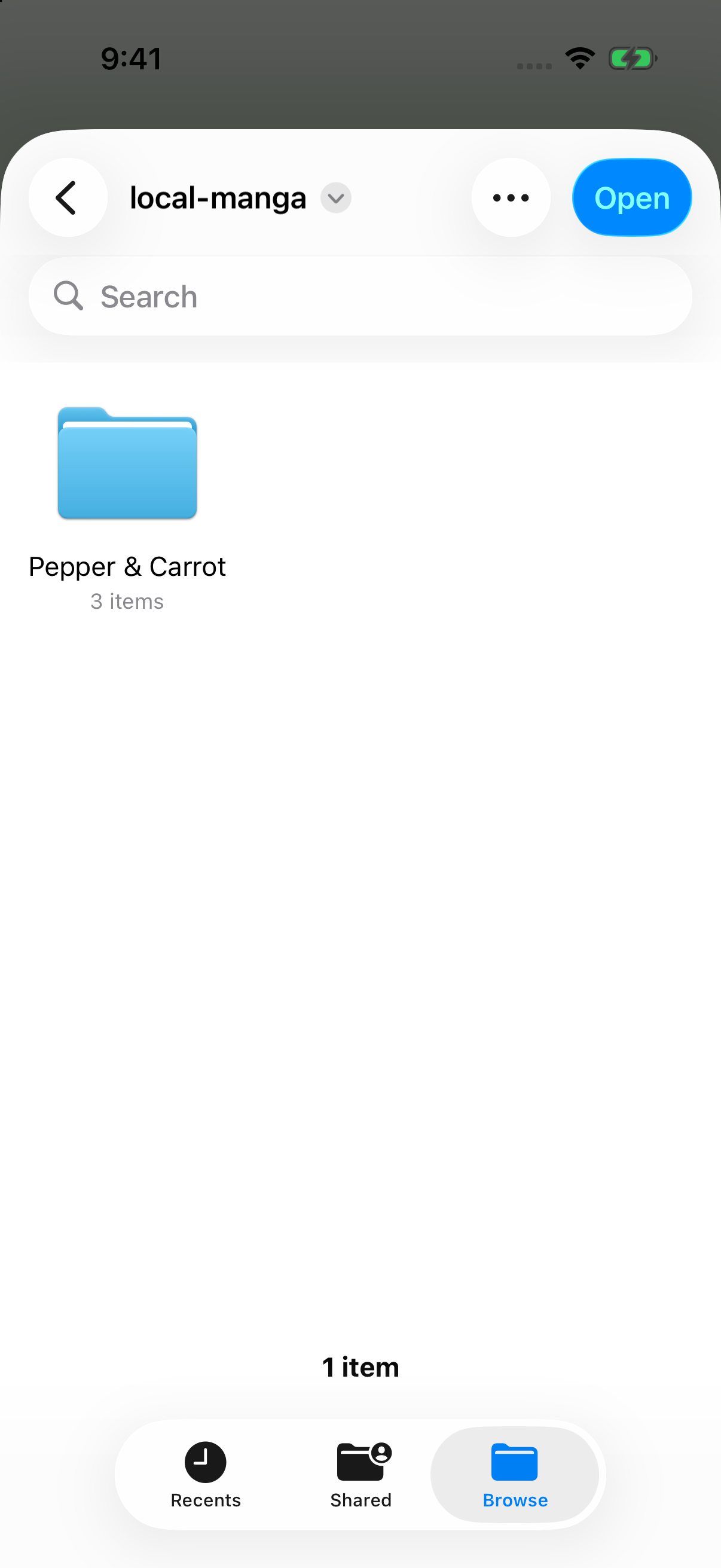
Select the manga root containing your series folders. On iPhone, tap Open here, then Save back in Manatan. Do not select the individual series folder as the root.
Put one series in each folder
For archives, organize the connected root like this:
local-manga/                 ← folder connected to Manatan
└── Pepper & Carrot/         ← series
    ├── Chapter 001.cbz      ← first chapter
    └── Chapter 002.cbz      ← next chapter
Keep each archive packed. For loose pages, make a folder for each chapter instead:
local-manga/
└── My Series/
    ├── Chapter 001/
    │   ├── 001.jpg
    │   ├── 002.jpg
    │   └── 003.jpg
    └── Chapter 002/
        ├── 001.jpg
        └── 002.jpg
The root can have another name if you connected your own folder. What matters is the structure: connected root → series → chapter archive or chapter folder.
Put page images directly inside each chapter folder, rather than inside another nested folder. Use consistent names such as 001.jpg, 002.jpg, and 003.jpg to keep the reading order clear.
Refresh Local Source
Finish copying the files, then return to Browse → Manga Sources → Local source and refresh the list by pulling down. Open the series and refresh its chapters if you added more files to an existing title.
These files stay in the connected folder. Keep that folder available, and avoid moving or renaming series and chapter paths after you start reading. To use the same manga on another device, copy the media there separately and connect its local folder; account sync is not a transfer of your manga files.
If your manga does not appear
- Check the root. Connect the folder containing your series folders, not a single chapter’s page folder.
- Check the layout. A chapter folder should contain the actual page images, not another wrapper folder.
- Check folder access. If you moved the folder or lost permission, reconnect the original location through the system picker.
- Check the file. An archive must contain readable page images. If Manatan reports that it is damaged, replace it with a working copy rather than only changing its extension.
- Check the chapter number. When using the wizard, an existing series cannot have two imported chapters with the same number.
Once the chapter opens, see how to read manga in Japanese without typing every unknown kanji for the OCR and dictionary workflow. If you have not added dictionaries yet, start with importing a dictionary into Manatan.
Image credits
The example comic is Pepper & Carrot, Episode 1, © David Revoy, licensed under CC BY 4.0. Japanese translation by guruguru, with contributions by Hồ Nhựt Châu. The screenshots were captured from the full Manatan app on a dedicated iPhone simulator using a three-page sample. The sample keeps its Japanese chapter metadata, with an English filename and series name for this guide. Appearance may differ with your theme and device.